How to create a service
Set up a paid or free service in CoreCoach so clients can sign up and pay through your own link.
Written By Jacob Elliott
Last updated 1 day ago
Services are the products you sell to clients: a coaching package, a subscription, a one-off program. Each service has its own payment link you can share.
Services live under Business in the left menu. The Services section has four pages: Services (your service list), Payments, Subscriptions and Payouts. You need a connected Stripe account to charge for services. See How to connect Stripe.
Create a service
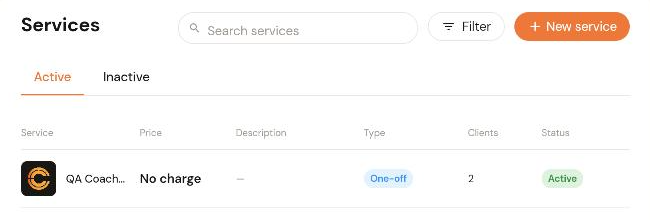
In the left menu, click Services. The list shows Active and Inactive services, with each service's price, type, client count and status.
Click + New service in the top right.
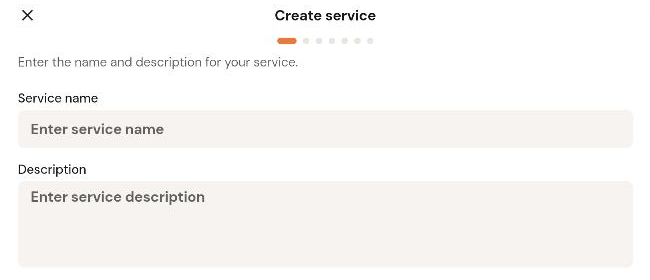
Enter a Service name and an optional Description. Click Next.
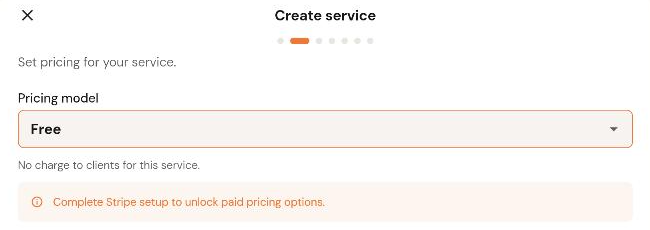
Choose a Pricing model. Until your Stripe account is connected, the only option is Free and the wizard shows "Complete Stripe setup to unlock paid pricing options". Connect Stripe first if you want to charge for the service. Click Next.
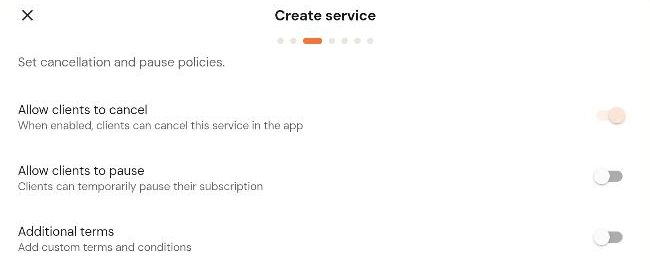
Set the cancellation and pause policies. Allow clients to cancel lets clients cancel the service themselves in the app. Allow clients to pause lets them temporarily pause a subscription. Turn on Additional terms to add your own terms and conditions. Click Next.
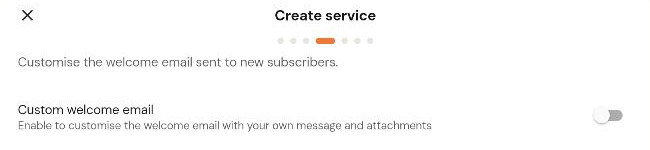
Optionally turn on Custom welcome email to replace the default welcome email sent to new subscribers with your own message and attachments. Click Next.
Optionally turn on Require form submission so clients must complete one of your forms after purchase. Build the form first under Coaching. See How to create forms. Click Next.

Optionally click + Add content to attach content from your Content Vault that clients receive when they purchase the service. Click Next.
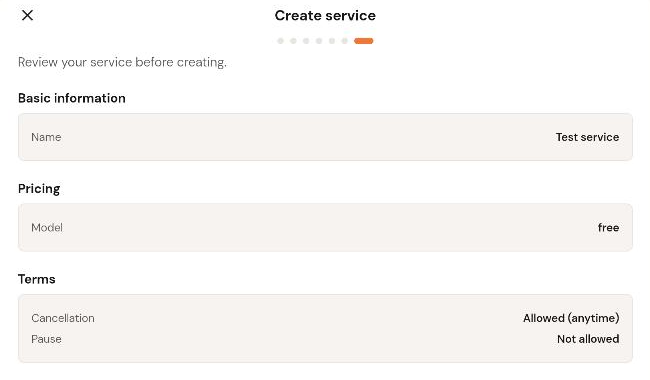
Review the summary and click Create service.
Share or manage a service
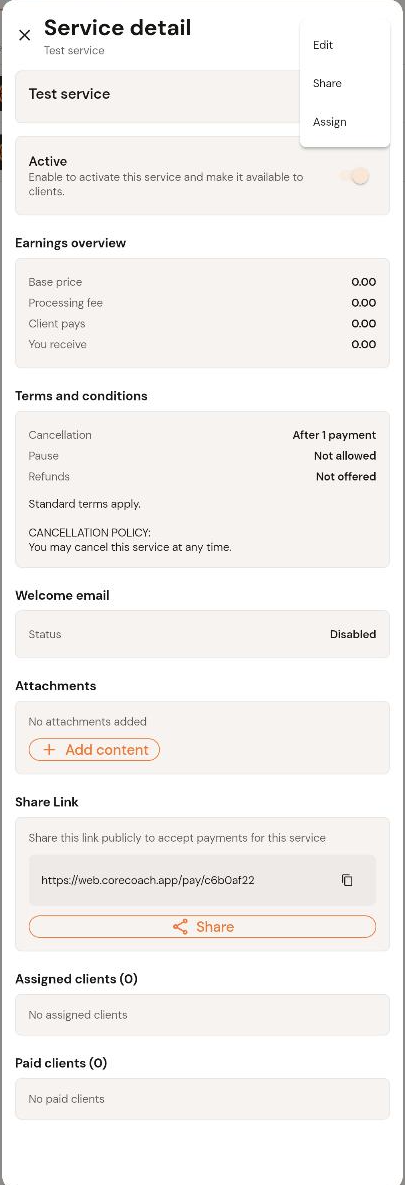
Click a service in the list to open Service detail. From here you can:
Turn the Active toggle off to hide the service from clients. Inactive services move to the Inactive tab.
See the Earnings overview (base price, processing fee, what the client pays and what you receive), the Terms and conditions, the Welcome email status and any Attachments.
Copy the Share Link or click Share. Anyone with the link can sign up and pay for the service.
See Assigned clients and Paid clients.
The three-dot menu in the top right has Edit, Share and Assign. Use Assign to give the service to an existing client directly.