How to create, edit or delete metrics
Use built-in metrics or create your own for clients to log through Metric habits.
Written By Jacob Elliott
Last updated 1 day ago
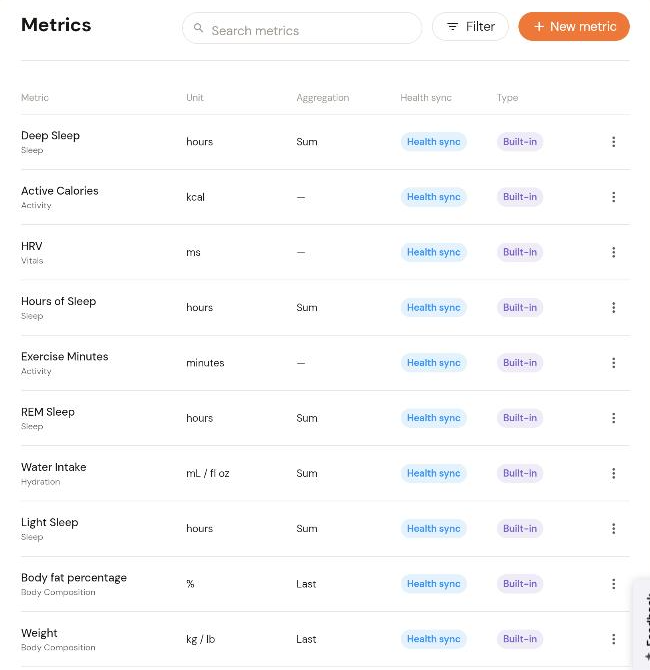
Metrics are the numbers clients log, such as weight, water intake or hours of sleep. Clients log them through a Metric-type habit. See How to create a habit.
Built-in metrics
In the left menu, open Clients and click Metrics. The list shows each metric's unit, aggregation (how multiple entries in a day are combined, for example Sum or Last), whether it syncs from the client's phone health data (Health sync) and whether it is Built-in or custom. Built-in metrics include Weight, Body fat percentage, Water Intake, Active Calories, Exercise Minutes, HRV and sleep metrics.
Create a custom metric
Click + New metric in the top right.
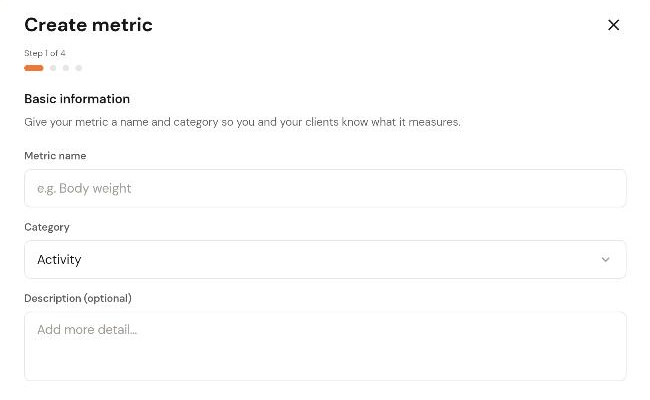
Enter a Metric name, choose a Category from the dropdown and add an optional Description. Click Next.
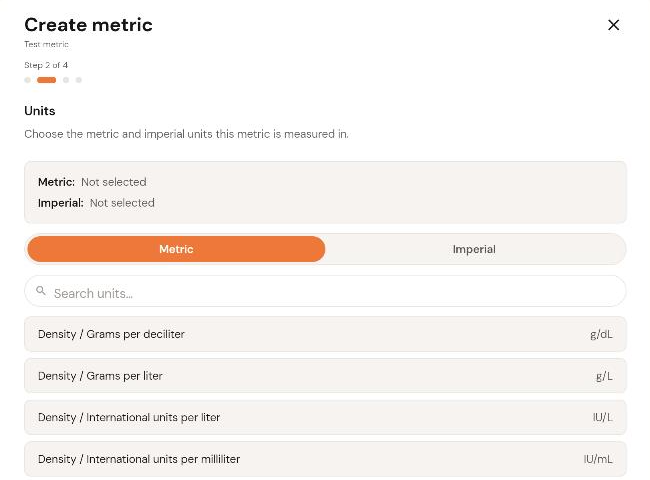
Choose the Units. You must pick both a Metric unit and an Imperial unit. Use the toggle to switch systems and search or scroll the list. The selected units show at the top. Click Next.
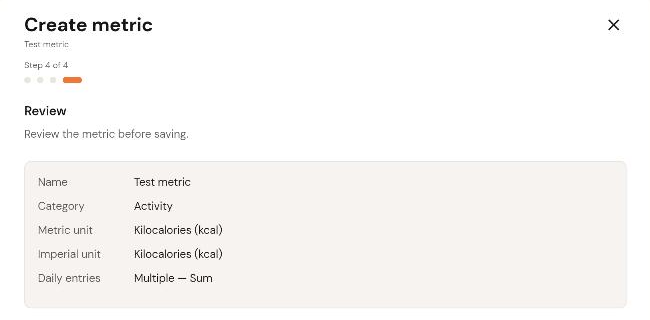
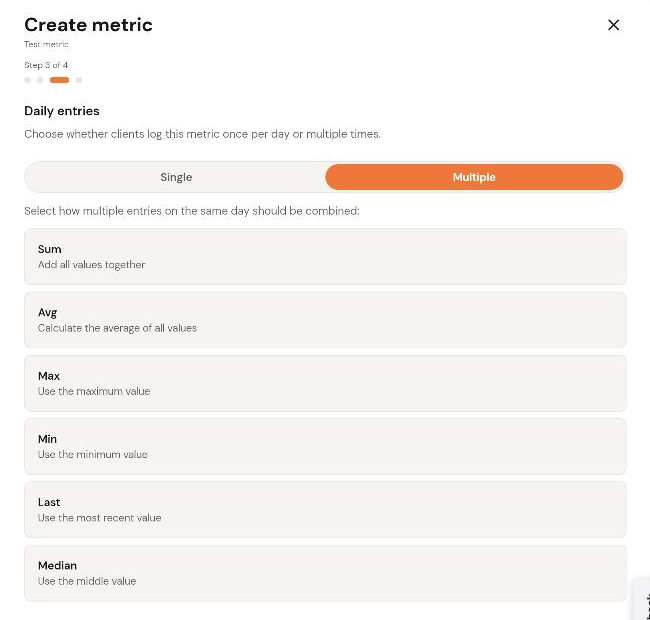
Choose the Daily entries rule. Single means the client logs one value a day and logging again replaces it. Multiple lets them log several times a day and asks how to combine the entries: Sum, Avg, Max, Min, Last or Median. Click Next.
Review the metric and click Create metric. It appears in the Metrics list as a Custom metric and can be picked when you build a Metric habit.
Edit, duplicate or delete a metric
In the Metrics list, click the three-dot menu at the right of the metric's row and choose Edit, Duplicate or Delete.