How to assign check-in photos to your client
Collect progress photos from clients by attaching poses to a Photo habit.
Written By Jacob Elliott
Last updated 18 minutes ago
Check-in photos are collected through a Photo-type habit. The habit tells the client which poses to photograph and how often.
1. Set up your poses
In the left menu, open Clients and click Poses. Create the poses you want (for example Front, Side, Back), each with an optional reference image and instructions. See How to create and manage poses.
2. Create a Photo habit
Open Clients > Habits and click + New habit.
Enter a name such as "Weekly check-in photos", pick a category if you want, and click Next.
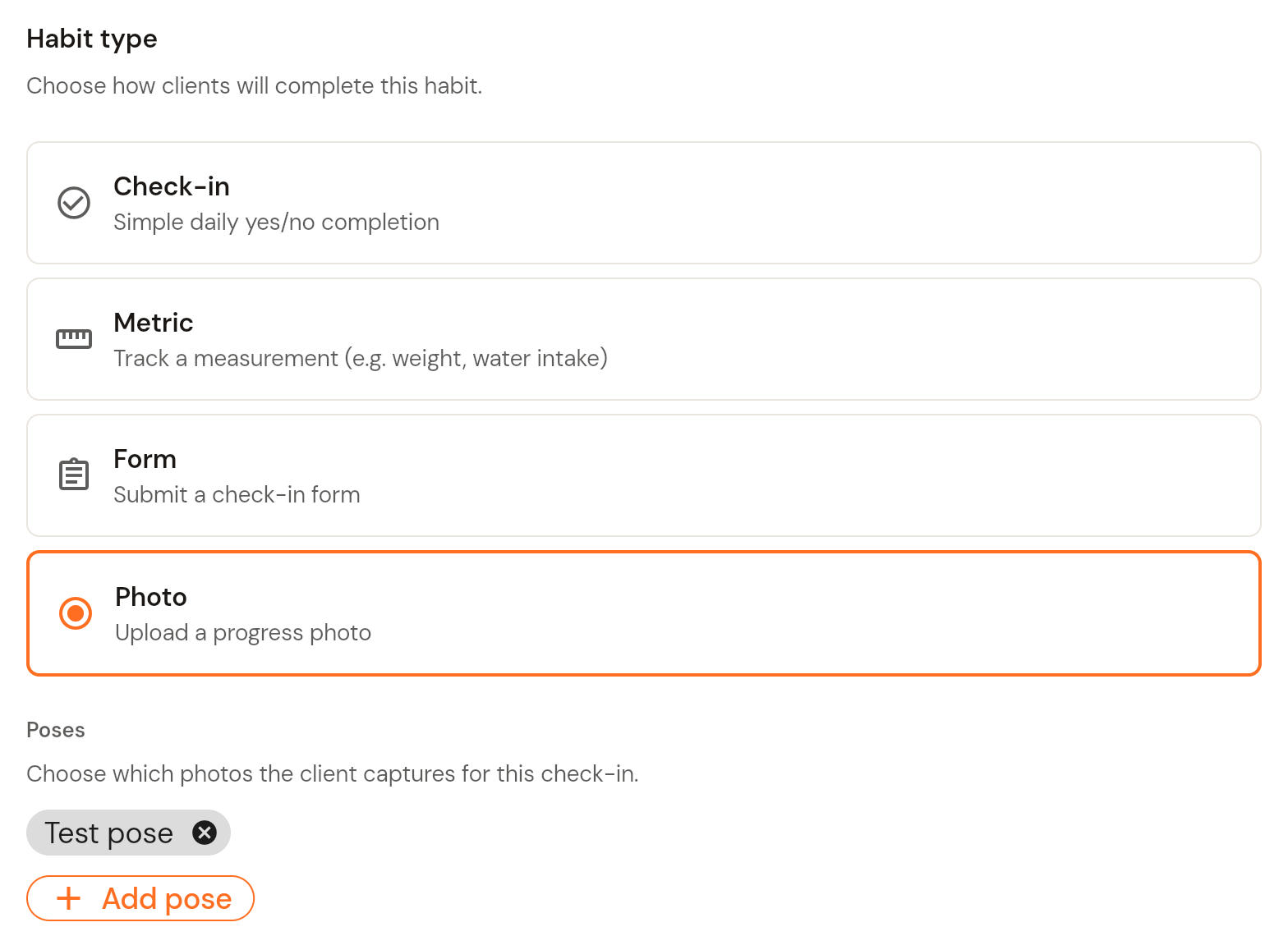
On the Habit type step choose Photo ("Upload a progress photo"), then under Poses click + Add pose and pick each pose the client must capture. Selected poses show as chips. Click Next.
Set the frequency (Daily, Specific days or Weekly), the timing and reminders, then review and click Create habit. The full wizard is covered in How to create a habit.
3. Assign the habit
Open the habit from the Templates list, click the three-dot menu and choose Assign to client. Pick the client and a start date, then click Assign habit. See How to assign a habit to your client. You can also add the habit to a habit plan.