How to Set Up White Labelling
White labelling allows you to customise the look and feel of CoreCoach to match your brand.
Written By Jacob Elliott
Last updated About 2 months ago
White labelling lets you replace CoreCoach's colour and logos with your own brand. Once saved, your branding applies across the app for you and for your clients.
Set up your branding
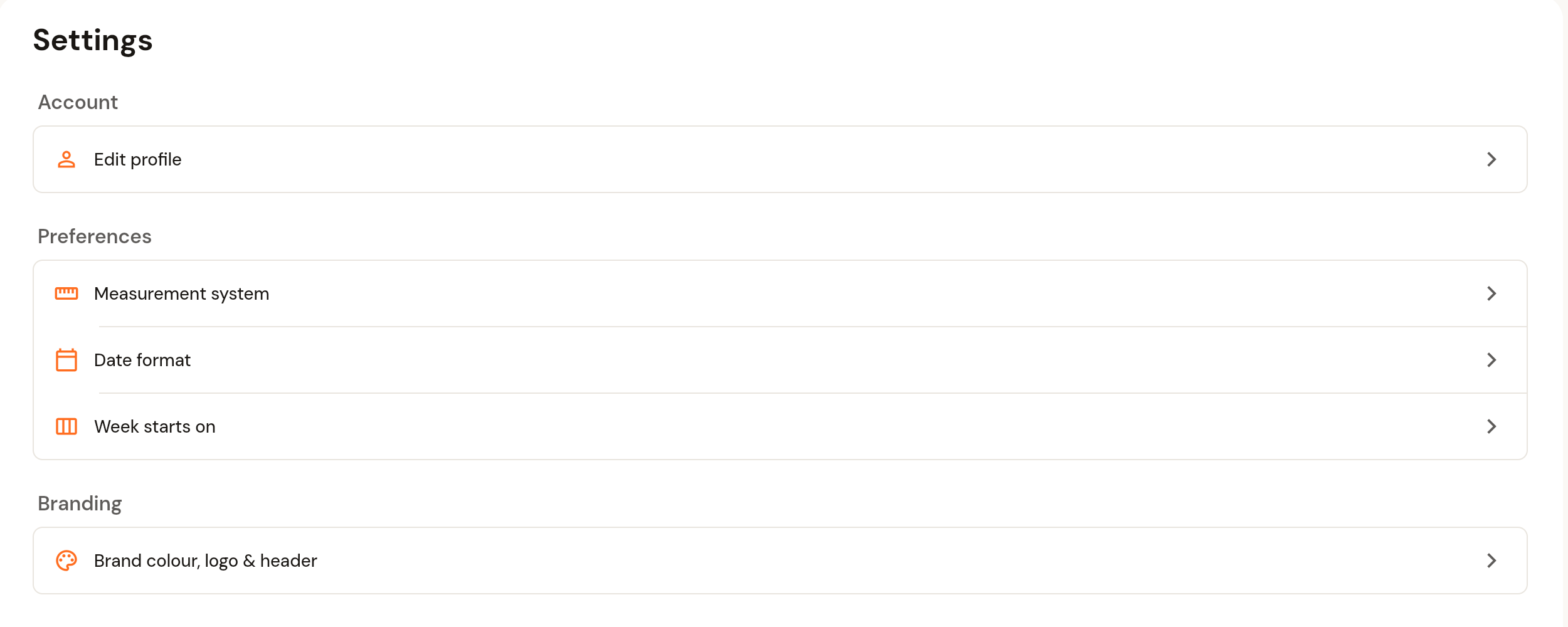
In the left menu, click Settings (bottom left).
Under Branding, click Brand colour, logo & header.
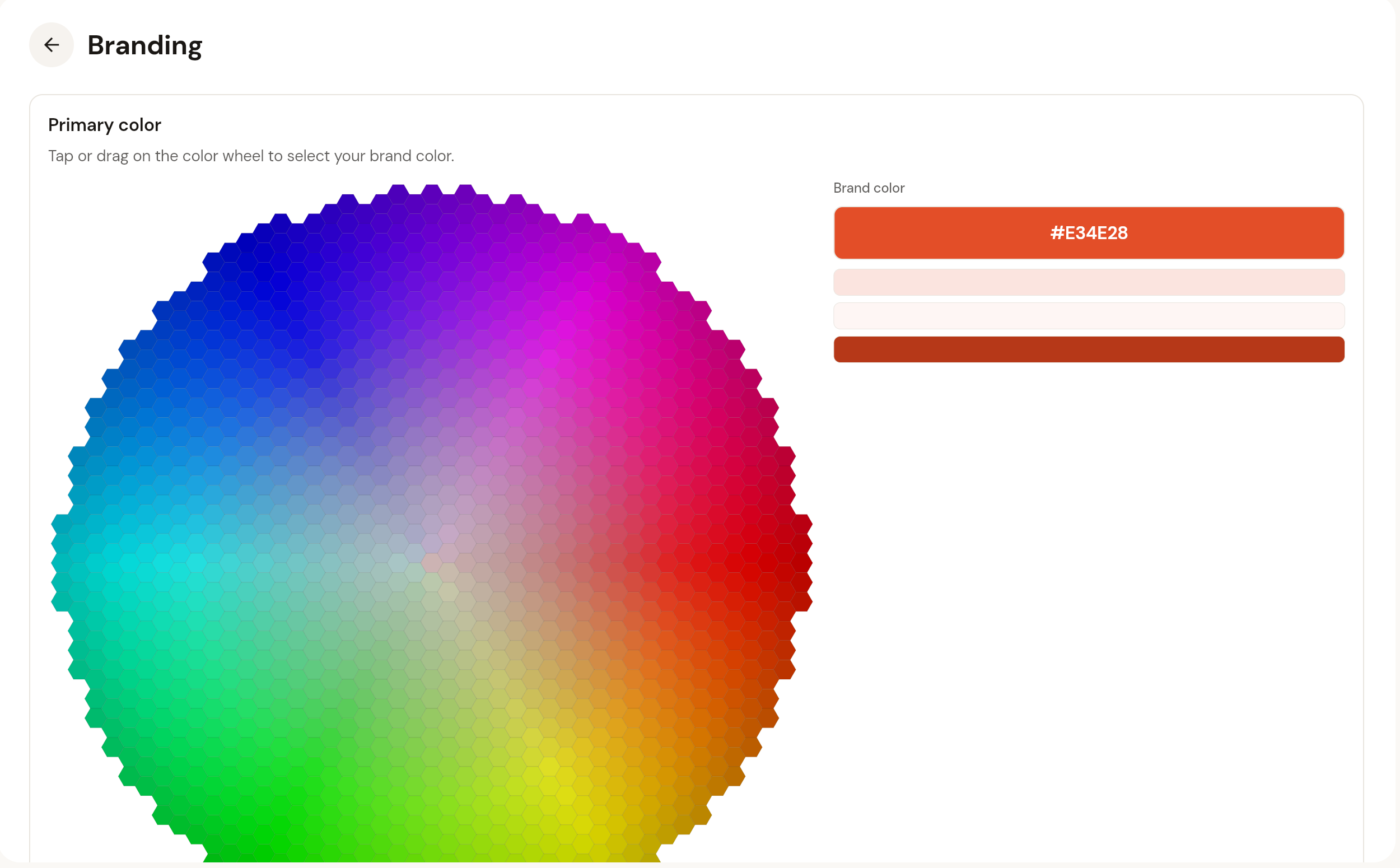
Primary colour: click or drag on the colour wheel to pick your brand colour. The hex value and the lighter and darker shades CoreCoach will use are shown on the right.
Logos: upload a square brandmark (recommended 512 x 512 px) and a horizontal logo (recommended 800 x 200 px). These replace the CoreCoach logos in the app.
Cover image: upload a header image for your profile (recommended 1200 x 400 px). If you leave this empty, a gradient of your primary colour is shown instead.
What white labelling does not change
The name of the app.
The app icon on your or your client's phone home screen.
Both stay as CoreCoach.
Was this helpful?
Still need help? Share an idea