How to create a custom recipe
Build your own recipes from ingredients in CoreCoach so you can add them to nutrition plans and meal plans.
Written By Jacob Elliott
Last updated About 2 months ago
Custom recipes let you combine foods into a single item with its own nutrition totals and serving sizes. Recipes are created from the Recipes page under Nutrition in the left menu.
Create a recipe
In the left menu, open Nutrition and click Recipes. You can also click the + next to Recipes to start a new recipe straight away.
Click + New recipe in the top right.

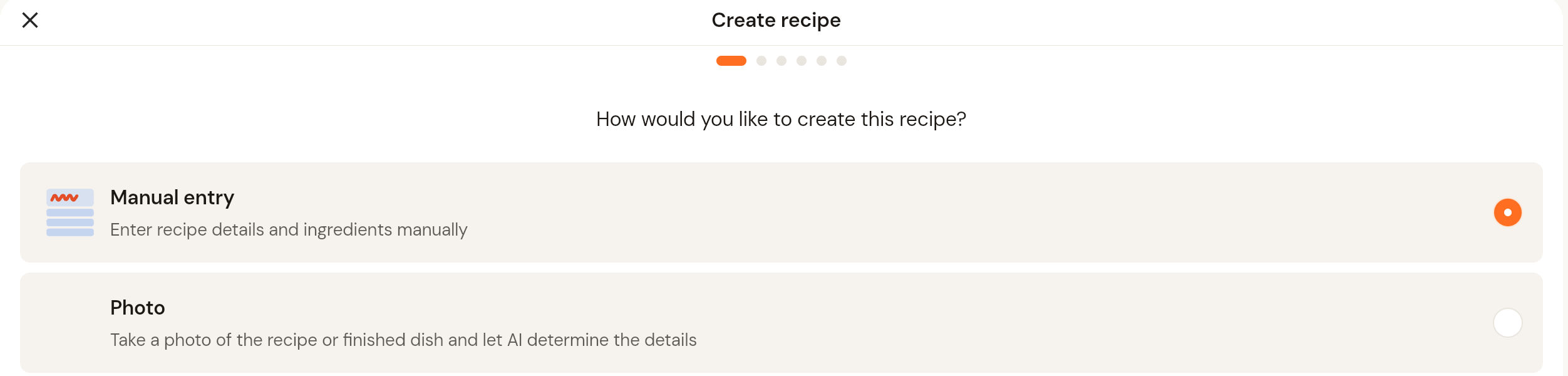
Choose how to create the recipe. Manual entry lets you enter the details and ingredients yourself. Photo takes a photo of the recipe or finished dish and uses AI to determine the details. This guide uses Manual entry. Click Next.
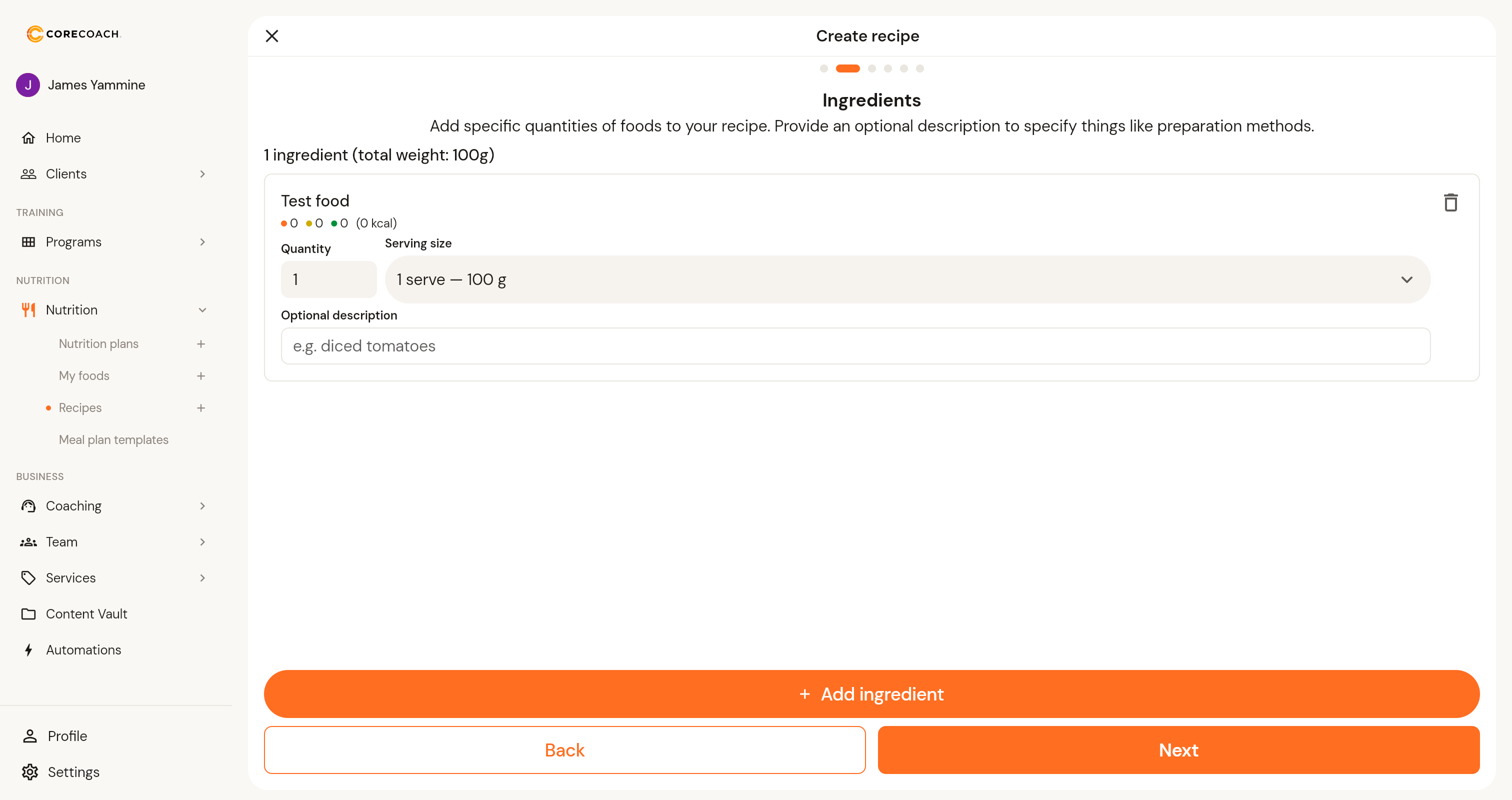
Add the Ingredients. Click + Add ingredient, search for a food and click the + next to it. Each ingredient shows a Quantity, a Serving size dropdown and an Optional description (for example "diced"). The ingredient count and total weight update at the top. Use the bin icon to remove an ingredient. Click Next when done.
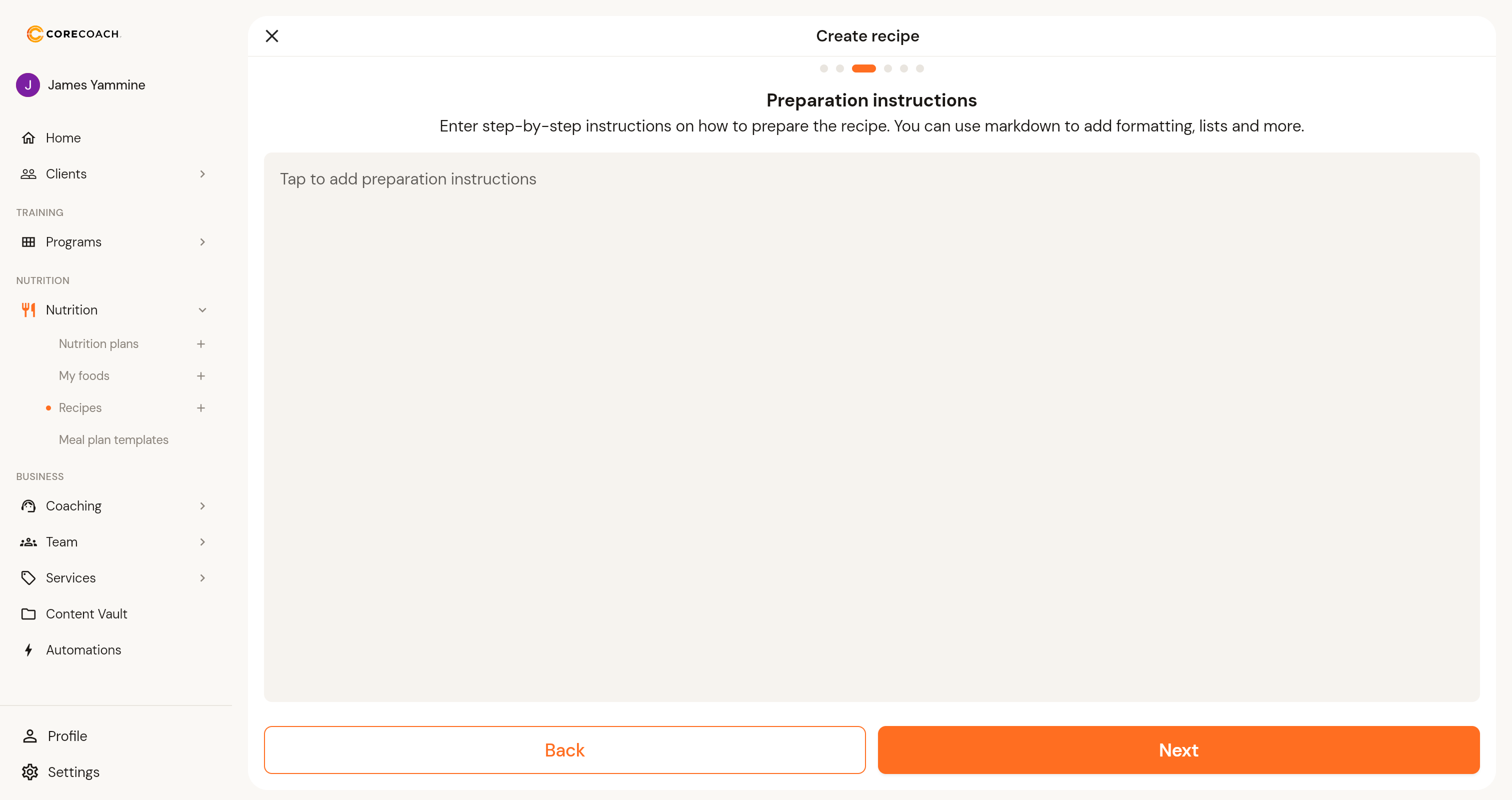
Enter the Preparation instructions. Instructions are required before you can finish the recipe. Markdown is supported for formatting and lists. Click Next.
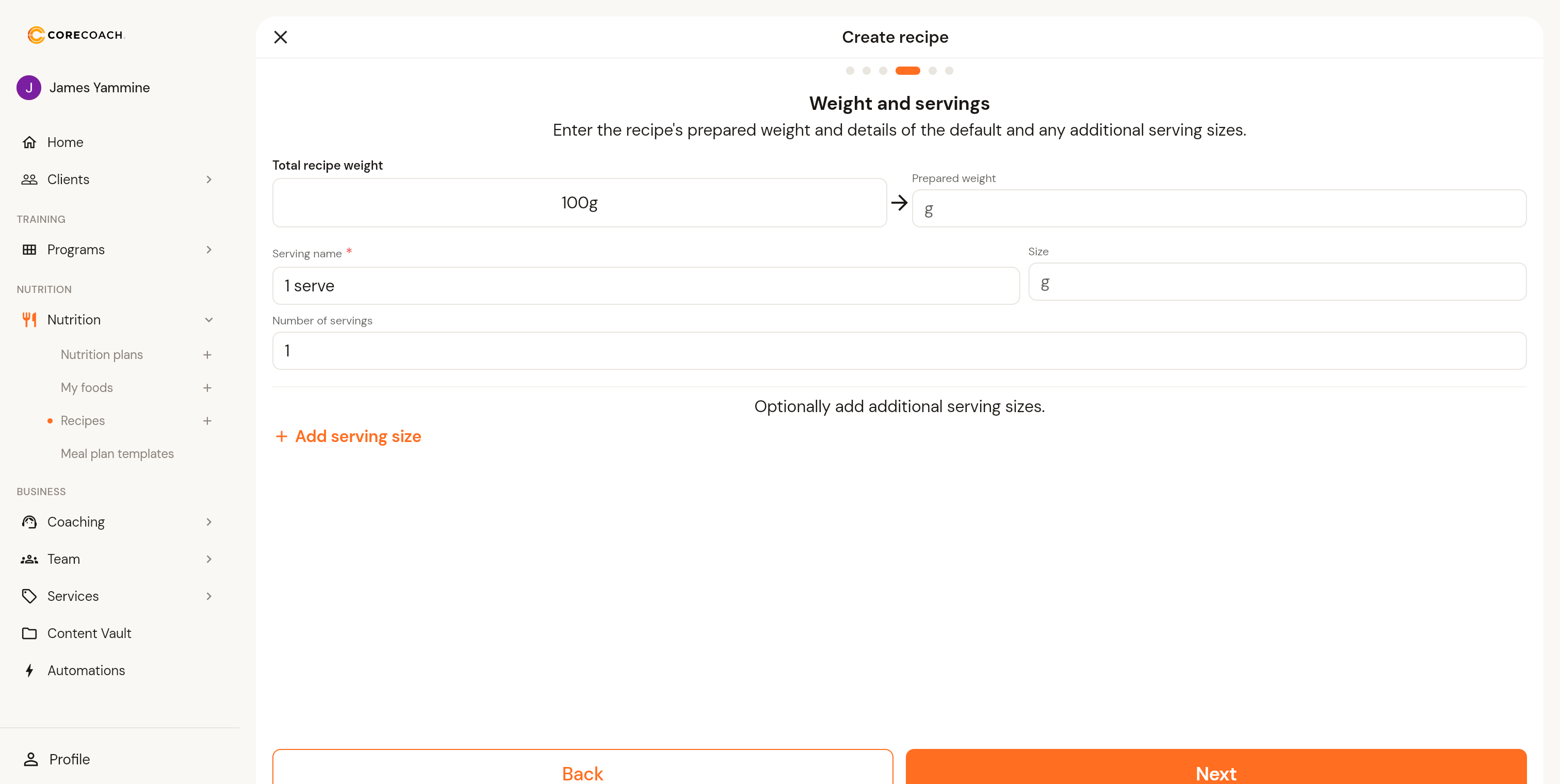
Set the Weight and servings. The Total recipe weight is calculated from the ingredients. Enter the Prepared weight if the recipe weighs less after cooking, then give the default serving a Serving name, a Size and the Number of servings. Click Add serving size for extra serving options. Click Next.
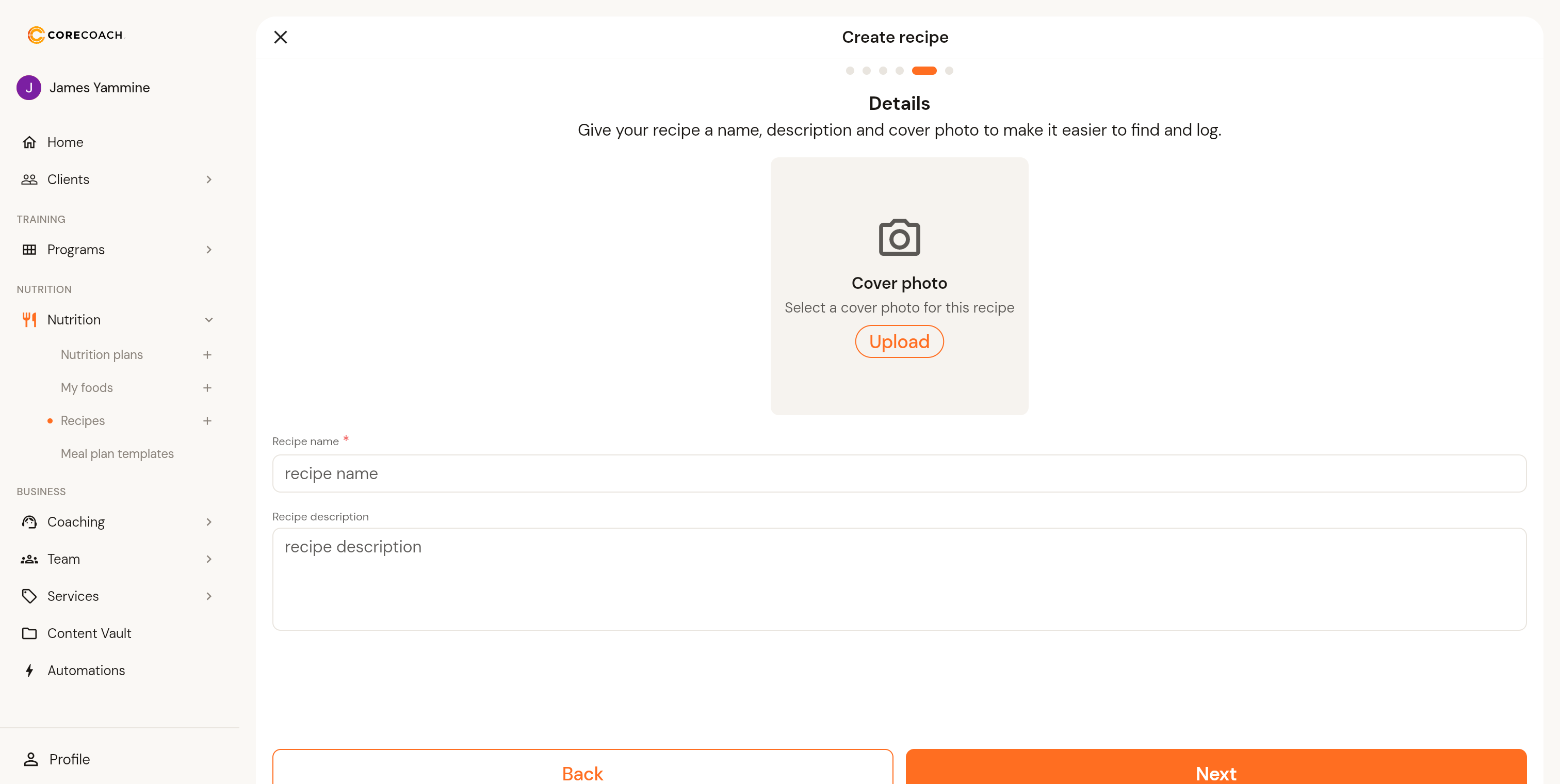
Enter the Details: an optional Cover photo (click Upload), the Recipe name (required) and an optional Recipe description. Click Next.
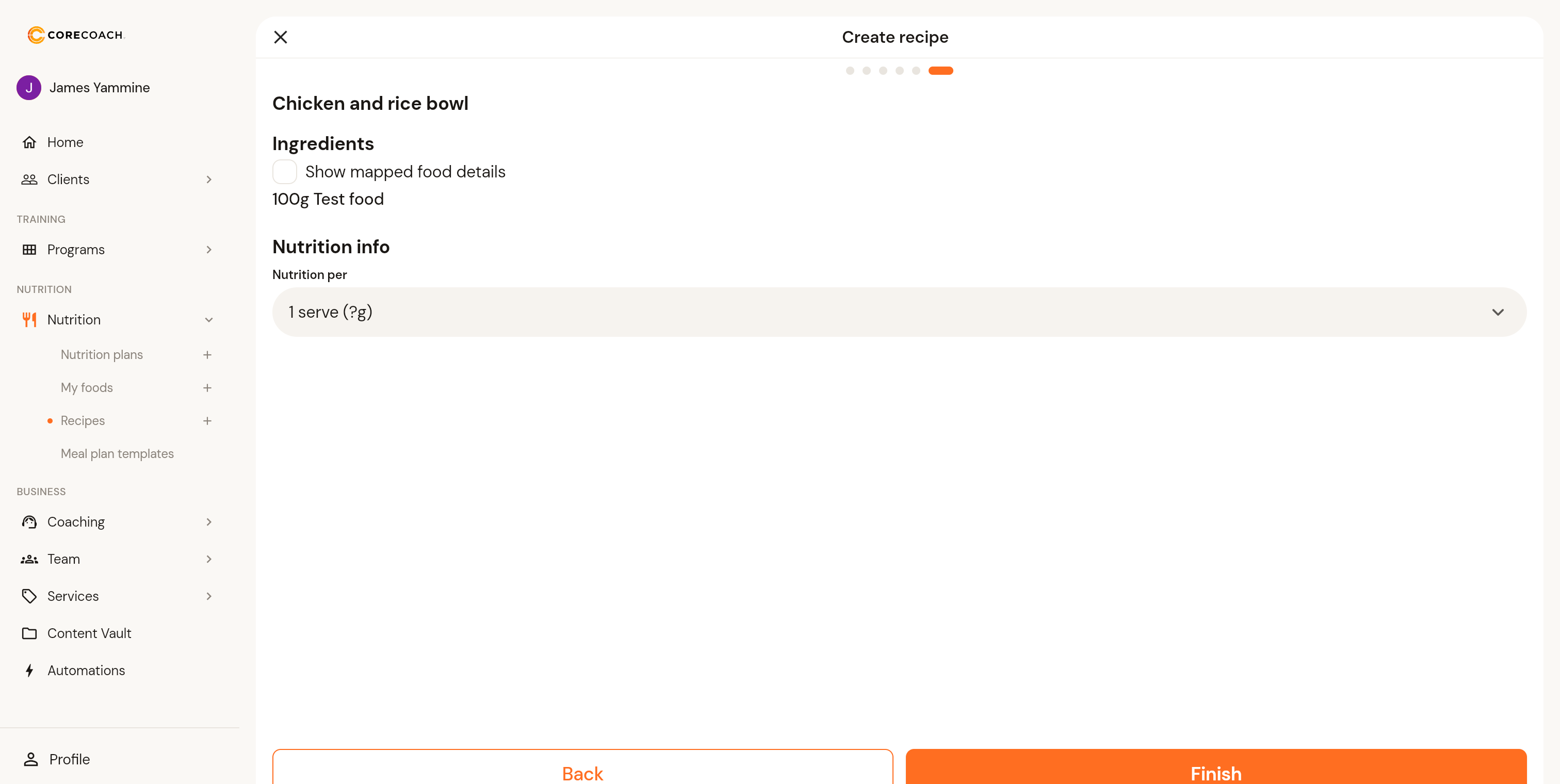
Review the summary. Tick Show mapped food details to see the database foods and serving conversions used for each ingredient. The Nutrition per dropdown switches the nutrition totals between serving sizes. Click Finish to save the recipe.
Was this helpful?
Still need help? Share an idea