How to auto-portion foods and use meal plan templates
Let CoreCoach size the portions in a nutrition plan for you, and start plans from a saved meal plan template.
Written By Jacob Elliott
Last updated About 2 months ago
Once a client's nutrition plan exists (see How to create and assign a nutrition plan), you can have CoreCoach work out portion sizes instead of entering them yourself, and you can start from a saved template rather than a blank plan.
Auto-portion the foods in a plan
In the left menu, click Nutrition, then Nutrition plans. Click the client, then the three-dot menu on the plan and choose Edit.
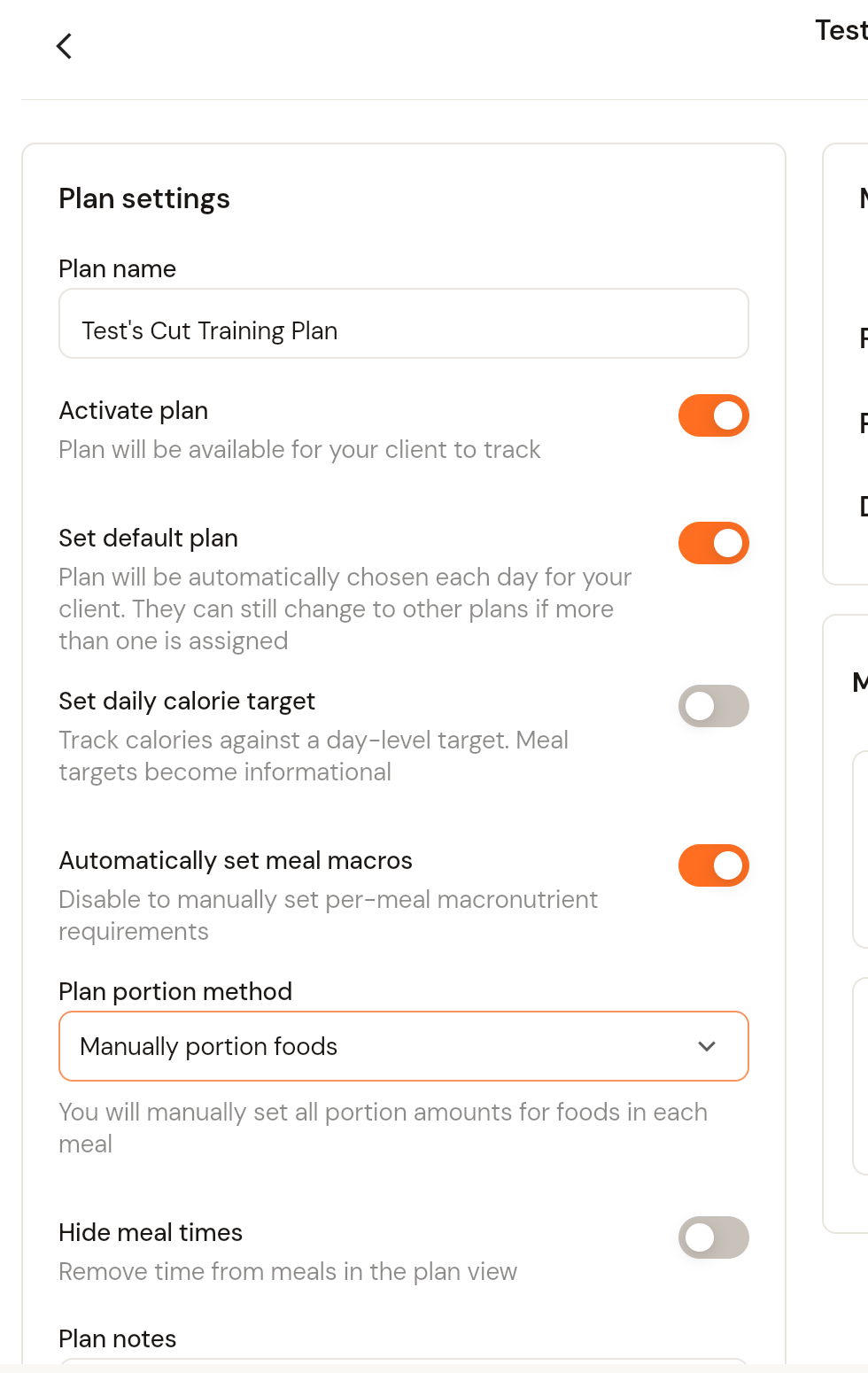
Under Plan settings, open the Plan portion method dropdown. The options are:
Auto portion foods: food portions are suggested automatically to hit each meal target.
Manually portion foods: you set every portion amount yourself.
Set meal macros to portions: each meal's planned macros match the sum of its food portions.
Choose Auto portion foods, then add foods and recipes to each meal. Leave Automatically set meal macros on if you want CoreCoach to split the day's targets across meals for you.
Click Done.
Start a plan from a meal plan template
Build your templates first under Nutrition, then Meal plan templates.
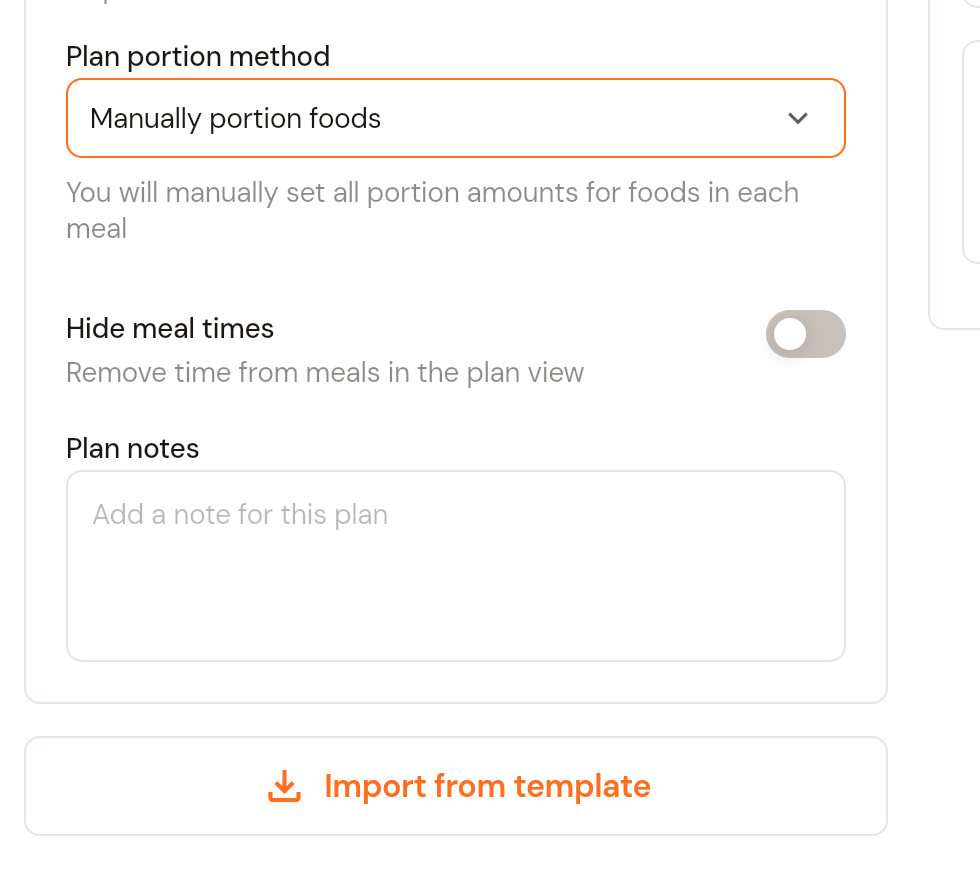
In a client's plan editor, click Import from template (below the plan settings).
Search for the template and select it. Importing a template replaces every meal in the plan, so do this before you add meals by hand.
Adjust the imported meals as needed, then click Done.
Was this helpful?
Still need help? Share an idea