How to log your food
How to log your food in CoreCoach
Written By Jacob Elliott
Last updated 6 months ago
Logging your food as a client is made easy in CoreCoach, let's walk through how you can do it.
Video walkthrough of how to log your food
(Please note - if you can not see a meal plan in your account, check to see if you need to select a meal plan - or contact your coach as they may not have assigned one yet)
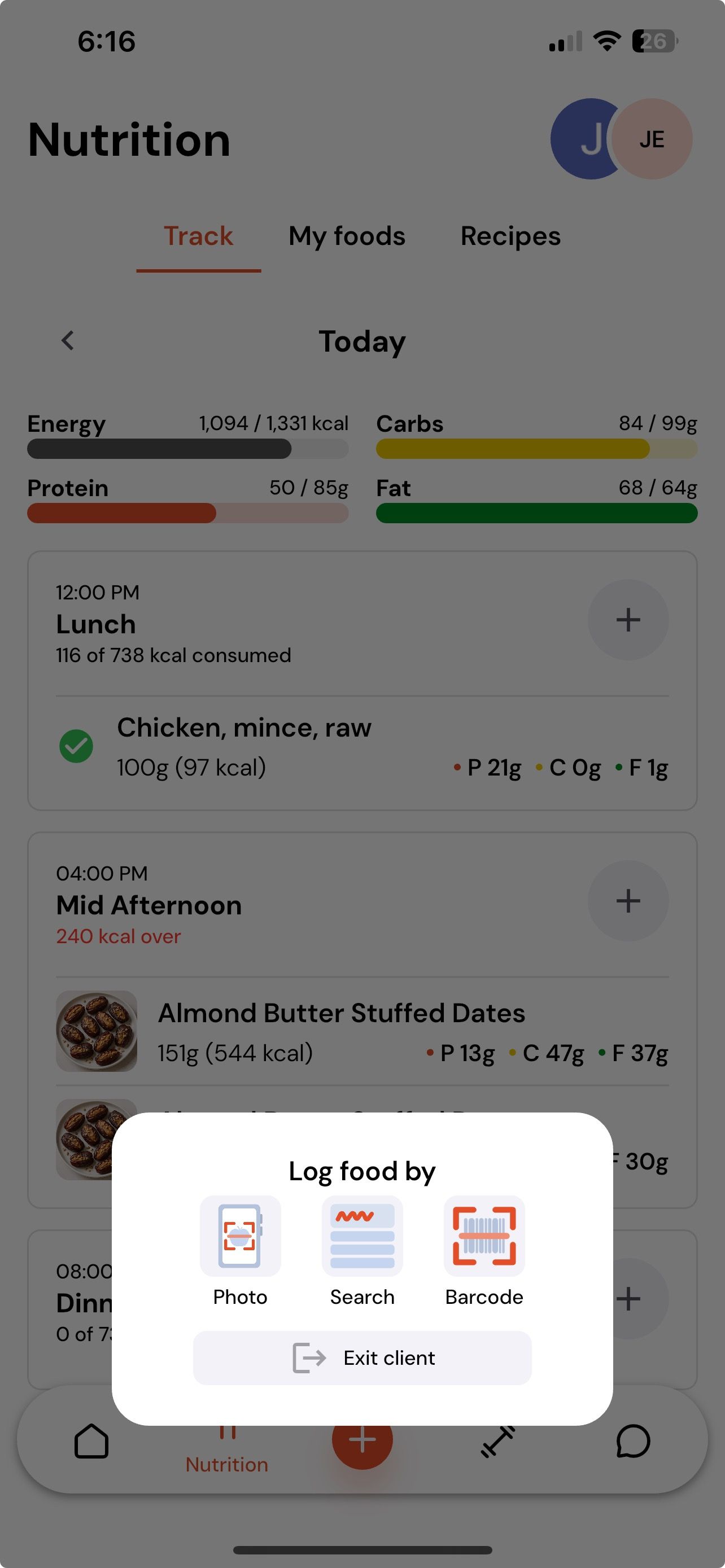
When you are logged into CoreCoach, you can log your food by pressing the orange + button in the centre bottom of the screen.
This will bring up 3 different options to log your food via,
Photo
Search
Barcode
Lets walk through all 3.
Logging with a Photo
This is the Scan Food page, where you can log meals quickly using AI.
Upload photo: Take or upload a picture of your meal. Try to capture the whole plate and leave out anything you’re not eating.
Optional description: Add a short note about the meal to help the AI be more accurate.
Once your photo and description are ready, press Next to continue.
Adjusting Macros & Assigning the Meal
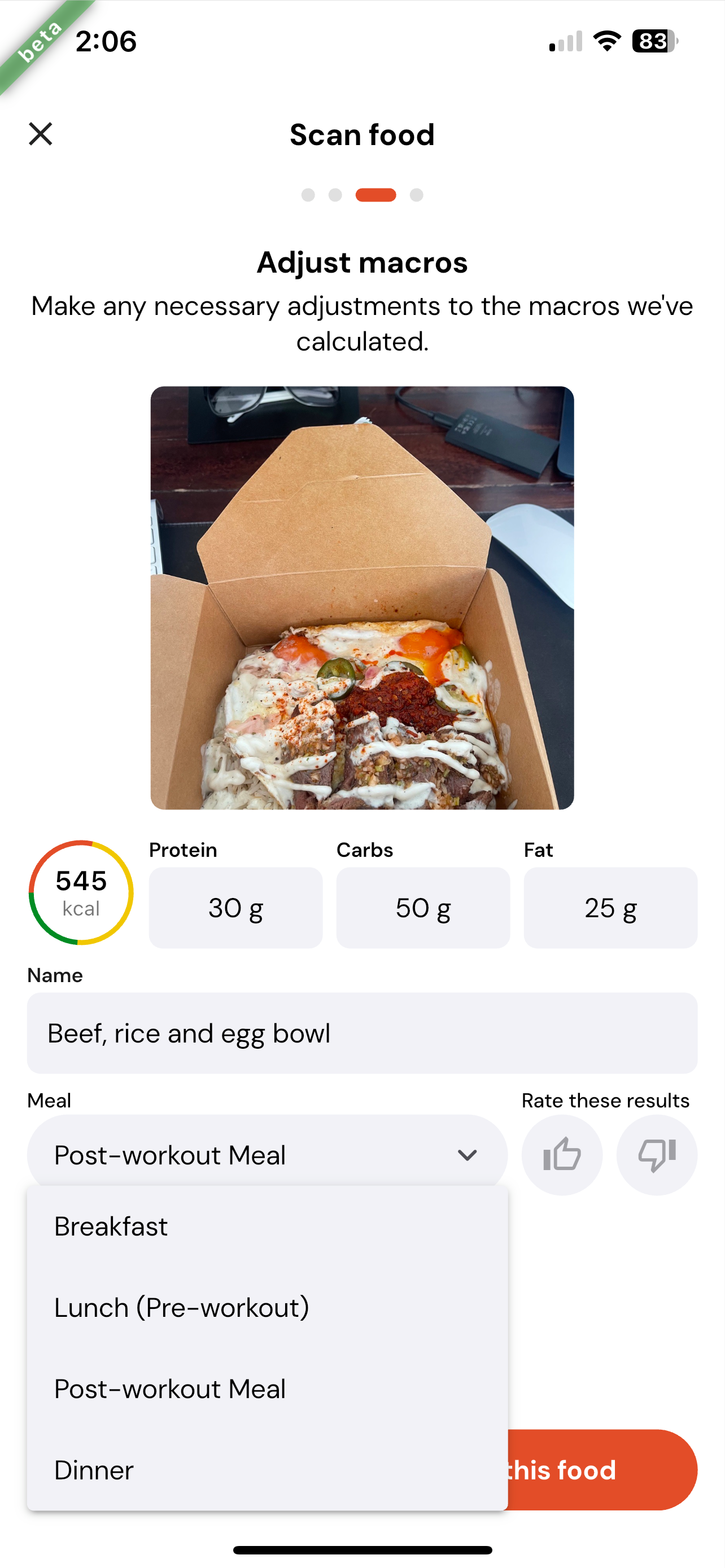
On this page, you can review and fine-tune the food entry after scanning your meal.
Macros: The app automatically estimates protein, carbs, fat, and total calories. If needed, you can manually adjust these numbers to better match your meal.
Name: Edit the meal name so it’s easy to recognize later.
Meal Type: Choose when this meal applies (e.g., Breakfast, Lunch, Post-Workout, Dinner). This helps keep your food log organized.
Feedback: Use the thumbs up or thumbs down icons to rate the accuracy of the scan so the system can improve.
Once everything looks good, you can move forward to save this food into your log.
Logged Meal
Now that you’ve added the meal, it will appear logged in your nutrition plan. From here you can:
See the meal listed under the day and meal type you selected.
Review the macros and calories that were added to your daily totals.
Tap the meal if you ever need to edit or delete it later.
This keeps all your logged meals organised and ensures your nutrition plan stays up to date.
Updating or editing
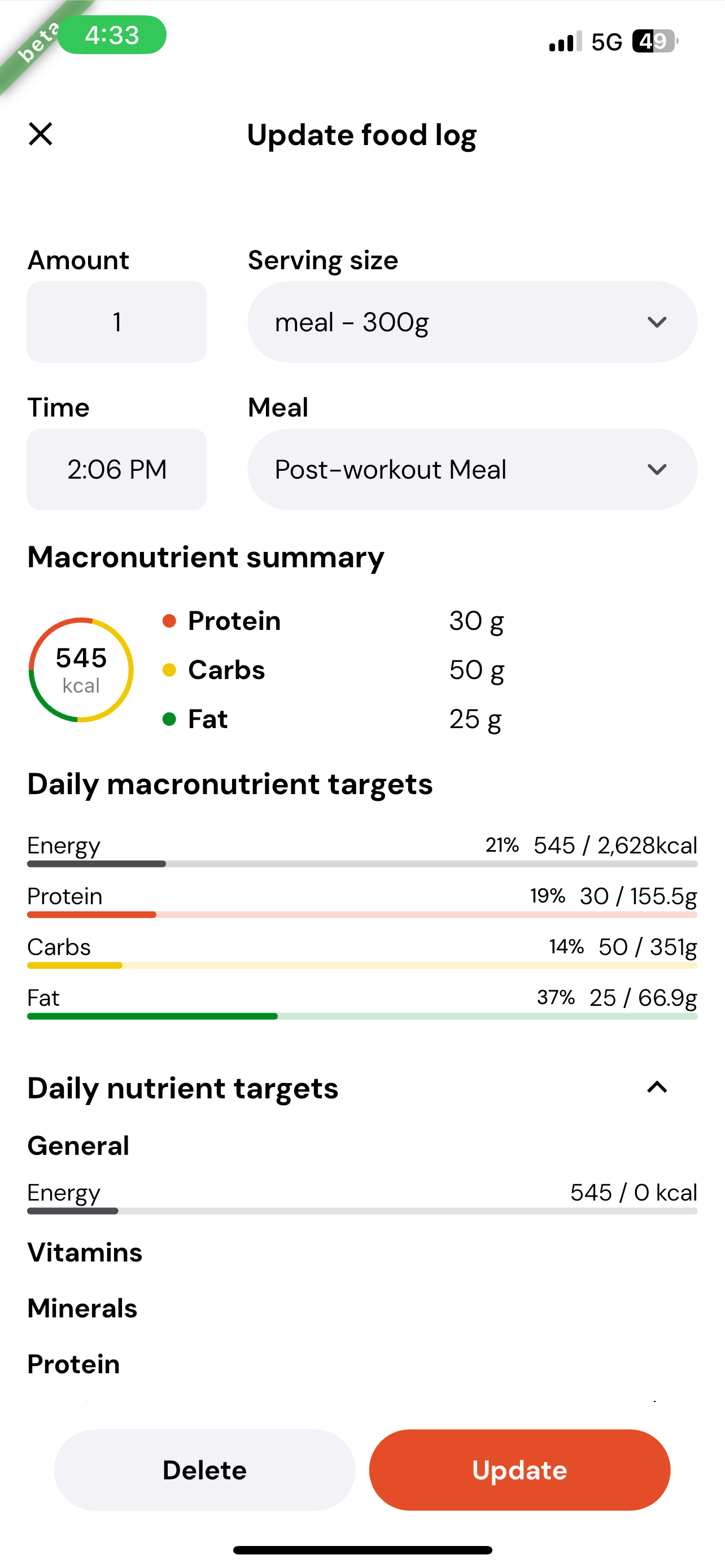
If you tap on a meal that you’ve logged, you’ll be taken into the Update food log screen.
From here you can:
Update the time – change the exact time the meal was logged.
Choose which meal – assign it to breakfast, lunch, dinner, or a post-workout meal.
Adjust serving size – update the portion size (e.g. grams, number of servings).
Review macros – see a breakdown of protein, carbs, and fats for that meal.
Update or delete – once you’ve made changes, tap Update to save or Delete to remove the meal.
Logging with Barcode
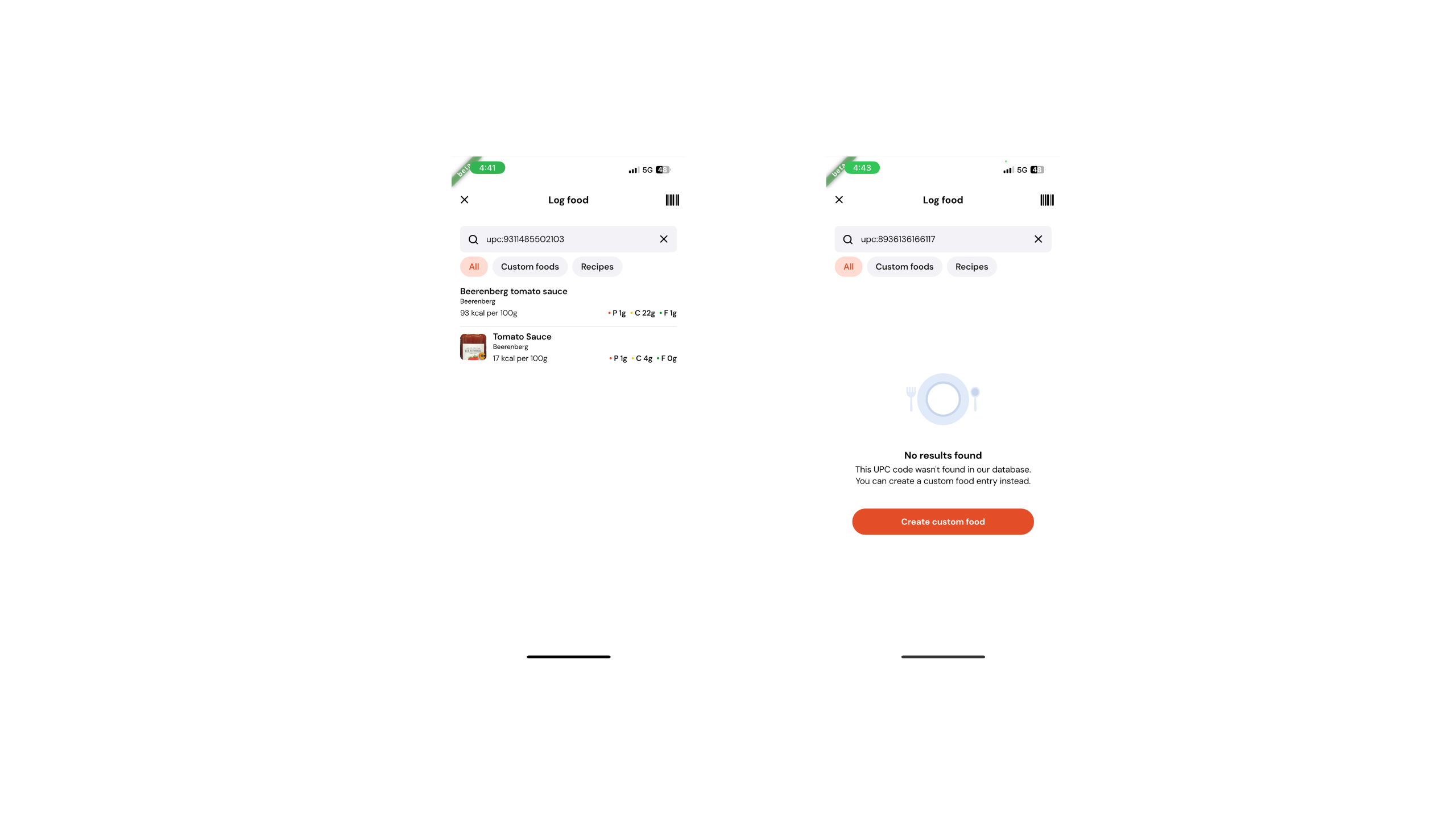
You can also log food using the barcode scanner.
Tap the barcode scanner icon (ensure your camera is enabled).
Scan the barcode on your food item.
The food details will appear – from here you can adjust the serving size, amount, time, and meal.
If no result appears, it means the food isn’t in our database. In that case, you can add it manually as a custom food.
Logging with Search
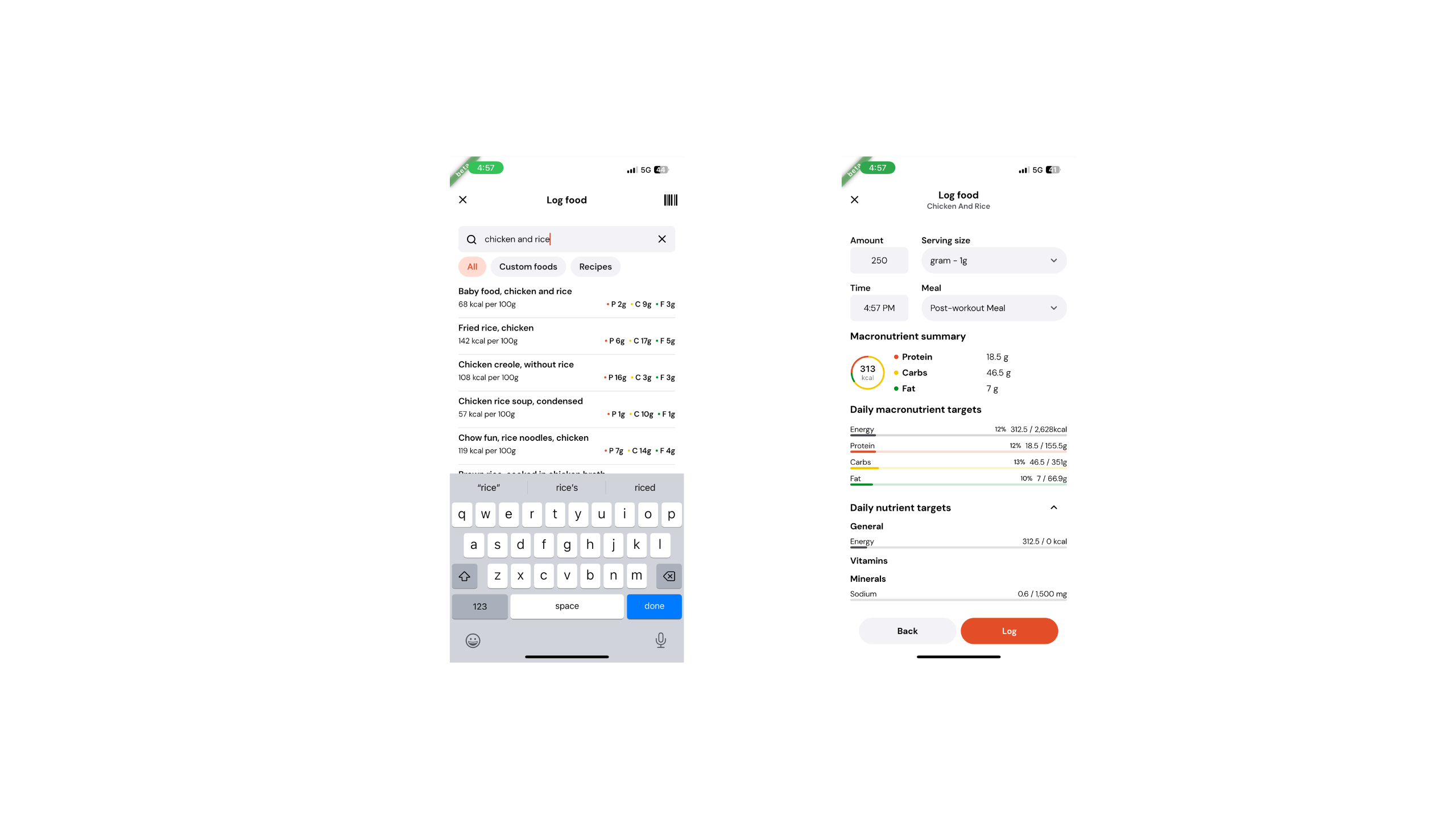
You can also log food by searching for it in the database. You can choose from the CoreCoach food database or your own custom food library.
Tap the orange + button in the bottom centre of your screen.
Select the search icon to open the search section.
Use the search bar to find your food.
Once selected, you’ll be taken to the food page where you can adjust the serving size, amount, meal, and time.