How to Add and Manage Team/Coaches
This article will show you how to invite coaches to your account and manage which clients they look after.
Written By Jacob Elliott
Last updated 1 day ago
If you run a team, you can invite other coaches into your CoreCoach account and assign clients to them. Everything for this lives under Team in the left menu.
The Team section
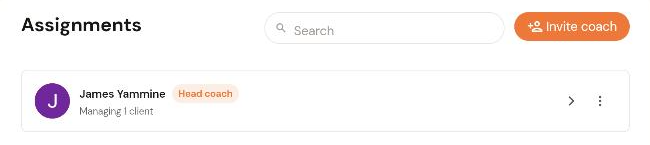
In the left menu, click Team, then Assignments.
You will see every coach on your account, their role (for example Head coach) and how many clients each one is managing. Use the search box to find a coach by name.
Team chats (also under Team) is where you message the coaches on your account.
Invite a coach
On the Assignments page, click Invite coach (top right).
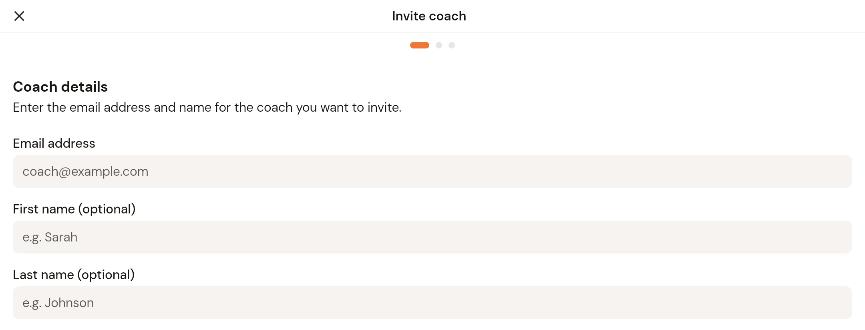
Enter the coach's email address. First and last name are optional.
Click Next and work through the remaining steps of the invite: set what the coach can access, review the details, then send the invitation.
The coach receives an email asking them to join your account. Until they accept, use the three-dot menu next to their name to resend or revoke the invite.
After a coach joins
Once the coach has accepted and signed in, they appear on the Assignments page. From there you can see which clients they manage, adjust what they can access, and reassign clients between coaches. Clients assigned to a coach appear under that coach's My Clients tab; the All Clients tab on the Clients page shows everyone on the account.