How to set up automations
Automatically notify yourself or message clients when client events happen in CoreCoach.
Written By Jacob Elliott
Last updated 1 day ago
Automations send a notification to you, a message to the client, or both when something happens in the client's app, such as a skipped workout or a completed check-in. Each automation is a rule you switch on and configure.
Open Automations
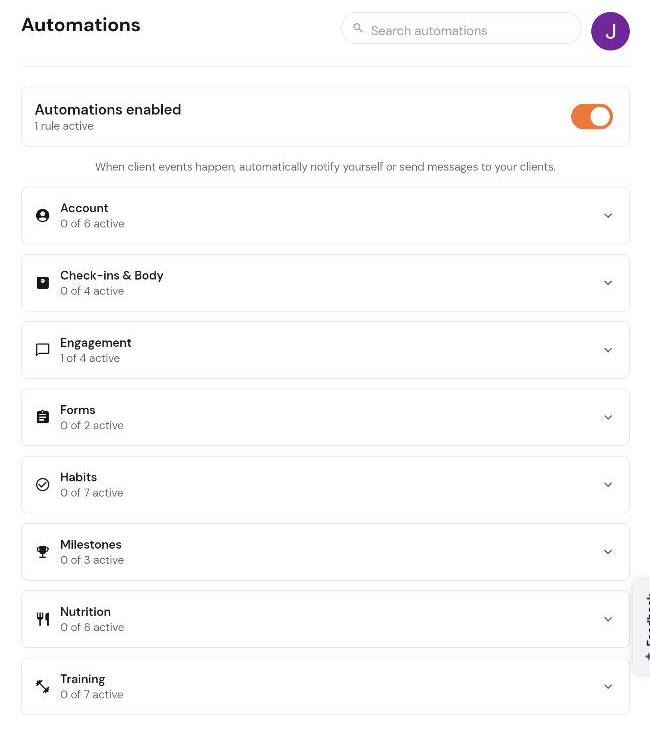
In the left menu, click Automations. The master Automations enabled toggle at the top turns every rule on or off at once and shows how many rules are active. Rules are grouped into eight categories: Account, Check-ins & Body, Engagement, Forms, Habits, Milestones, Nutrition and Training. Each shows how many of its rules are active.
Turn on a rule
Click a category to expand it. Each rule has a toggle. For example, Training contains Workout completed, Workout skipped, Workout overdue, Personal best, Training compliance low, Training compliance high and Training plan ending.
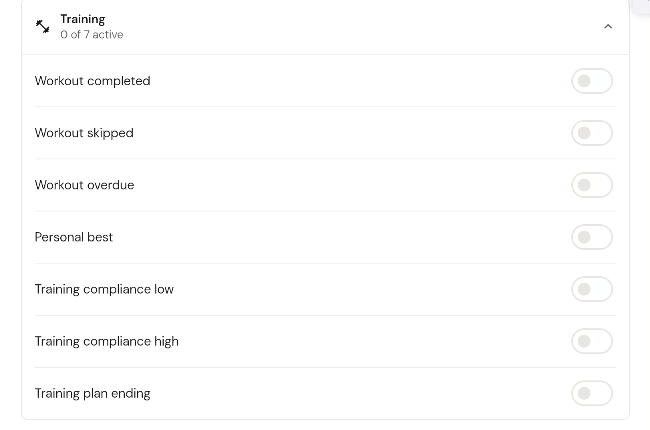
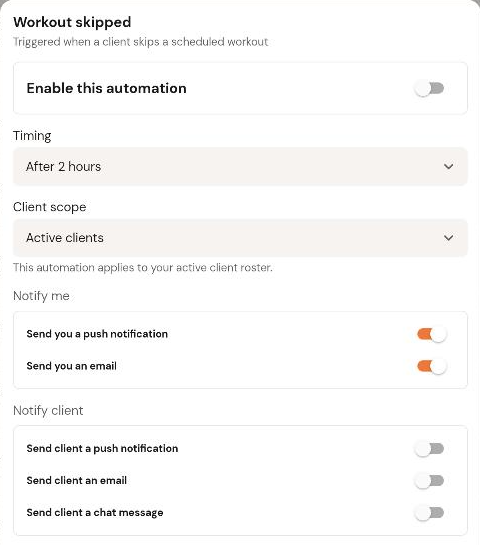
Click the toggle next to a rule. A settings dialog opens for that rule, for example Workout skipped ("Triggered when a client skips a scheduled workout").
Turn on Enable this automation.
Set the Timing: Immediately, After 1 hour, After 2 hours, After 4 hours, End of day or Next morning.
Set the Client scope. The default is Active clients, which applies the rule to your active client roster.
Under Notify me, choose whether you get a push notification and/or an email.
Under Notify client, choose whether the client gets a push notification, an email and/or a chat message.
Click Save. The category header and the master toggle update to show how many rules are active.
Turn everything off
Switch off Automations enabled at the top of the page to turn off every rule at once.