How to assign a program to your client
Three ways to put a training program on a client: from the program builder, from the Clients list, or from the client profile.
Written By Jacob Elliott
Last updated About 2 months ago
Once a program is built and published, you can put it on a client from three places. Whichever you use, you choose the client, set a start date and confirm.
From the program builder
Go to Programs and open the program.
Click Assign clients (top right), or open the Clients tab and click + Assign client.
Select the client.
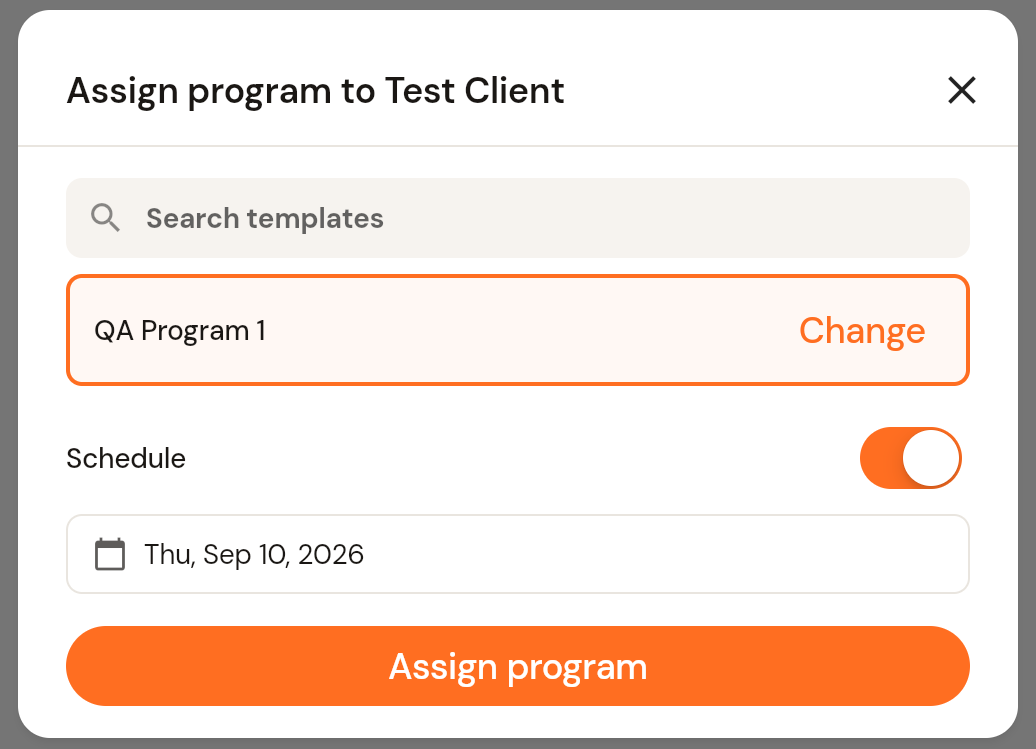
Leave Schedule on and check the start date. It defaults to today; click the pencil icon to change it. If the client already has a program scheduled over those dates, CoreCoach shows an overlap warning.
Click Assign program.
From the Clients page
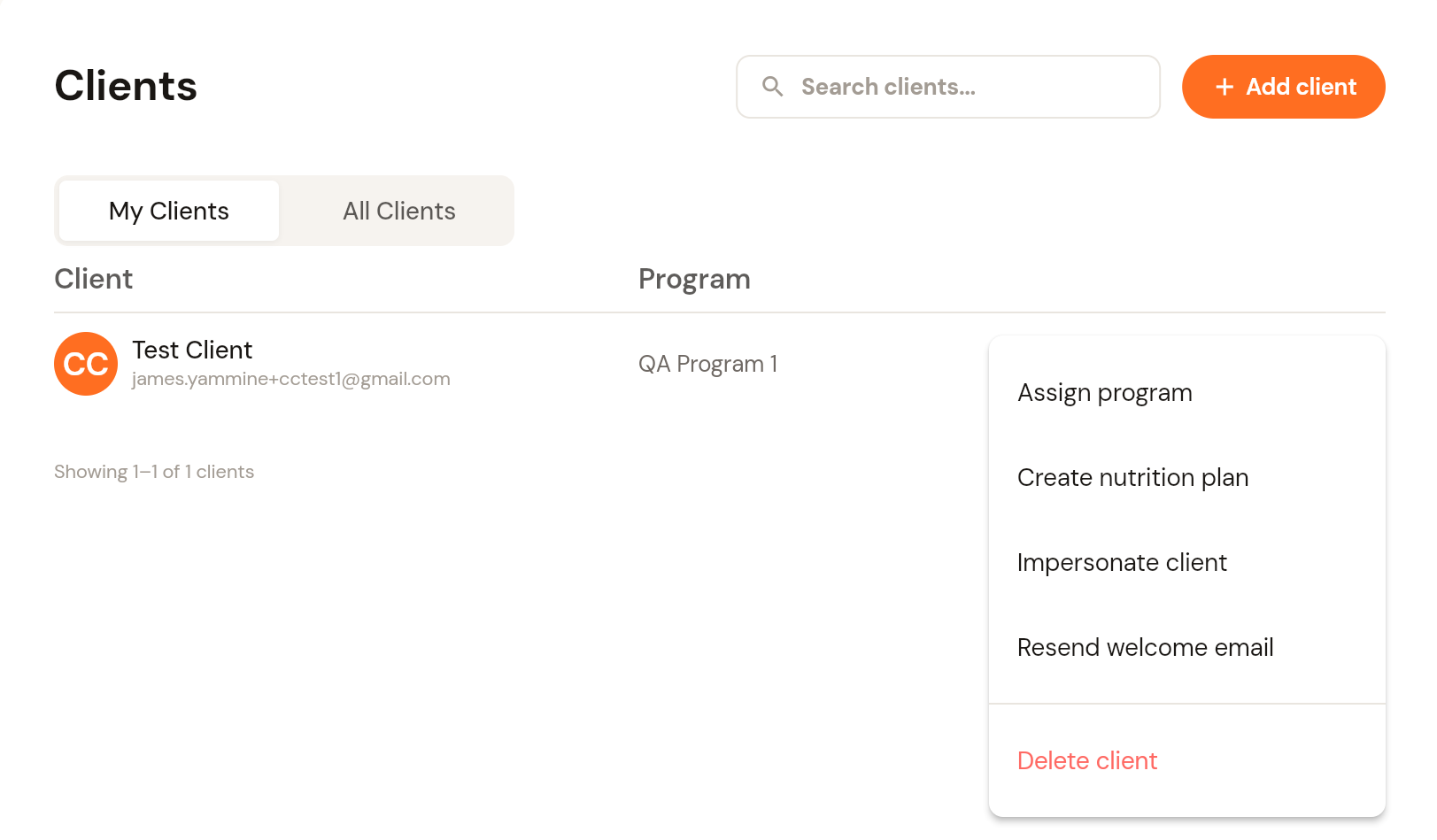
Go to Clients.
Click the three-dot menu at the right of the client's row and choose Assign program.
Pick the program from your templates, then set the start date and confirm as above.
From the client's profile
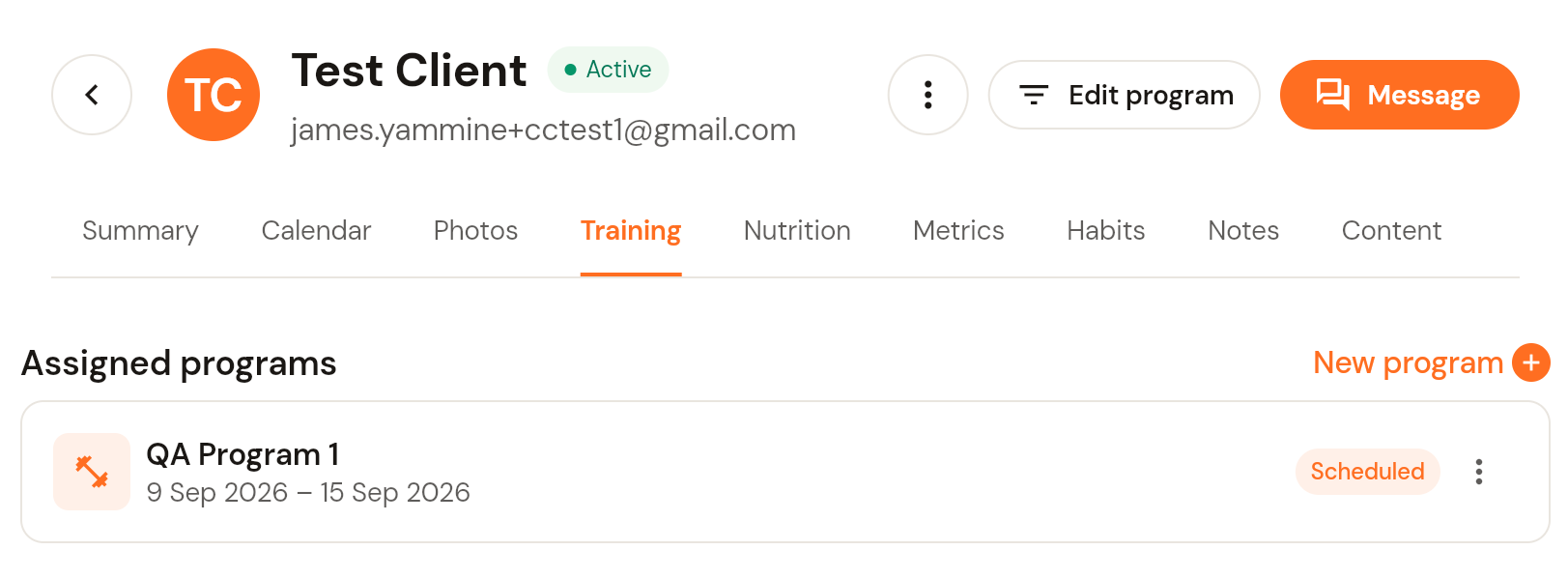
Go to Clients and click the client's name to open their profile.
Open the Training tab. It lists every program assigned to them with its date range and status (for example Scheduled).
Click New program (top right of the list) to assign another one.
To change a program after it has been assigned, see How to update or edit a client's program.
Was this helpful?
Still need help? Share an idea