How to auto-generate a training block
Let CoreCoach build a block for you from a training split, day configuration and client level, then edit it in the block builder.
Written By Jacob Elliott
Last updated About 2 months ago
Instead of building a block by hand, you can have CoreCoach generate one. You choose the split, configure the days, set the client's level, and CoreCoach picks the exercises and sets the sets and reps. You can then edit the result like any other block.
Generate a block
In the left menu, click Programs, then Blocks.
Click Auto-generate (top right, next to New block).
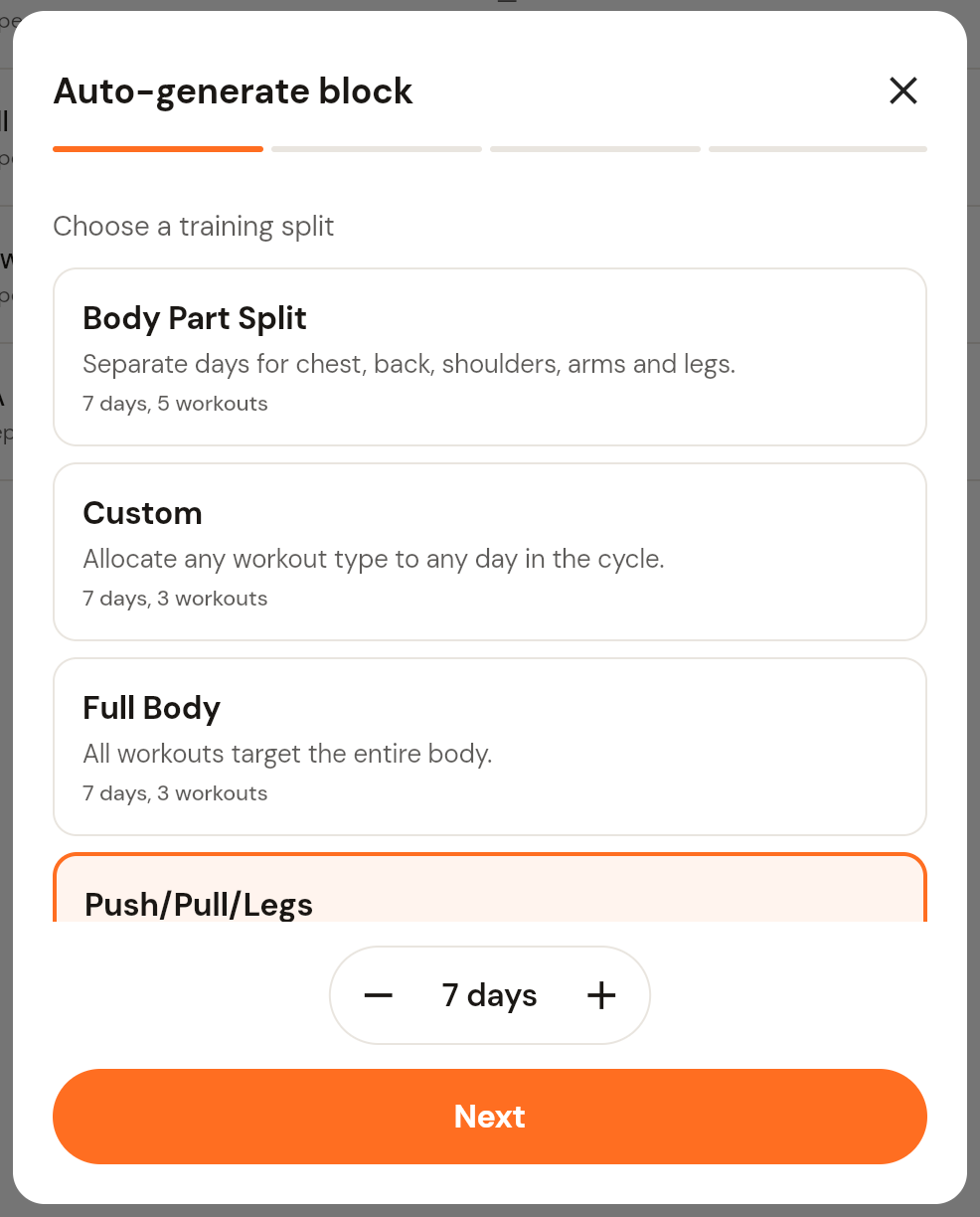
Choose a training split: Body Part Split, Custom, Full Body, Push/Pull/Legs or Upper/Lower. Each option shows how many days and workouts it produces. Adjust the number of days with the - and + controls, then click Next.
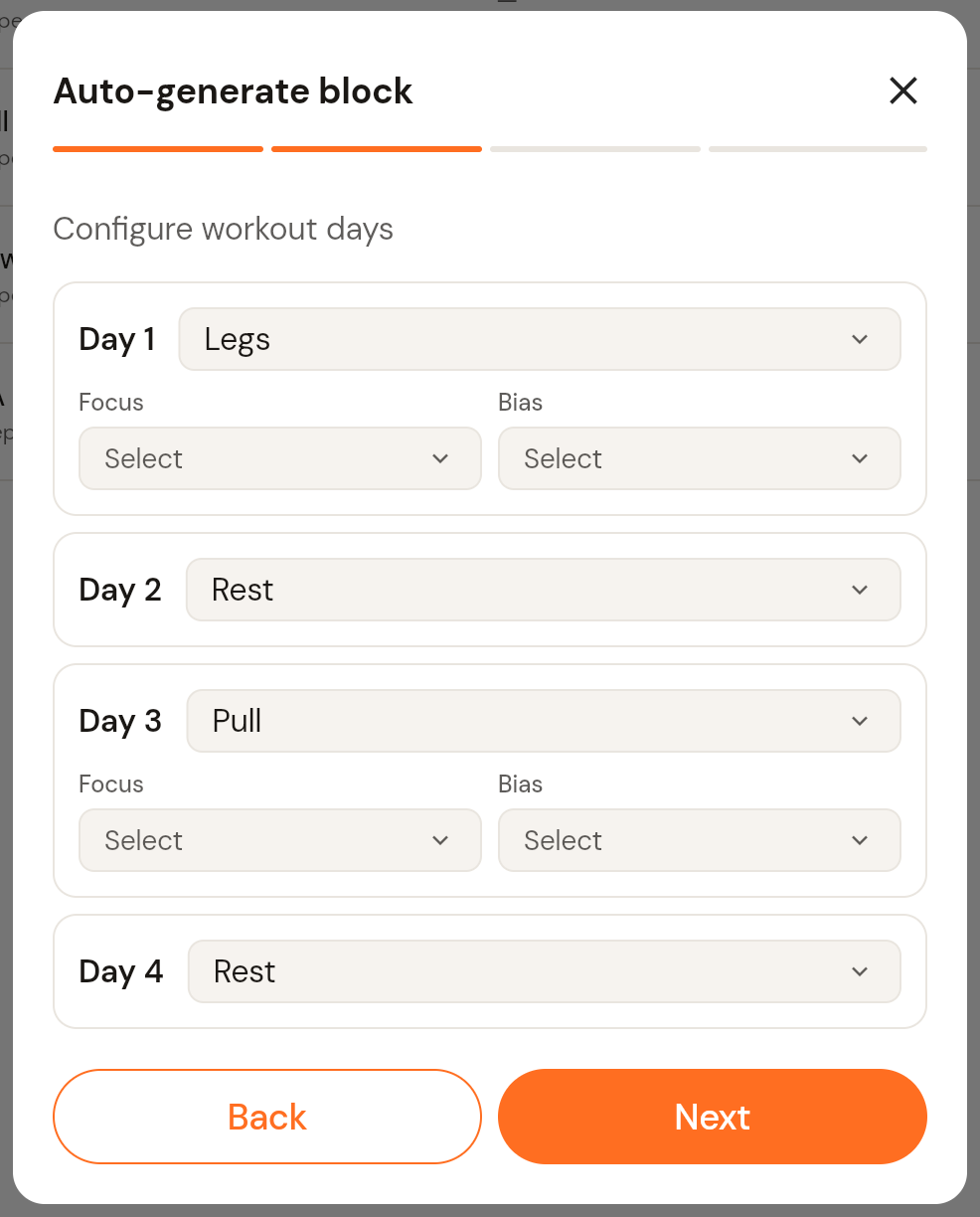
Configure workout days: each day is listed with a dropdown to set it as a workout type or Rest. For workout days you can also set a Focus and a Bias. Click Next.
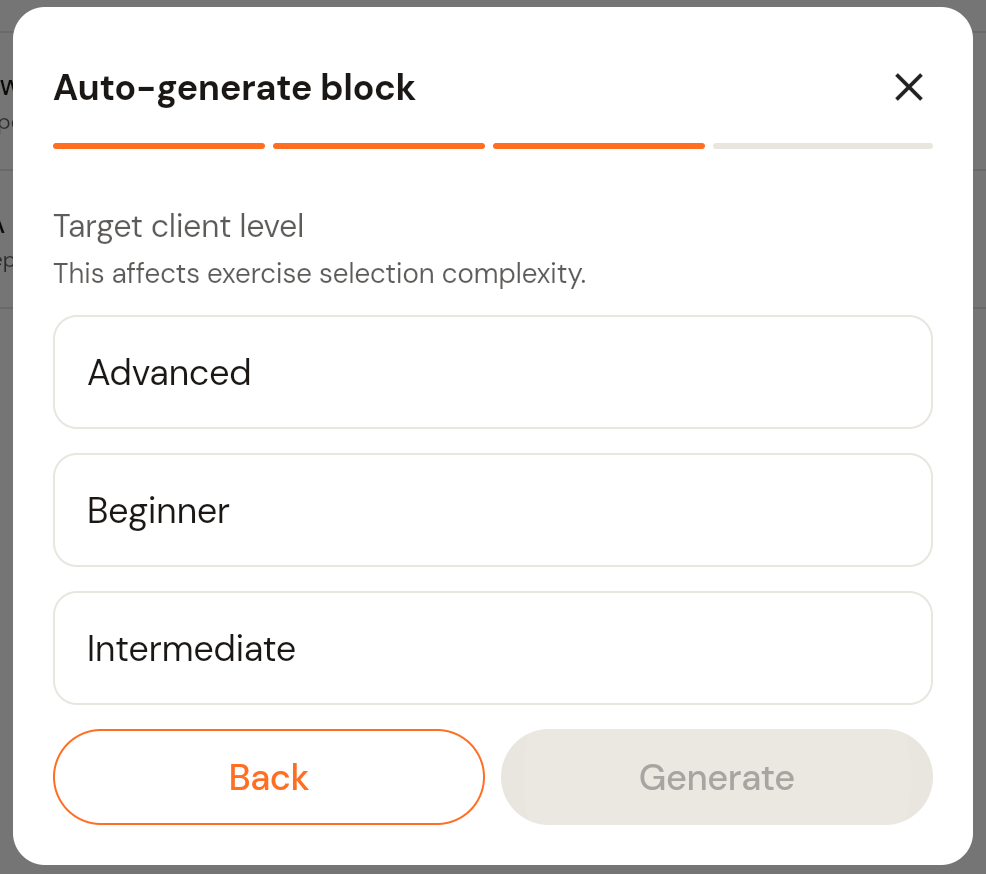
Target client level: choose Beginner, Intermediate or Advanced. This changes how complex the exercise selection is. Click Generate.
CoreCoach builds the block: it sets up the workout days, plans muscle targets, picks exercises and configures sets and reps. When you see Block generated successfully, click Done.
Review and edit the block
The new block appears at the top of the Blocks list with (auto-generated) in its name. Click it to open the block builder and check every day. You can rename it, change the repeat count, swap or remove exercises, adjust sets, reps and RIR, or change a day to rest, exactly as with a block you built by hand. Then add the block to a program and assign the program to a client.
Was this helpful?
Still need help? Share an idea