How to assign and manage habit plans
Assign a habit plan to a client and see what the plan panel lets you do.
Written By Jacob Elliott
Last updated About 2 months ago
You need a habit plan first. See How to create a habit plan.
Assign a habit plan
In the left menu, open Clients, click Habits, then the Plans tab.
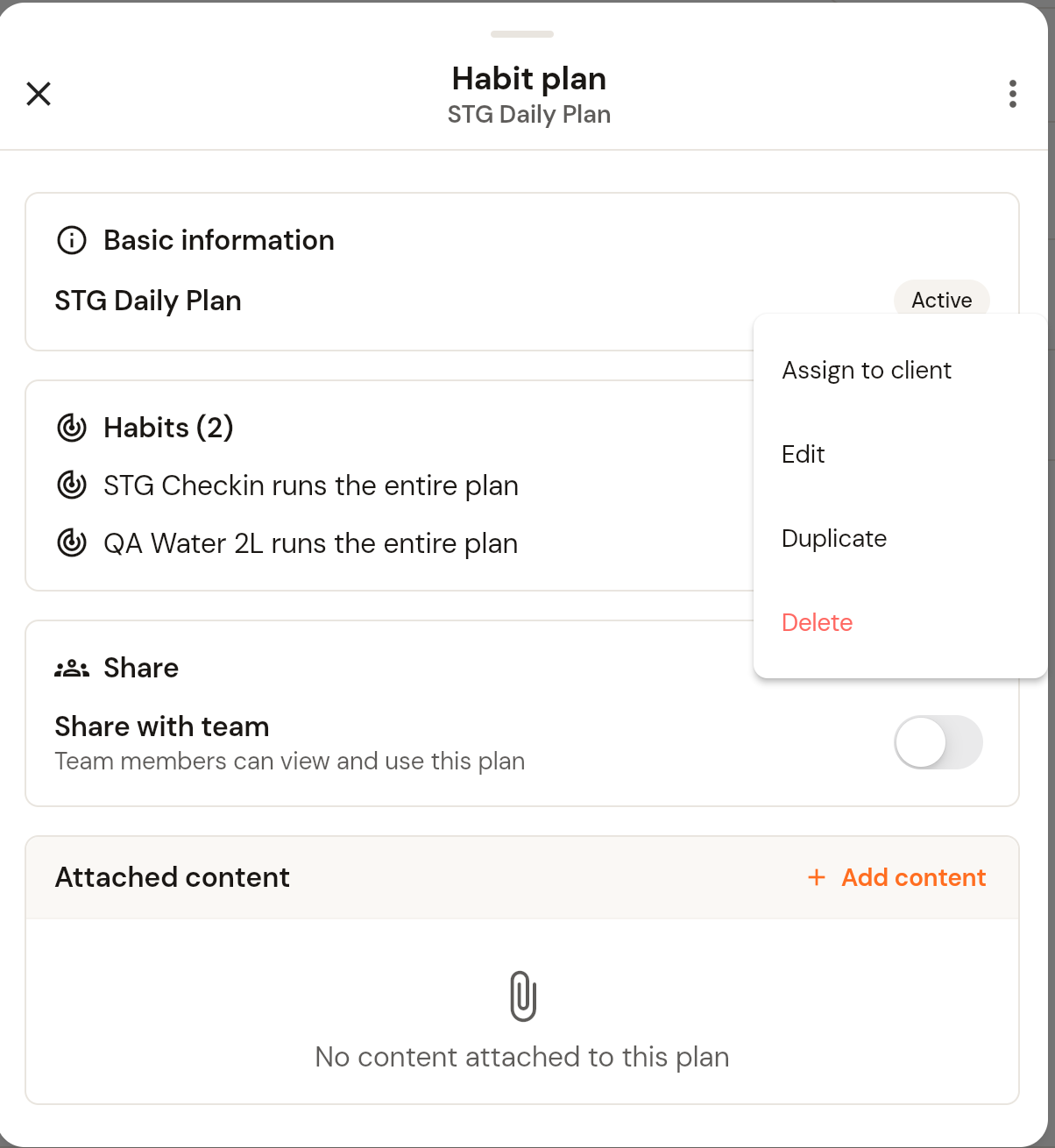
Click the plan to open the Habit plan panel. It shows the plan's status, the habits it contains and how long each runs, a Share with team toggle and any attached content.
Click the three-dot menu in the top right and choose Assign to client. The same menu has Edit, Duplicate and Delete.
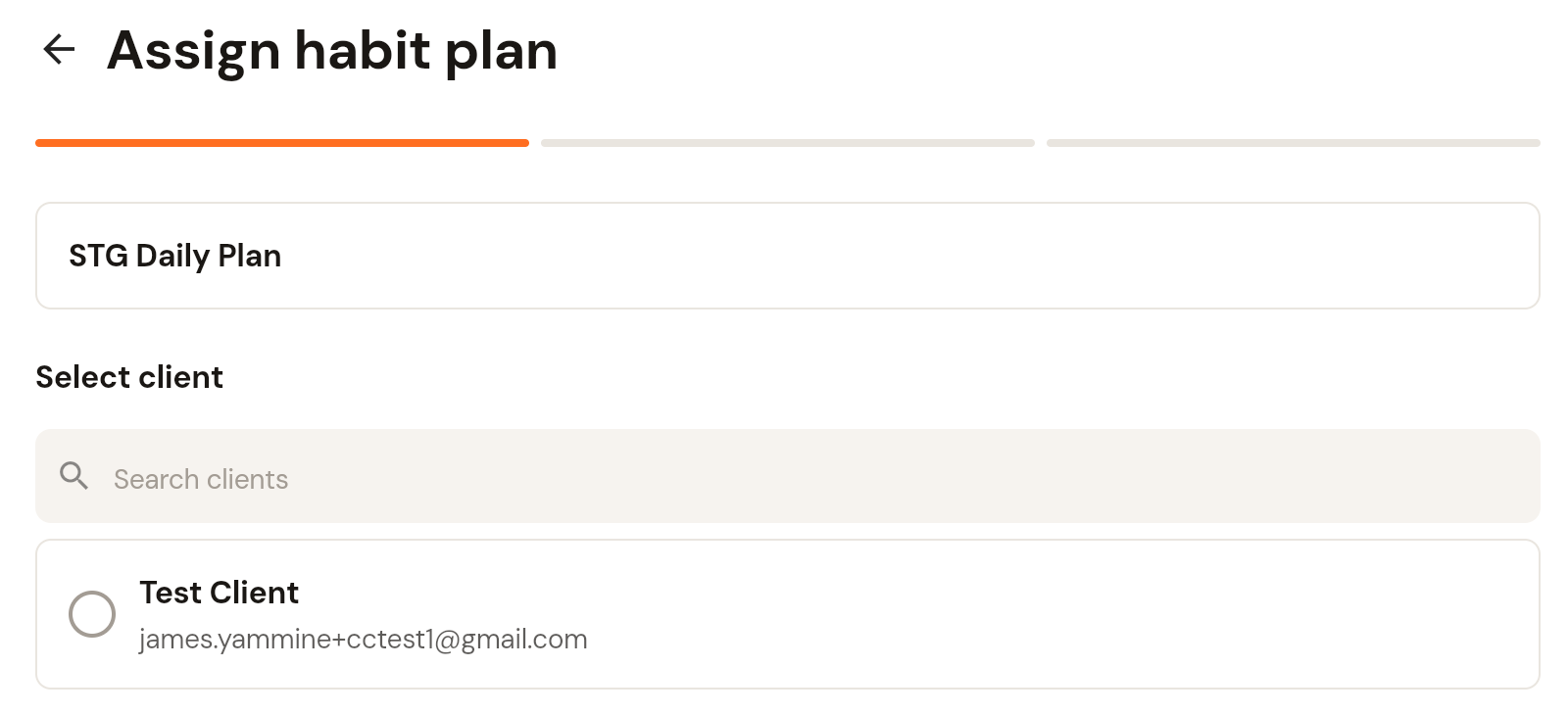
The Assign habit plan page opens with the plan name at the top. Under Select client, search for and tick the client, then click Continue.
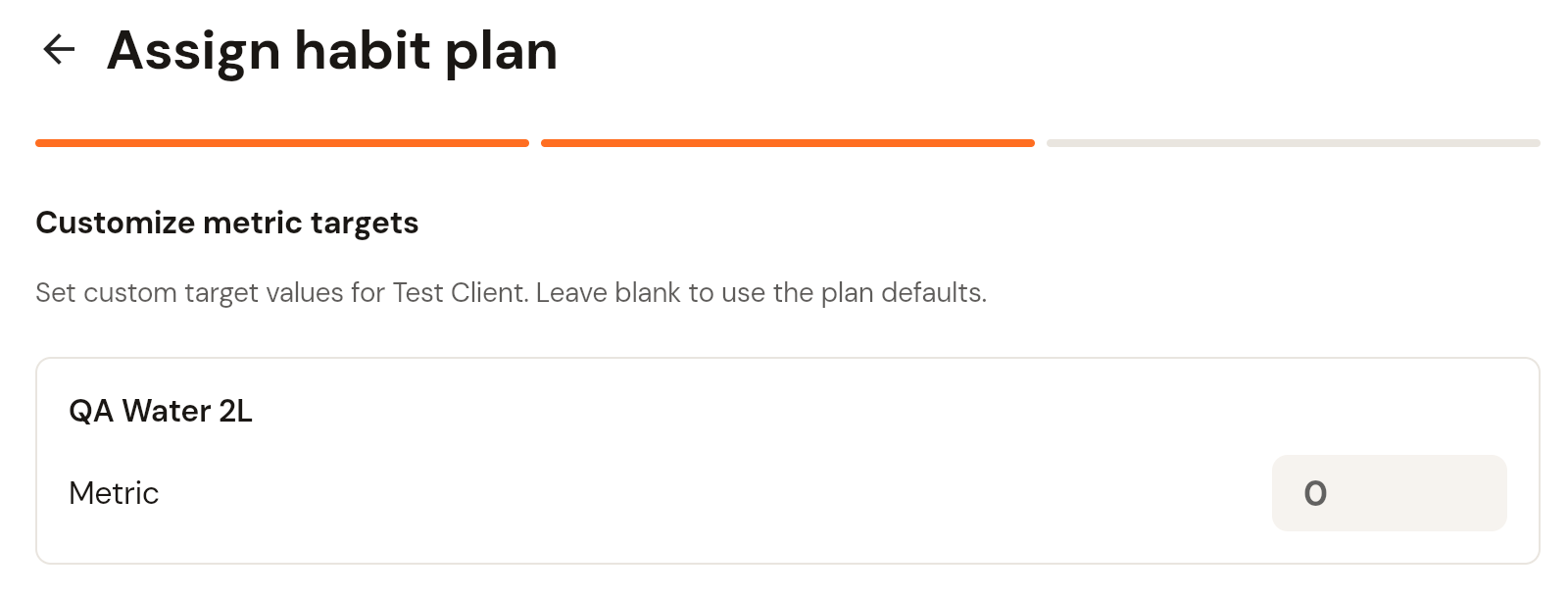
Customize metric targets: for any metric habits in the plan, enter a target value for this client or leave it blank to use the plan defaults. Click Continue.
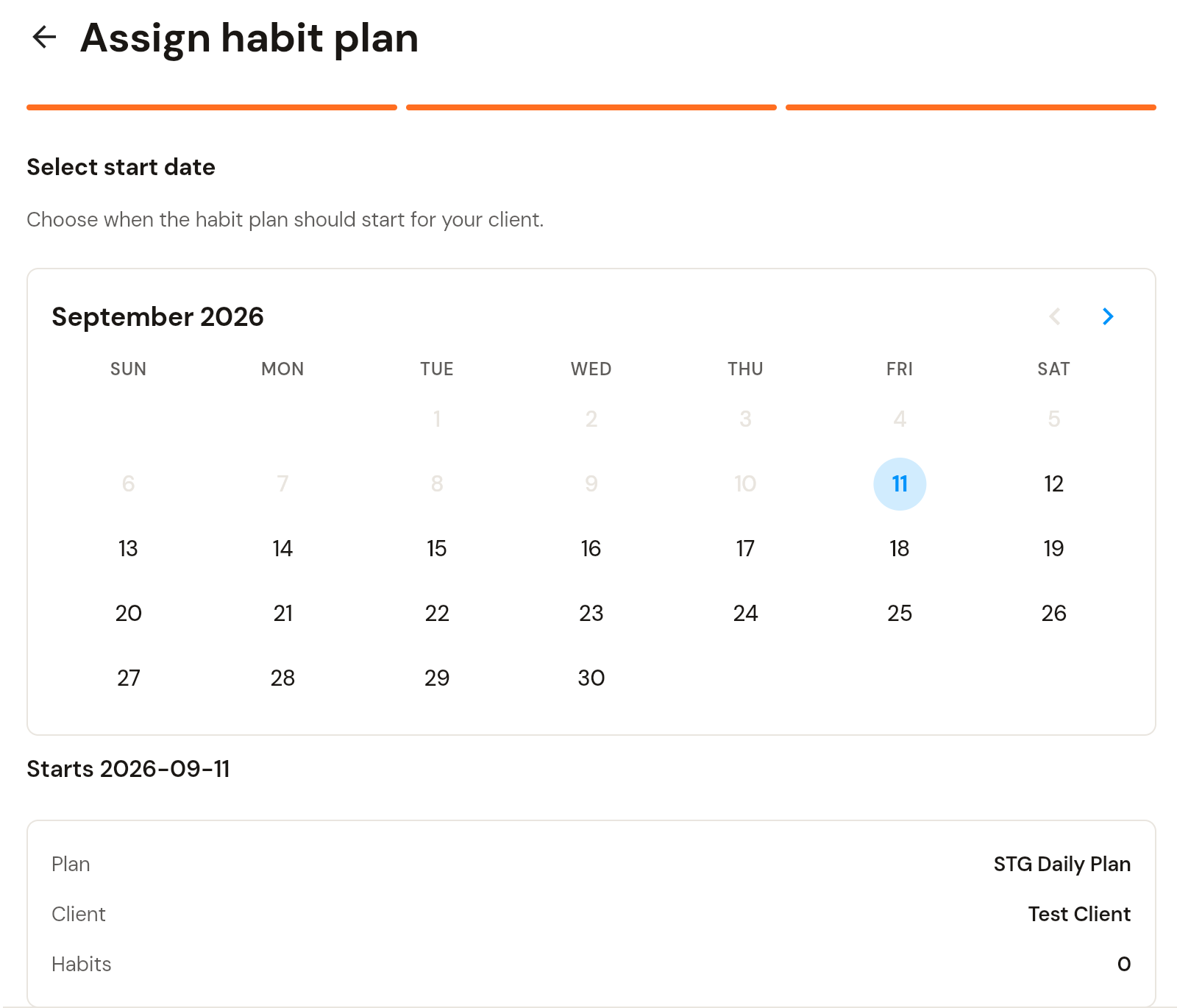
Select start date: pick the day the plan starts. Past dates are greyed out. Check the summary below the calendar and click Assign plan.
Manage a habit plan
Open the plan from the Plans tab. The Clients column in the list shows how many clients have each plan. Use the three-dot menu on the plan panel to Edit, Duplicate or Delete it, and the Share with team toggle to let team members use it. See How to edit, duplicate and delete habit plans.
Was this helpful?
Still need help? Share an idea