How to create a training block (manual)
Build a reusable block of training days by hand, set how many times it repeats, and add it to a program.
Written By Jacob Elliott
Last updated About 2 months ago
A block is a run of training days (for example a 7-day week) with a repeat count. Blocks are the building units of a program: a program is one or more blocks in sequence. You can build a block inside a program, or build it in the Blocks library so you can reuse it across programs. This article covers building one by hand; for the generated option see How to auto-generate a training block.
Create a block in the library
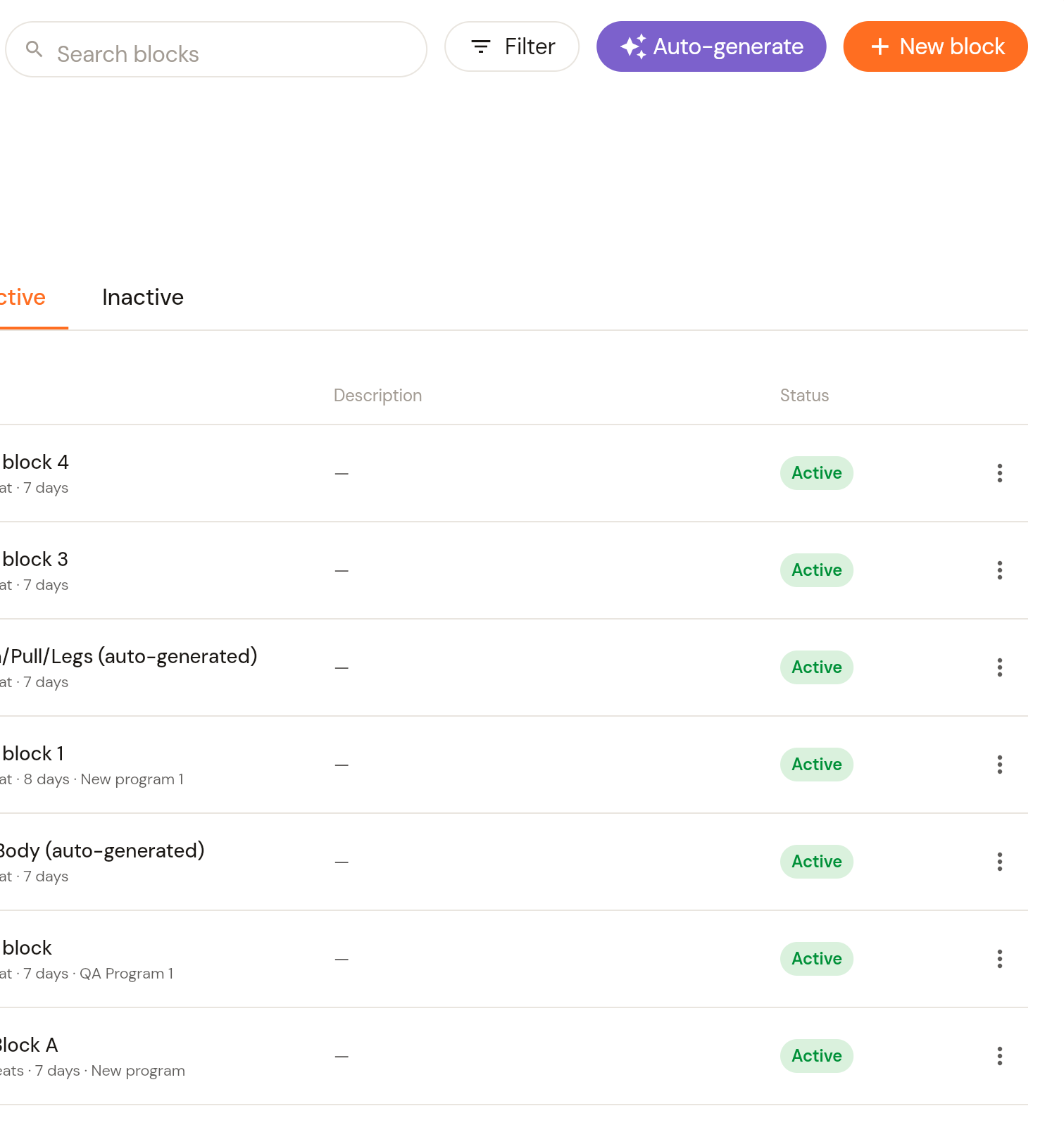
In the left menu, click Programs, then Blocks. The list shows your active blocks with their repeat count, length in days and the program they belong to; the Inactive tab holds blocks you have retired.
Click + New block (top right).
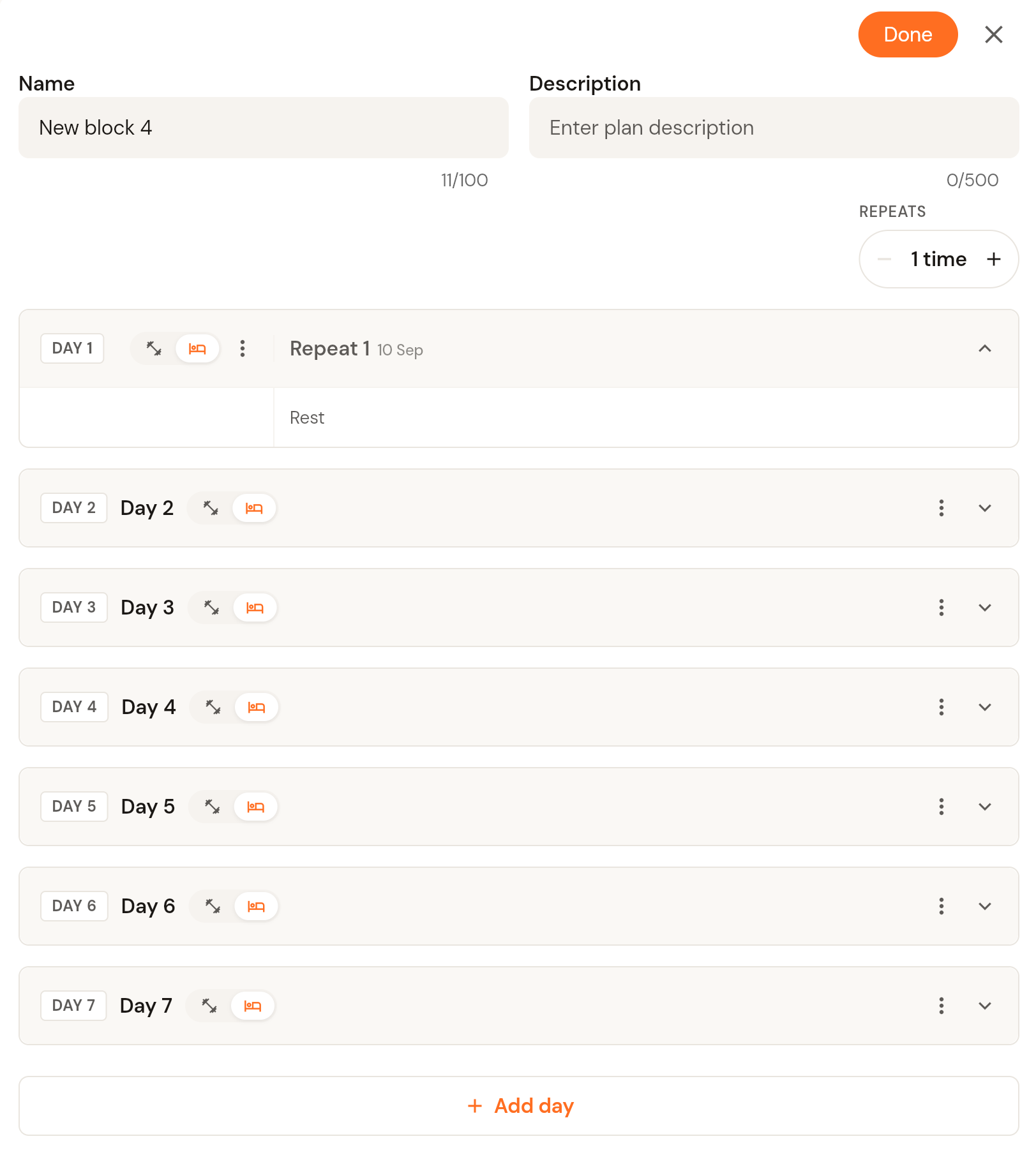
Give the block a name and optional description, and set Repeats (how many times the run of days is performed before the program moves on). Each repeat gets its own column in the day view so you can vary the prescription week to week.
For each day, choose training or rest with the two icons next to the day name. Click + Add exercise on a training day to build it, or + Add day at the bottom to lengthen the block. Use the day's three-dot menu to rename, duplicate, reorder or delete it.
Click Done (top right) to save the block.
Build a block inside a program
Open a program (Programs, then click the program) and use the Structure tab. The block tabs run along the top; click + to add a block or the copy icon to duplicate the selected one. The block name, description, repeats and days work exactly as above. Click Save when you are done.
Manage blocks
On the Blocks page, use the three-dot menu on a row to manage a block, and Filter or the search box to find one. The Inactive tab lists blocks that are no longer active.
Was this helpful?
Still need help? Share an idea