How to Access Support, Log Bugs & Provide Feedback
Written By Jacob Elliott
Last updated About 2 months ago
There are two ways to reach us from inside CoreCoach on the web: the Feedback tab for bugs, feature requests and general feedback, and the CoreCoach chat bubble for messaging our team and searching the help centre.
Log a bug, request a feature or send feedback
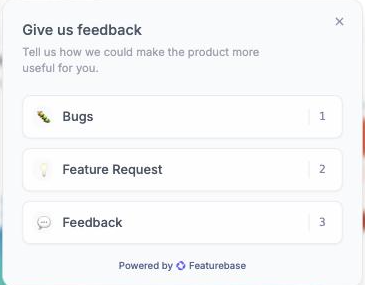
Click the Feedback tab on the right-hand edge of the screen. (You can also open it from Settings under Legal & support, then Send feedback.)
Choose Bugs, Feature Request or Feedback.
Describe the issue or idea. For bugs, include what you were doing, what you expected, and what happened instead. Screenshots help.
Click submit.
Message support or search the help centre
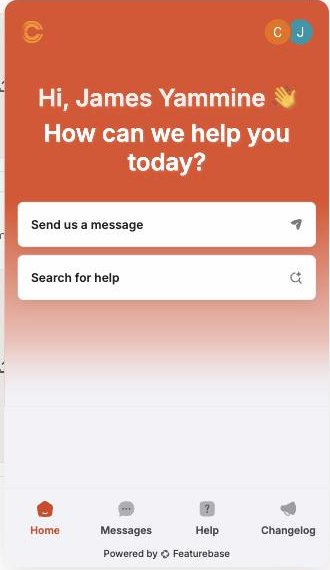
Click the CoreCoach icon in the bottom right-hand corner of the screen.
Use Send us a message to start a conversation with our team, or Search for help to look through the help centre.
The tabs along the bottom give you Messages (your past conversations), Help (all help articles) and Changelog (what has changed in recent releases).
On mobile
In the CoreCoach mobile app, go to Settings, scroll to the bottom and tap Send Feedback. From there you can submit feedback, log a bug, search help articles or send us a message.
Was this helpful?
Still need help? Share an idea