How to add your first client
How to add your first client into CoreCoach as a coach
Written By Jacob Elliott
Last updated About 2 months ago
Clients are added from the Clients page. A client must already have a CoreCoach account registered with the email address you enter. If they do not have one yet, ask them to download the CoreCoach app and sign up first, then add them using the same email.
Note: If you want to collect payment before a client gets access, add them through a Service instead. See How to create a service.
Add a single client
In the left menu, click Clients.
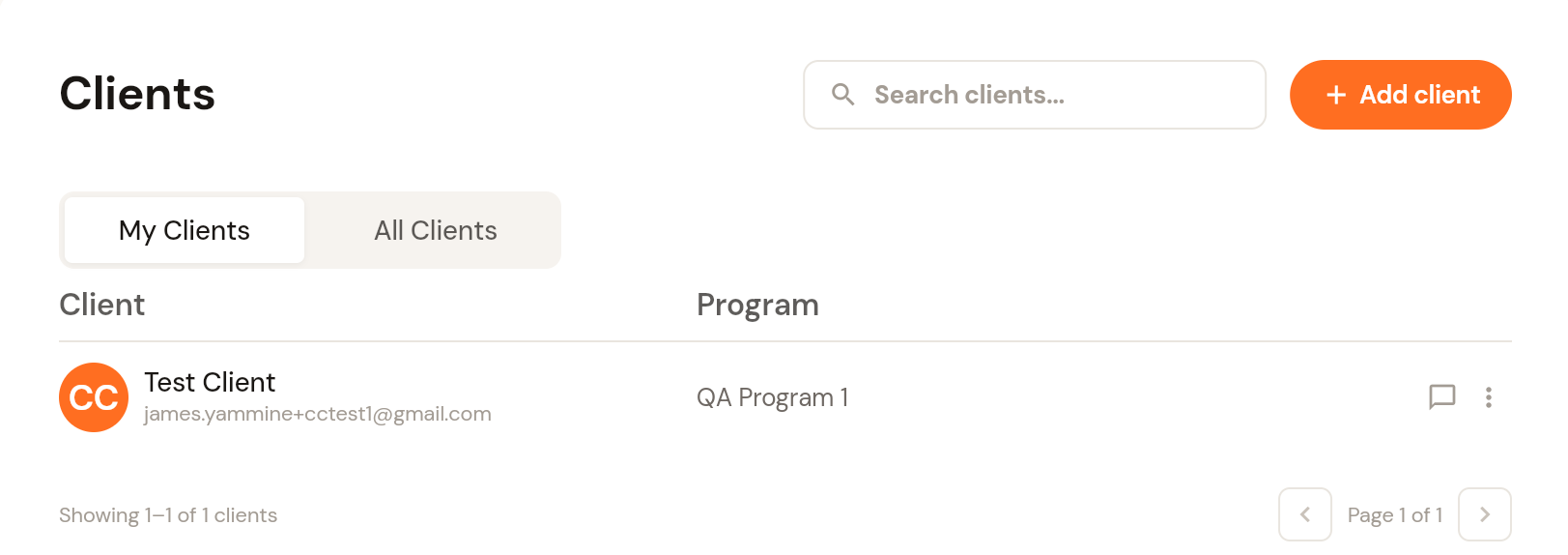
Click + Add client in the top right.
Leave the Individual tab selected.
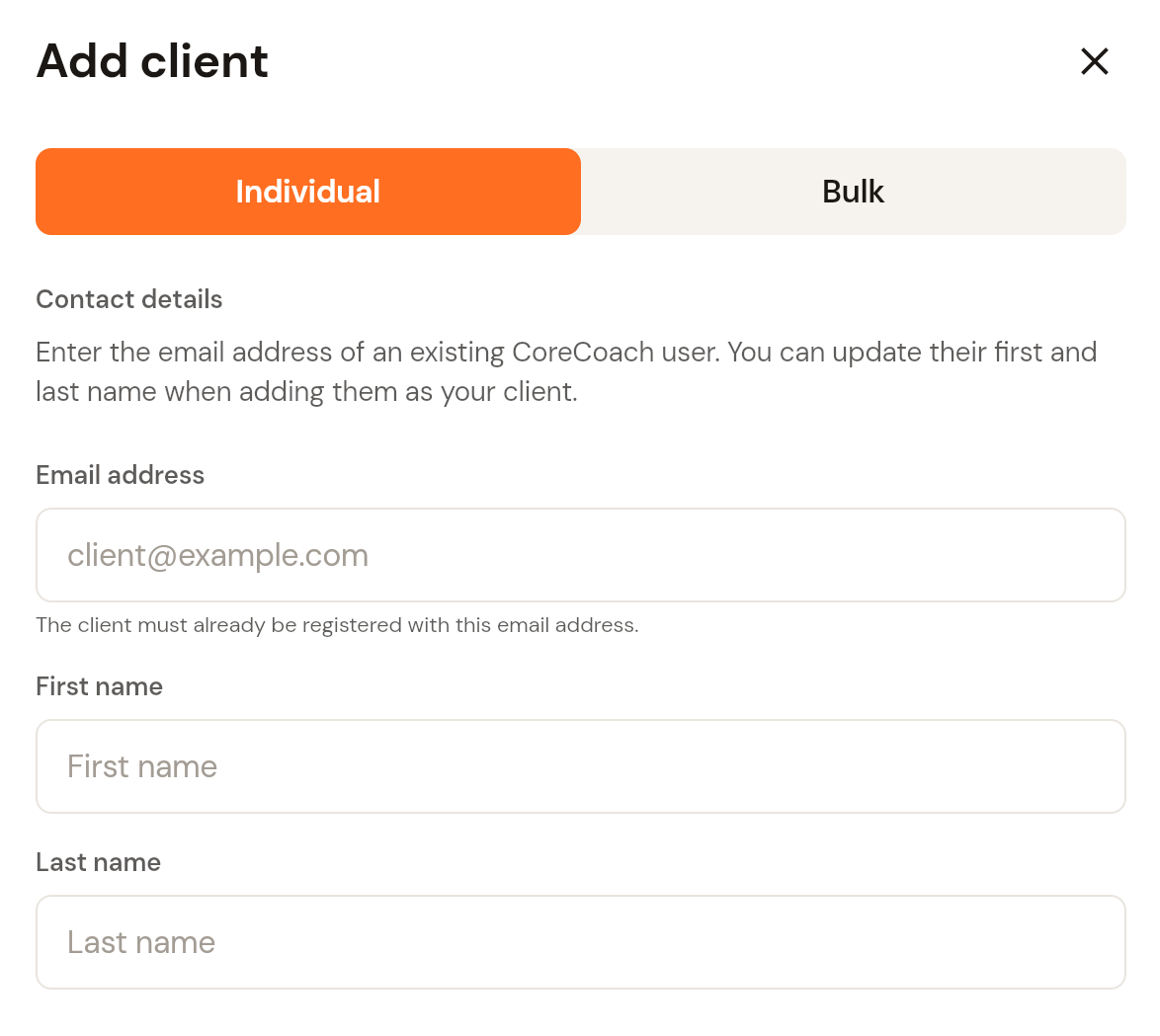
Enter the client's email address. First name and last name are optional. Anything you enter here updates the name shown on their profile.
Click Next.
Check the details on the Confirm client screen and click Confirm. The client is added to your roster.
Add several clients at once (bulk import)
Click + Add client, then select the Bulk tab.
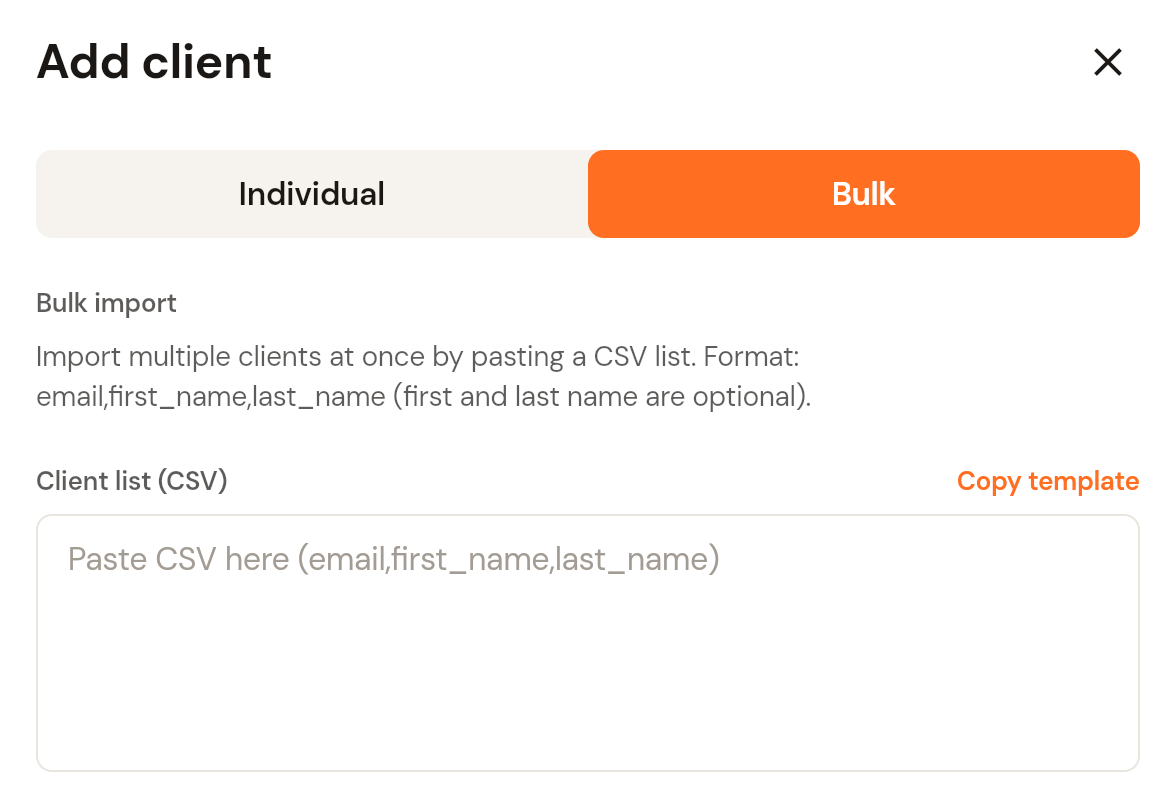
Paste a CSV list into the Client list box, one client per line, in the format
email,first_name,last_name. First and last name are optional. Click Copy template for a starting point.Click Next, review the list, then click Confirm.
After adding a client
New clients appear under My Clients on the Clients page. From there you can open their profile, start a chat, and assign a program, nutrition plan or habits. See How to assign a training plan to your client.
Was this helpful?
Still need help? Share an idea