How to create and manage forms
Build check-in and onboarding forms in CoreCoach and manage them from the Forms page.
Written By Jacob Elliott
Last updated About 2 months ago
Forms collect information from clients. A Habit form is attached to a Form-type habit so clients fill it in on a schedule. A Service form is attached to a service so clients fill it in after purchase. Completed forms appear under Coaching > Form submissions.
Create a form
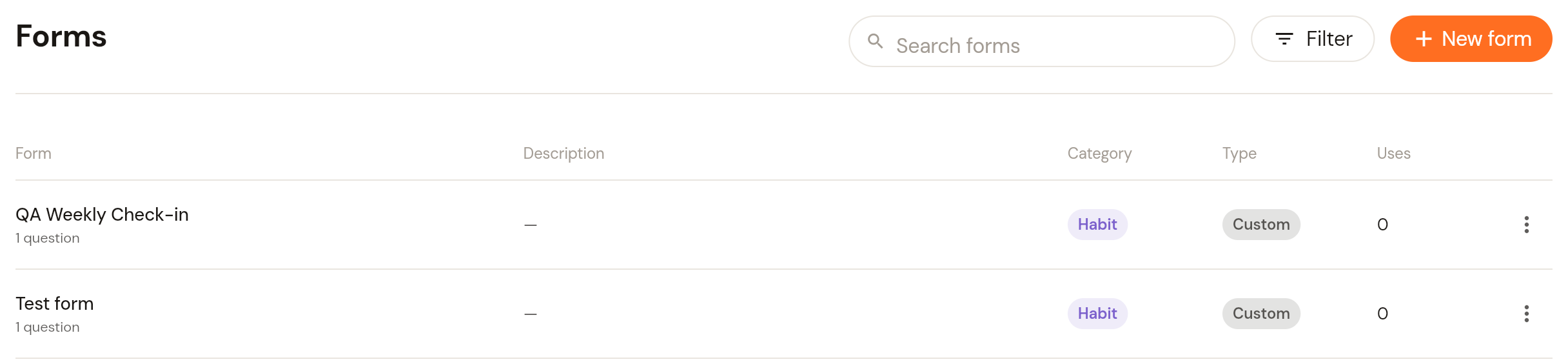
In the left menu, open Clients and click Forms. The list shows each form's category, type and how many times it has been used.
Click + New form in the top right.
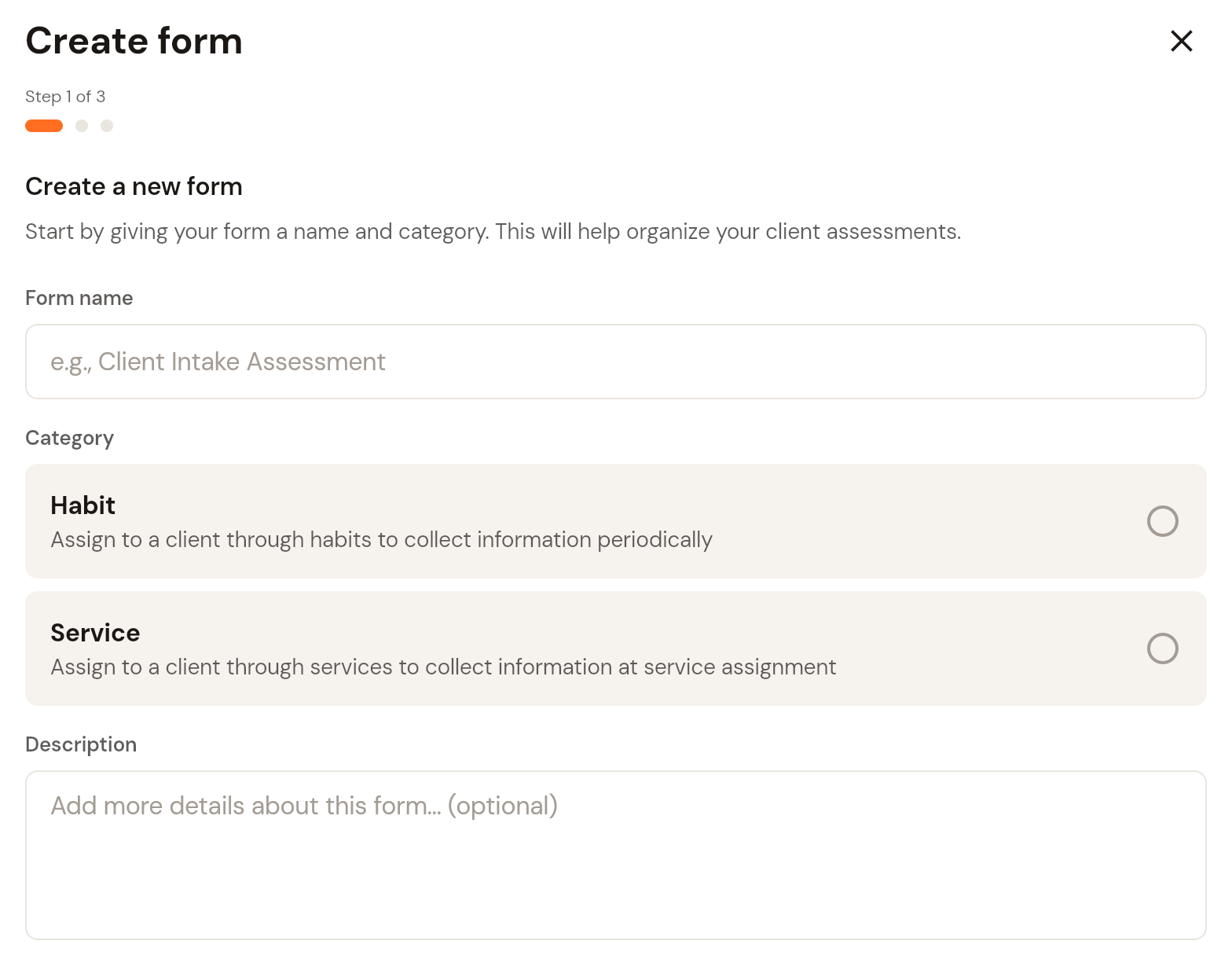
Enter a Form name, choose a Category (Habit or Service) and add an optional Description. Click Next.
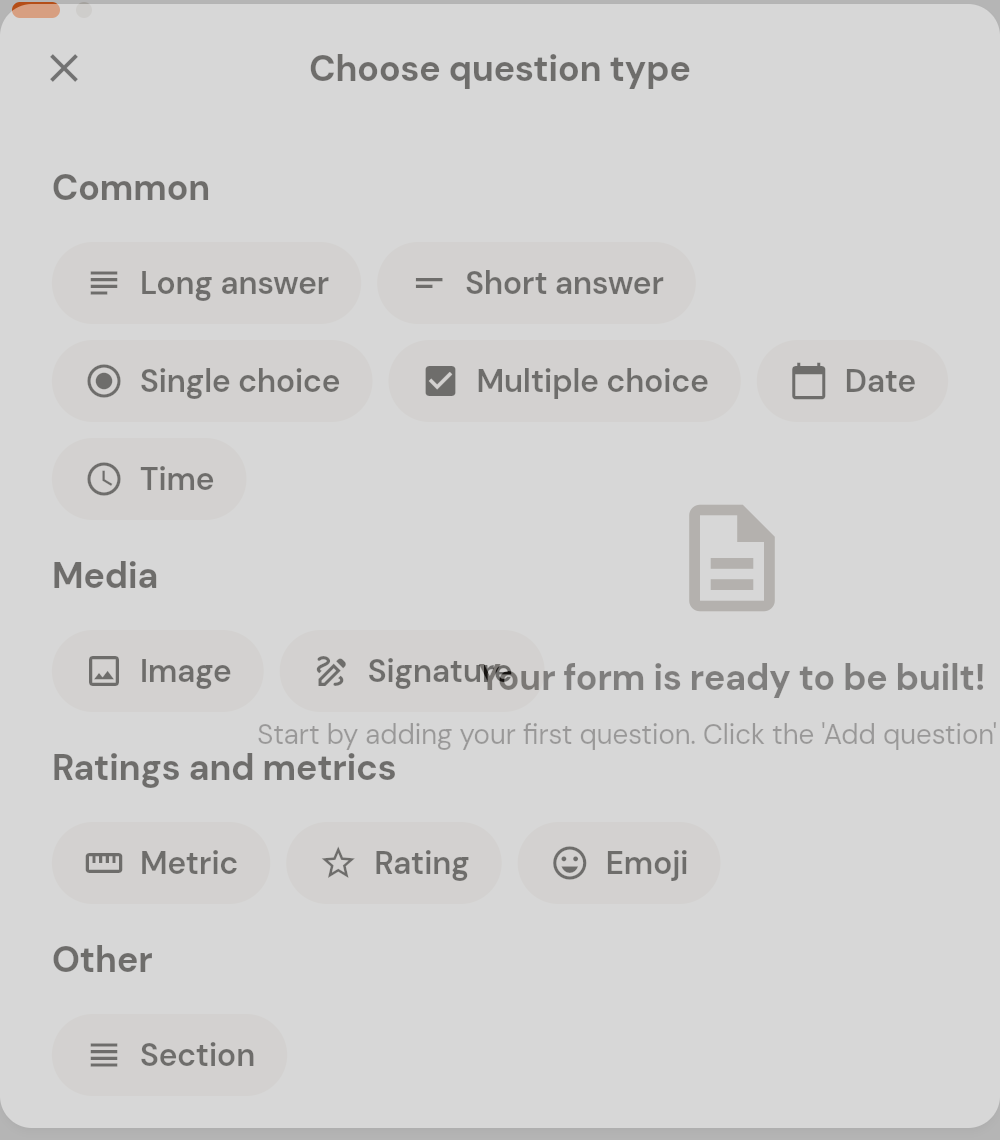
Add questions. Click the orange + button in the bottom right and pick a question type: Long answer, Short answer, Single choice, Multiple choice, Date, Time, Image, Signature, Metric, Rating, Emoji or Section (a heading to group questions).
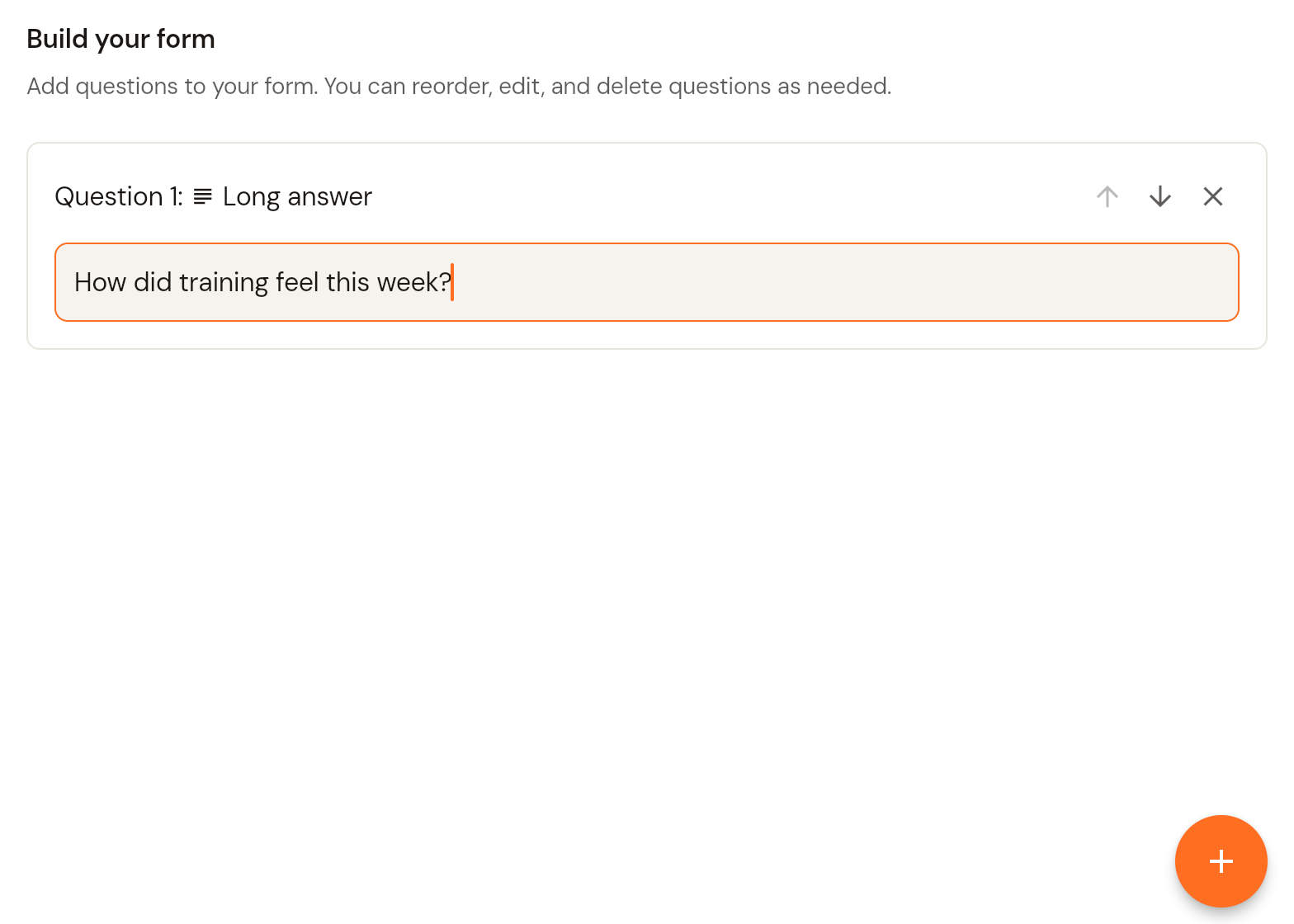
Each question appears as a card on the Build your form step. Enter the question text, then use the arrows to reorder or the x to remove it. Repeat for each question, then click Next.
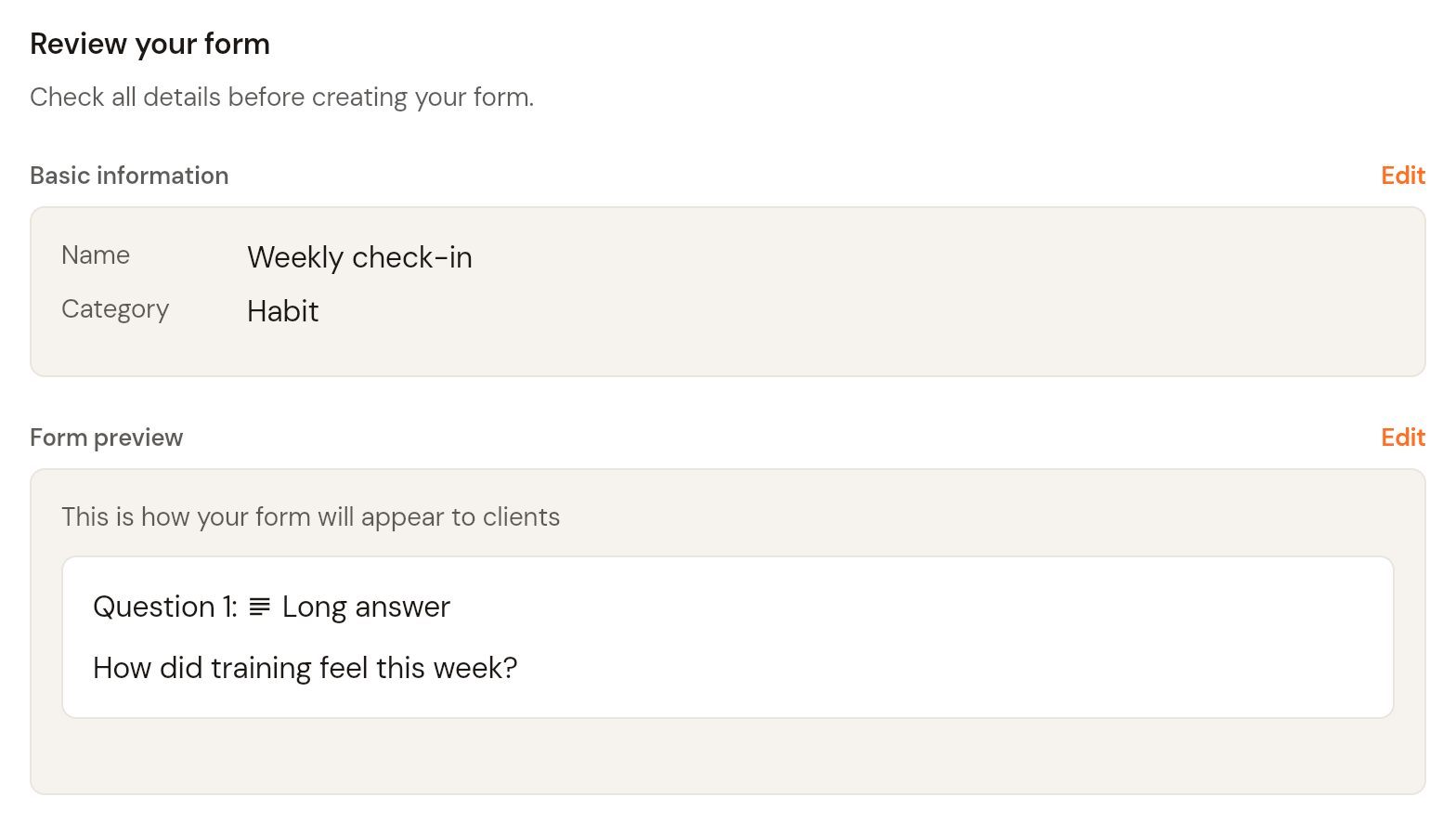
Review your form: check the name, category and the form preview (this is how it appears to clients). Use Edit to go back. Click Create Form. The form appears in your Forms list.
View or duplicate a form
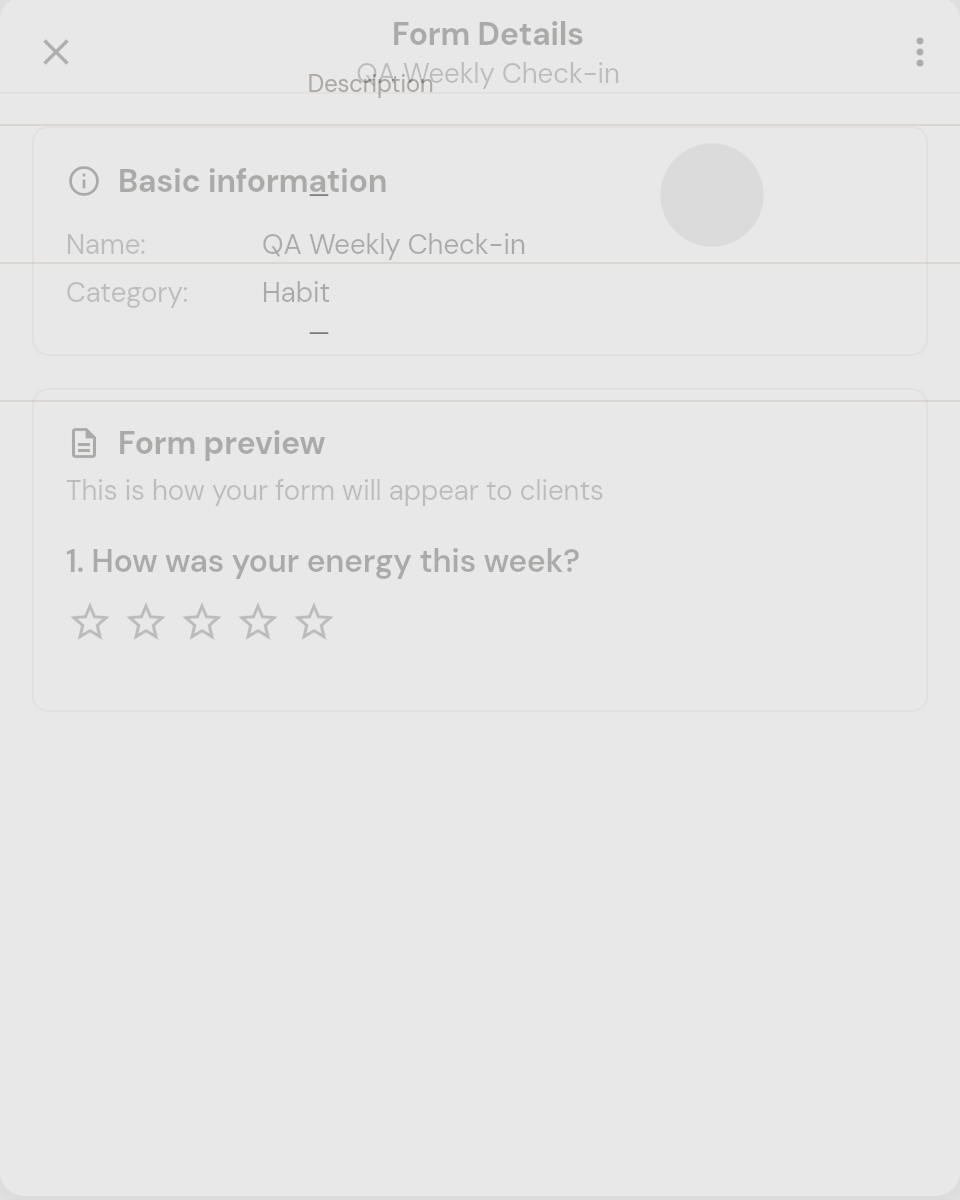
Click a form in the list to open Form Details, which shows its name, category and a preview of the questions. The three-dot menu in the top right has Duplicate, which creates a copy you can build on. Forms cannot be edited or deleted from the web app at the moment.
Use the form
Attach a Habit form to a Form-type habit (see How to create a habit) or a Service form to a service (see How to create a service). Read completed forms under Coaching > Form submissions.
Was this helpful?
Still need help? Share an idea