How to create and assign a nutrition plan to your client
Create a nutrition plan for a client with automatic or manual macro targets, then build it out with foods, recipes and meals.
Written By Jacob Elliott
Last updated About 2 months ago
Nutrition plans in CoreCoach are created for a specific client, so creating the plan and assigning it are one step. You set the macro targets (calculated automatically or entered by hand), then add meals, foods and recipes to the plan.
Start a plan
In the left menu, click Nutrition, then Nutrition plans. The page lists each client and how many active plans they have.

Click + New plan (top right) and choose the client. (You can also start from the Clients page: open the client's three-dot menu and choose Create nutrition plan.)
Choose the macro calculation method: Automatic calculates targets from the client's details and energy requirements; Manual lets you type protein, carbohydrate and fat targets yourself.
Automatic macros
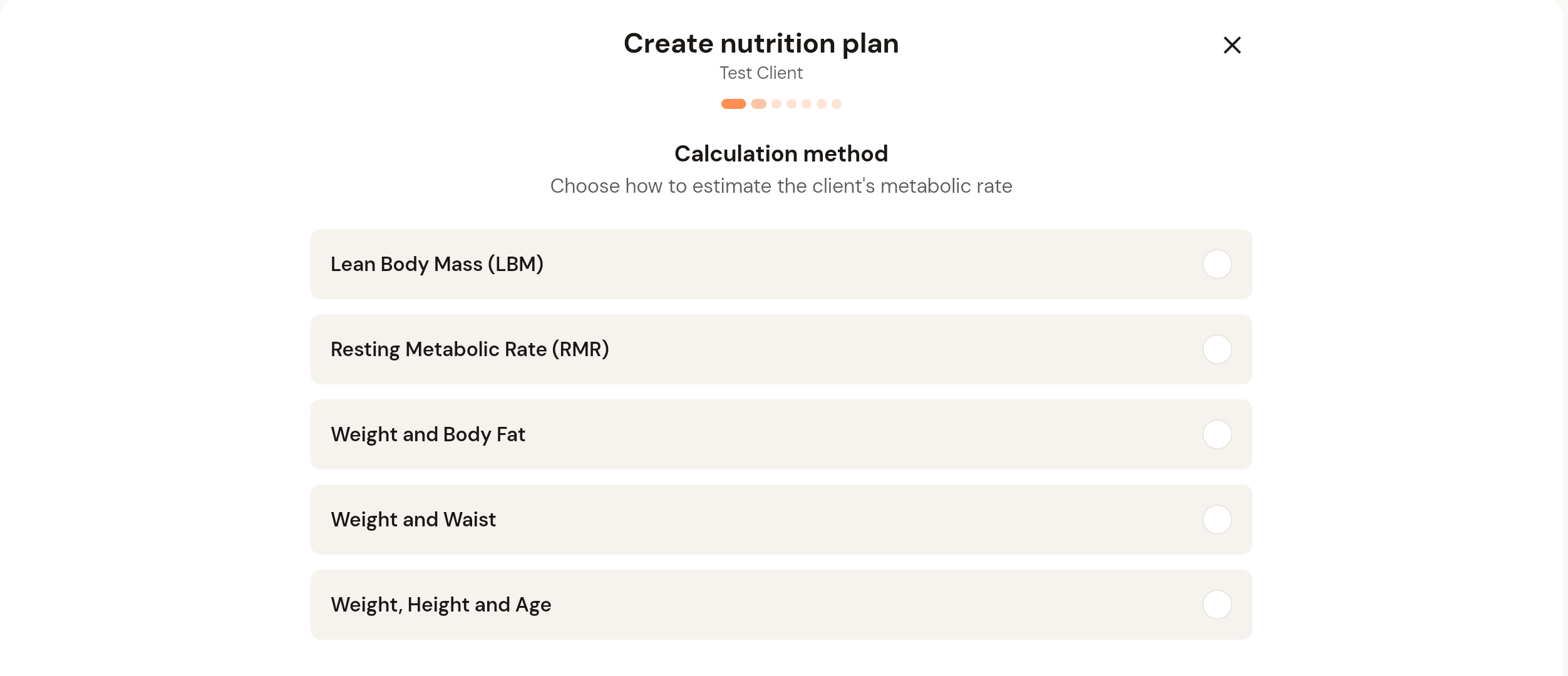
Calculation method: choose how to estimate the client's metabolic rate: Lean Body Mass (LBM), Resting Metabolic Rate (RMR), Weight and Body Fat, Weight and Waist, or Weight, Height and Age. Click Next.
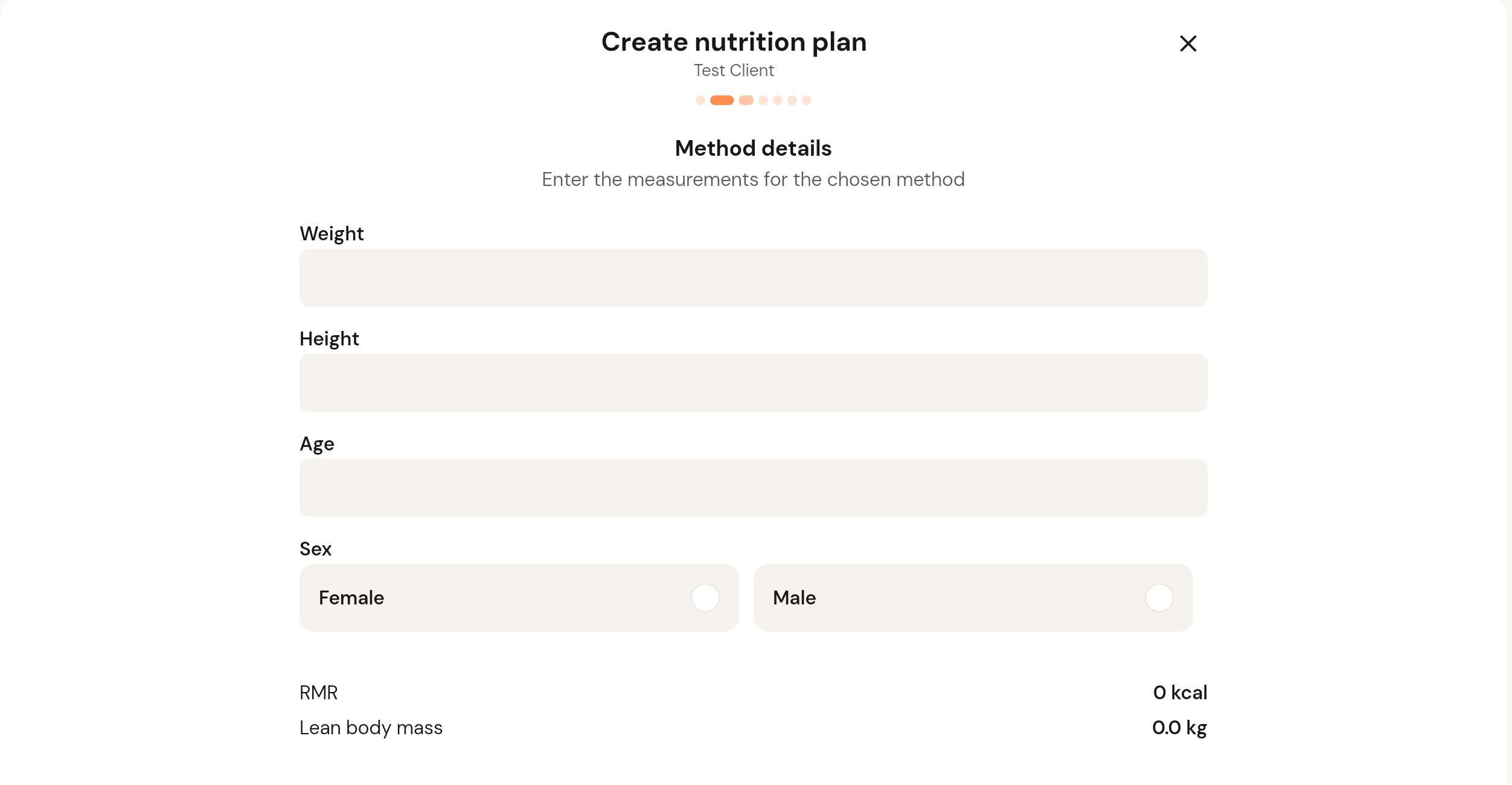
Method details: enter the measurements the method needs (for Weight, Height and Age: weight, height, age and sex). CoreCoach shows the resulting RMR and lean body mass as you type. Click Next.
Work through the remaining steps of the wizard (the dots under the title show your progress), then click Create plan. The plan is created for that client and appears under their name on the Nutrition plans page.
Manual macros
If you chose Manual, enter the protein, carbohydrate and fat targets yourself instead of the calculation steps, then continue to Create plan.
Manage a client's plans
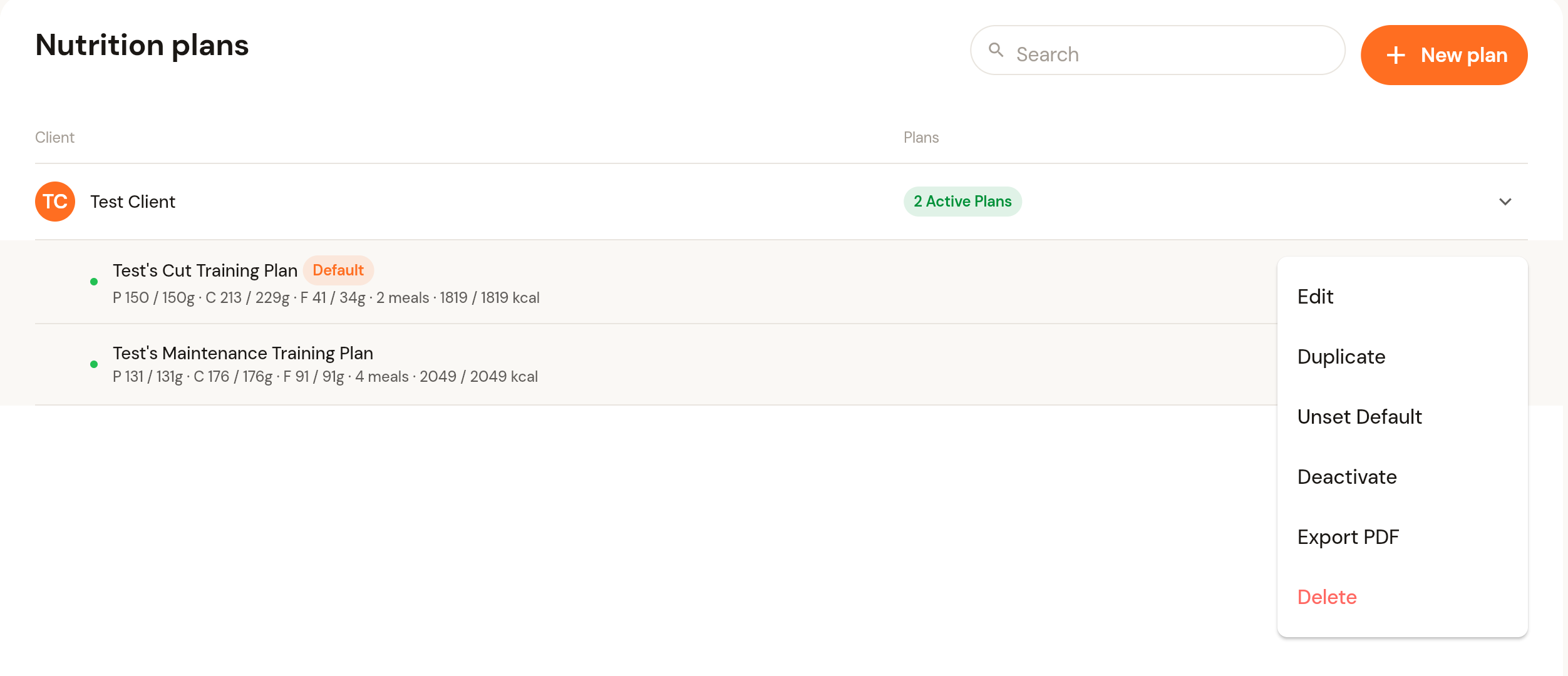
On the Nutrition plans page, click a client to expand their plans. Each plan shows its macro targets, number of meals and calories, and the Default tag marks the plan the client is currently following. The three-dot menu on a plan lets you Edit, Duplicate, Set or Unset Default, Deactivate, Export PDF or Delete it.
The plan editor
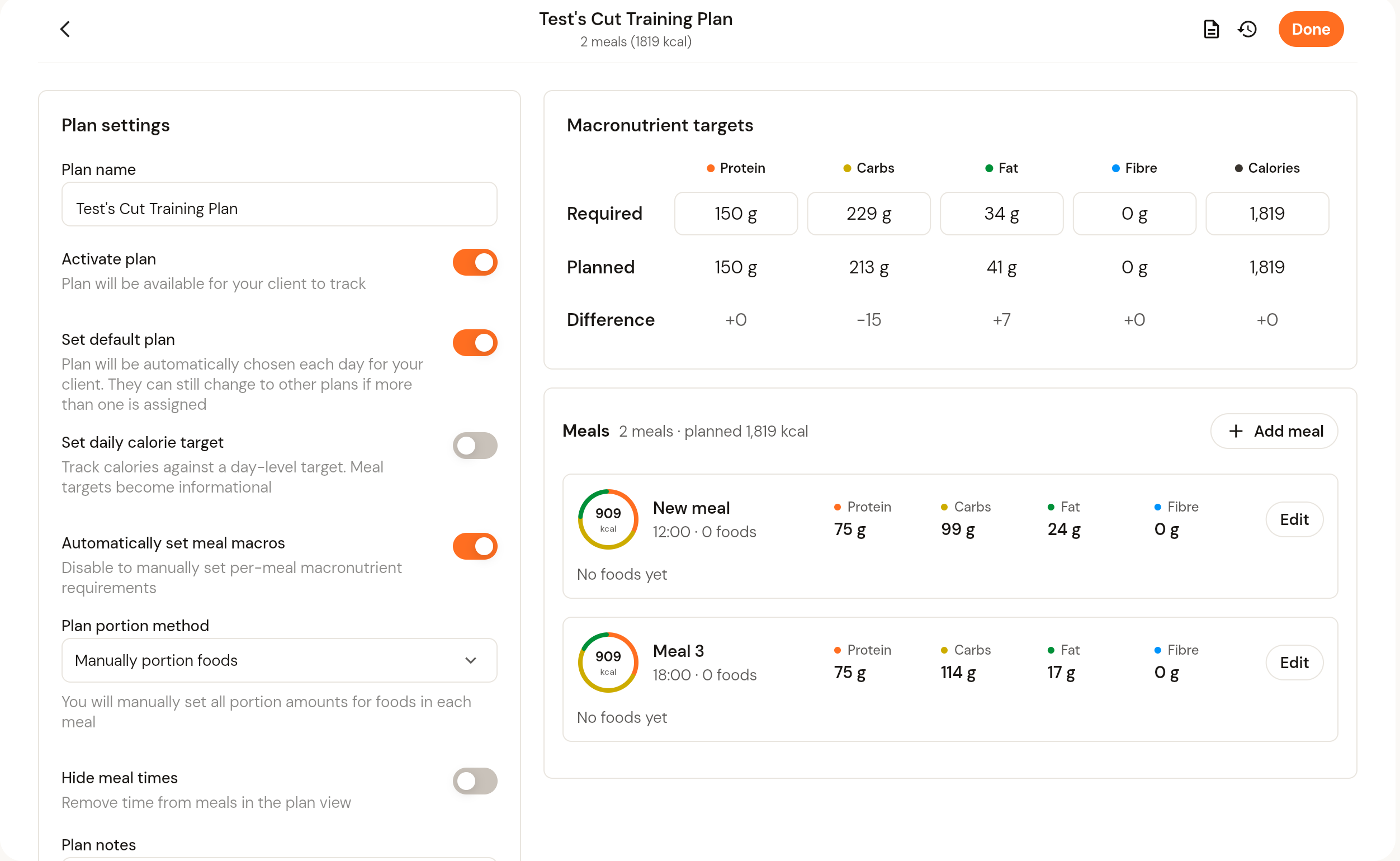
Choose Edit on a plan to open the editor. On the left are the plan settings:
Activate plan: makes the plan available for the client to track.
Set default plan: the plan is chosen automatically each day; the client can still switch to another plan if they have more than one.
Set daily calorie target: track calories against a day-level target; meal targets become informational.
Automatically set meal macros: turn off to set per-meal macronutrient requirements yourself.
Plan portion method: how portion amounts are set for foods in each meal.
Hide meal times and plan notes.
On the right are the macronutrient targets (required, planned and the difference) and the meals. Click + Add meal to add a meal, and Edit on a meal to add foods and recipes to it. See How to add foods and recipes to a client's nutrition plan. Click Done when you finish.
Was this helpful?
Still need help? Share an idea