How to create a custom food

How to create/edit a custom food in CoreCoach

Jacob Elliott avatar
Written by Jacob Elliott
Updated over 2 months ago

Video walkthrough of how to create a custom food

Creating a custom food in CoreCoach is made simple. Here is a step by step guide below.

Navigate to the nutrition tab, once you are in the nutrition tab, you will see my food tab.

This is where you can see and edit all of the customs food you have created.

Lets walk through how to create a custom food.

Hit the "+ Custom food" button.

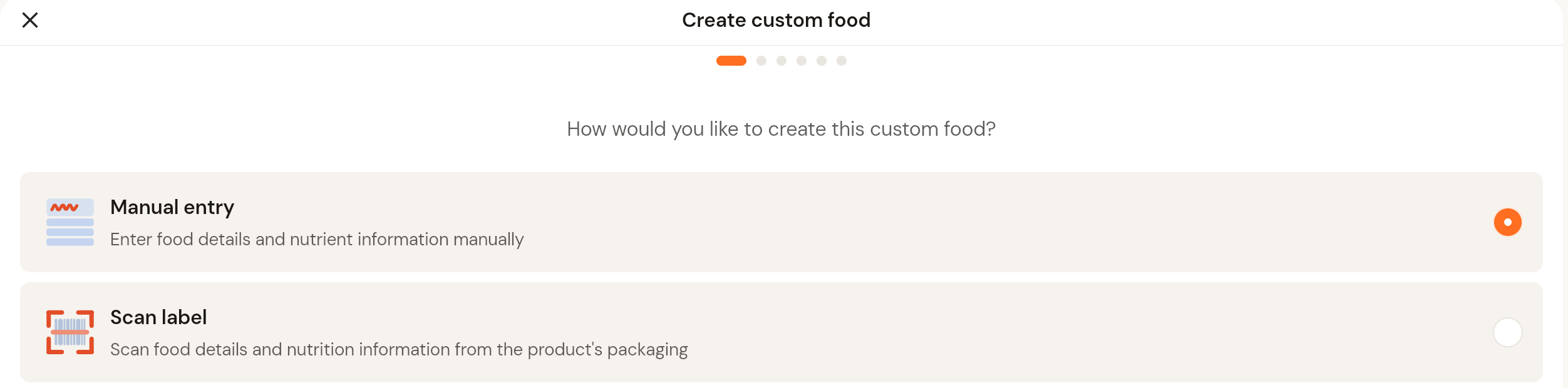
This will take you to the first page were you can select either to manually create/add your custom food, or you can scan the label/barcode of a food you are looking to add in.

For this resource we will use the manual entry.

Once you hit next you will be taken to the custom food details page.


Food Details & Servings

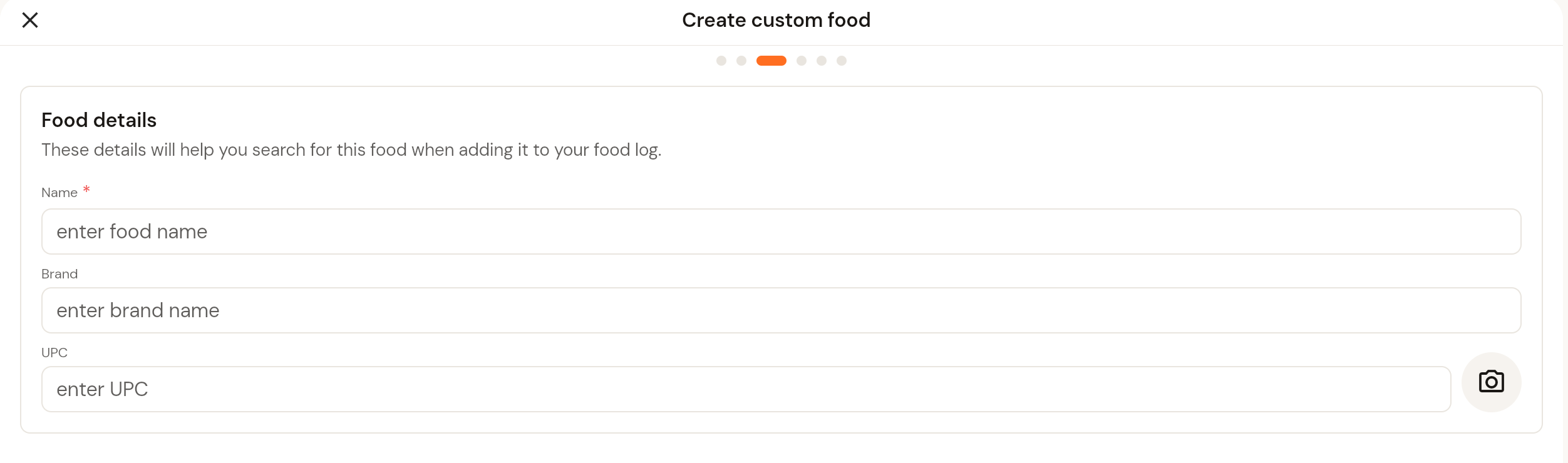
This page is where you add the basic details and serving sizes for the custom food you’re creating. These details will help you (and your clients) easily search for and log the food later.

  • Name – Give your food a clear name (e.g. “Beef Broth”).

  • Brand – (Optional) Add the brand name if it’s a store-bought food.

  • UPC – If your food has a barcode, you can enter it manually or scan it with the camera icon.

Servings

  • Unit – Select the unit type (grams, ml, etc.) to measure the food.

  • Name – Label the serving size (e.g. “serving” or “slice”).

  • Size – Enter the weight or volume of one serving (e.g. 100 g).

  • You can also add additional serving sizes if needed (e.g. 1 slice = 50 g, 1 whole cake = 400 g).

Once you’ve entered these details, tap Next to continue building your custom food.


Nutrient Details Page

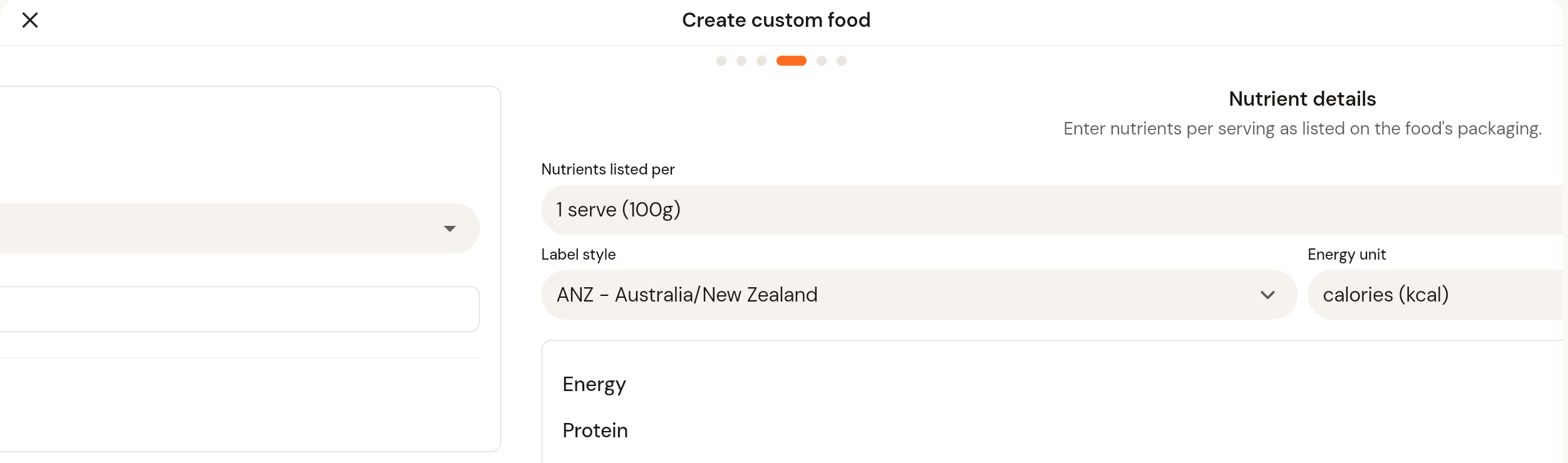
On this page, you will enter the nutrition information for your custom food. This data should be copied directly from the nutrition label of the food’s packaging.

At the top, you can select:

  • Nutrients listed per – Choose the serving size or measurement used on the packaging (e.g., per 100g, per serving).

  • Label style – Select the label region format (e.g., ANZ – Australia).

  • Energy unit – Choose whether energy is displayed in calories (kcal) or kilojoules (kJ).

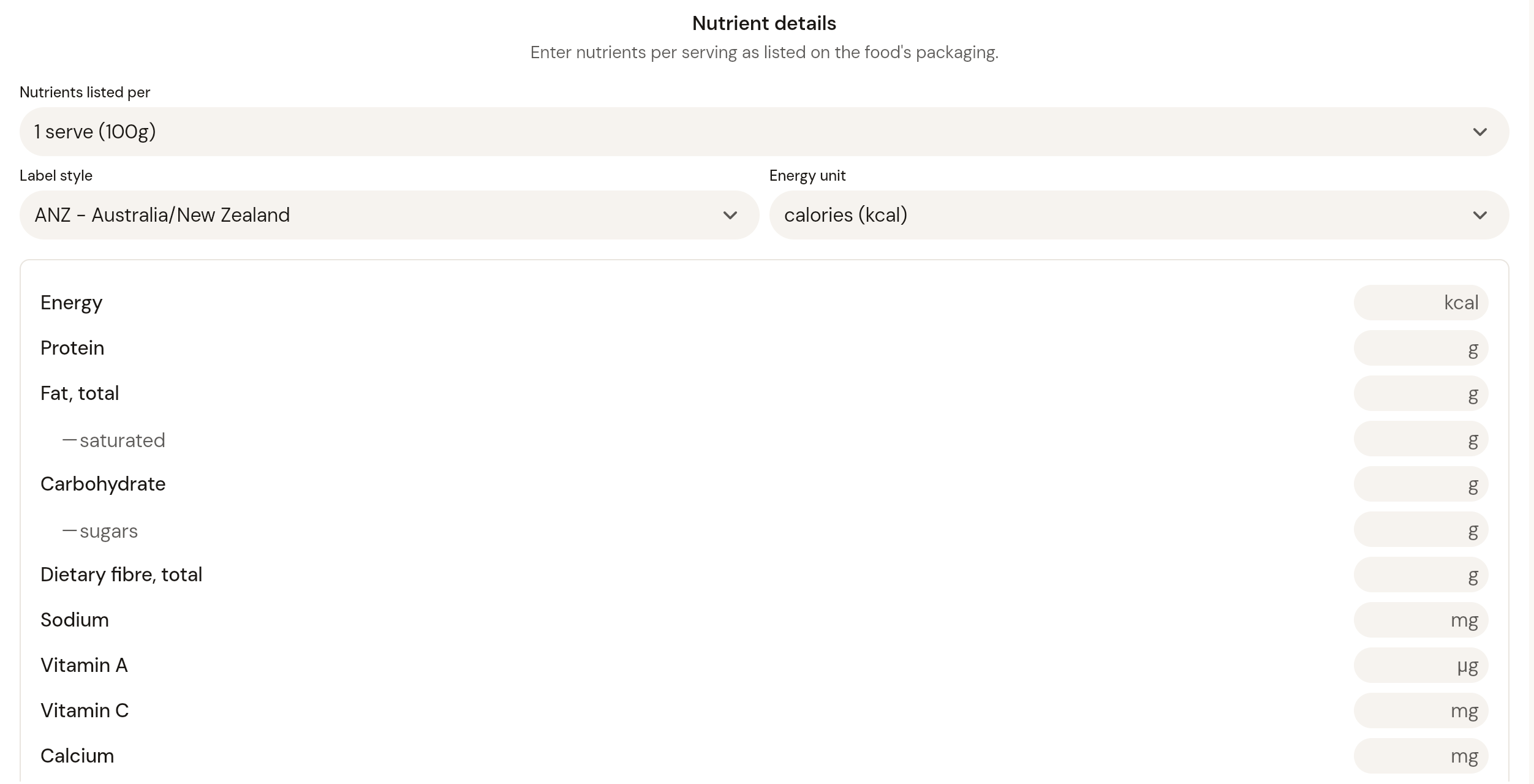
Below, you’ll see fields to enter the actual nutrient values. These include:

  • Energy (calories/kJ)

  • Protein

  • Fat, total

    • Saturated fat

  • Carbohydrates

    • Sugars

  • Dietary fibre

  • Sodium

  • Vitamins and minerals

As you scroll, you can fill in all the relevant nutrients exactly as shown on the label. Any fields that don’t apply can be left blank.

Once complete, press Next to continue building your custom food.


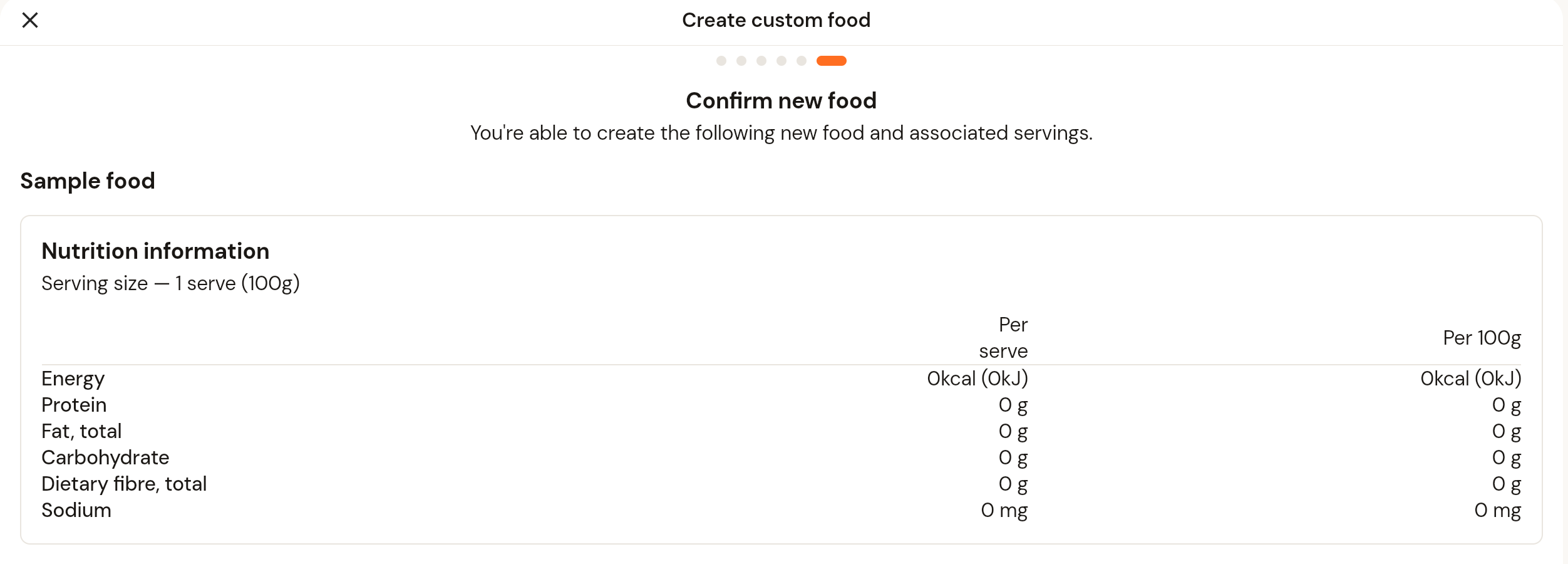
Confirm New Food Page

This is the final step before saving your custom food. On this page, you’ll see a summary of the food you’ve created, including:

  • Food name and brand (e.g., Beef broth – Coles)

  • Nutrition Information – displayed per serving and per 100g (or the serving size you selected earlier).

Double-check that all details (energy, protein, fat, carbohydrates, sodium, etc.) are correct and match the packaging.

If everything looks good, tap Finish to save your custom food. Once saved, it will be available for you (and your clients, if assigned) to log in their nutrition tracking.

If you need to make changes, press Back to return and edit the information.


View Your Custom Food

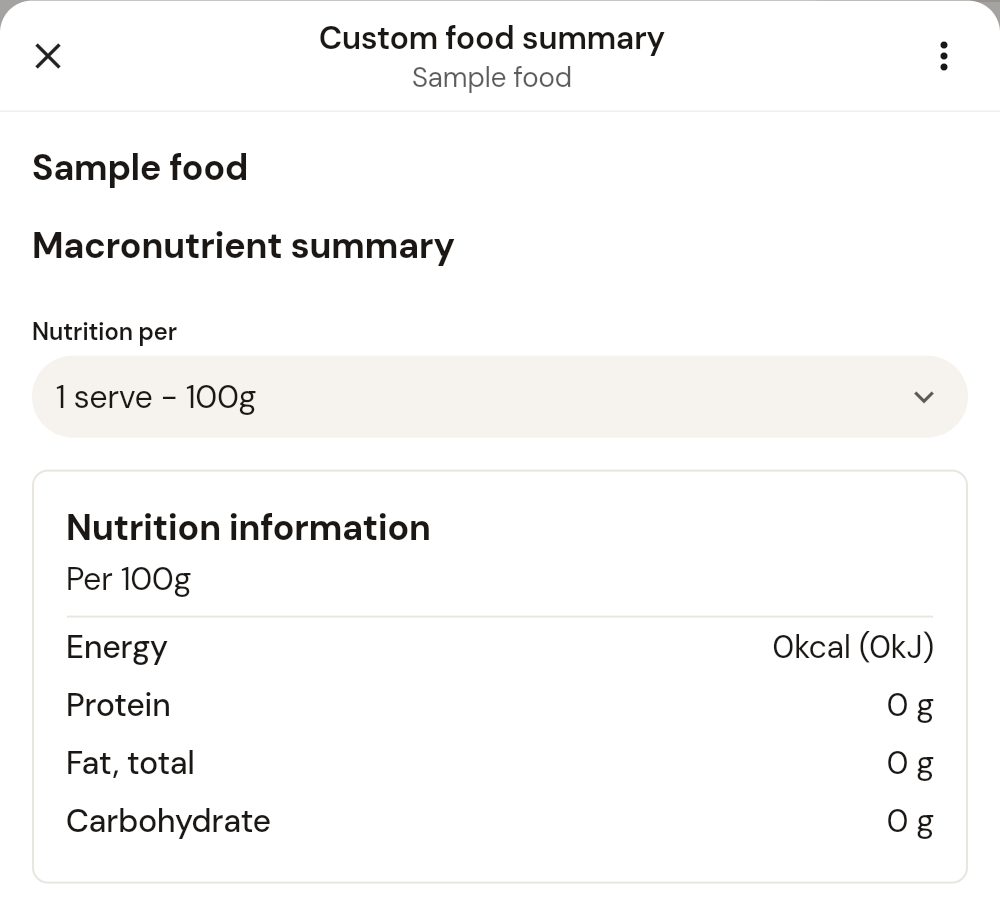
Once you tap Finish, your new food will be saved and added to your My Foods list.

  • You’ll see the name, calories per 100g (or serving), and a quick breakdown of protein, carbs, and fat.

  • From here, you can search for your food at any time and add it into meal logs or plans.


Editing or Deleting Custom Foods

If you tap on a food from your My Foods list, you’ll open its summary page.
From here, tap the three dots in the top-right corner to either:

  • Edit custom food – update the name, brand, serving size, or nutrition details.

  • Delete custom food – remove it from your list entirely.

Did this answer your question?