How to add foods and recipes to a client's nutrition plan
Add meals to a client's plan, then fill each meal with foods from the database, your own foods, and your recipes.
Written By Jacob Elliott
Last updated About 2 months ago
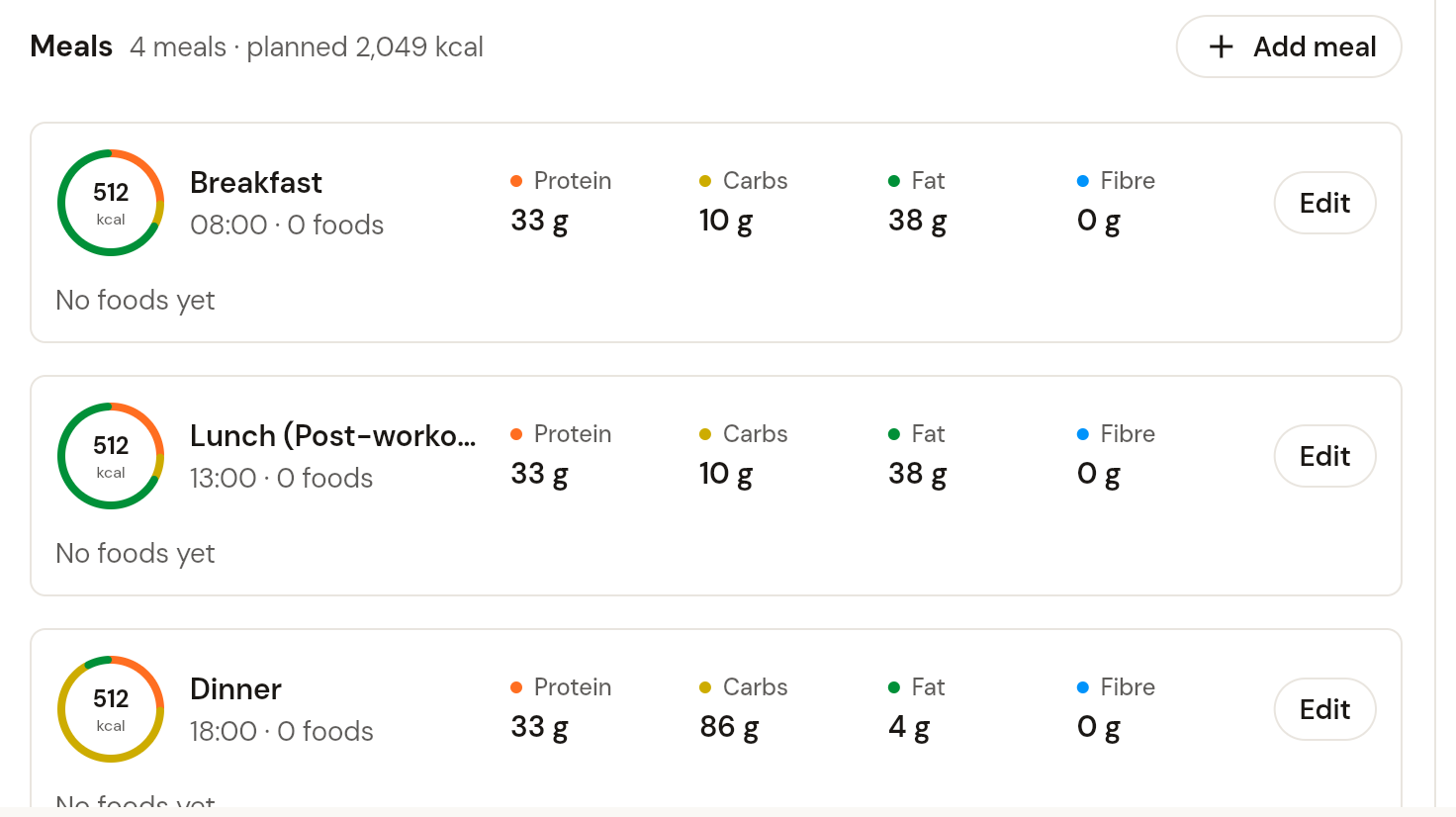
A nutrition plan is made of meals, and each meal holds foods and recipes. You add them in the plan editor.
Open the plan editor
In the left menu, click Nutrition, then Nutrition plans.
Click the client to expand their plans, click the three-dot menu on the plan and choose Edit.
The Meals panel on the right lists every meal with its time, macro targets and the foods already in it.
Add a meal
Click + Add meal at the top of the Meals panel. Then click Edit on a meal to open it: set its name, time, optional notes, and (if you have turned off automatic meal macros) its protein, carbs, fat and fibre targets.
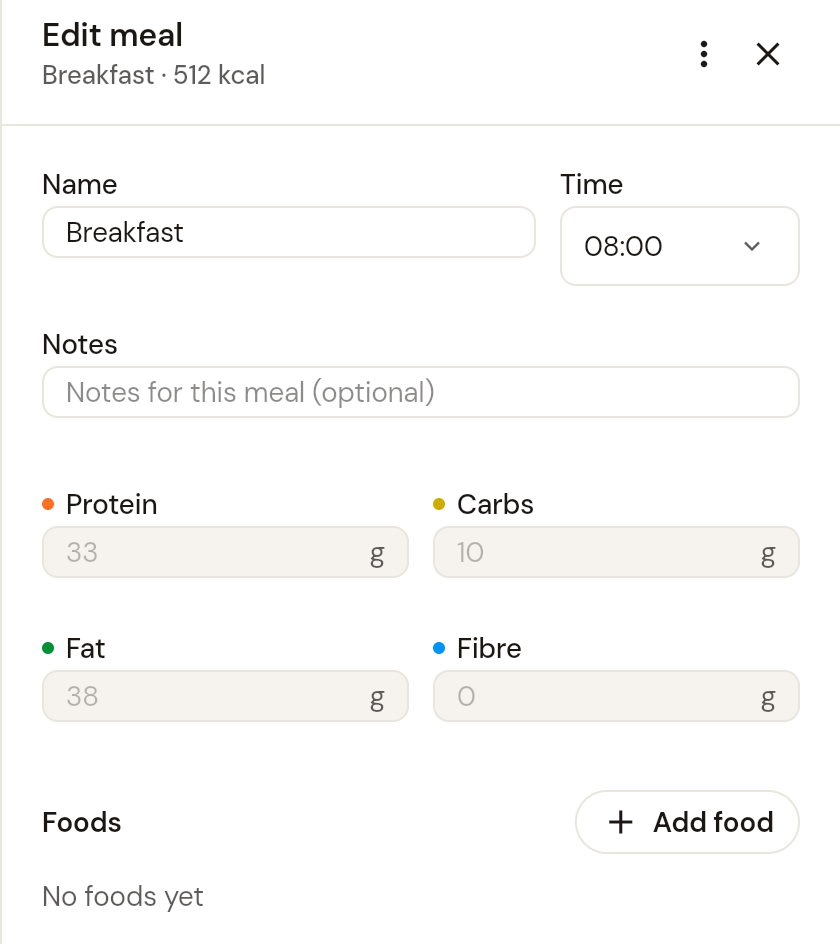
Add foods and recipes to a meal
In the meal panel, click + Add food.
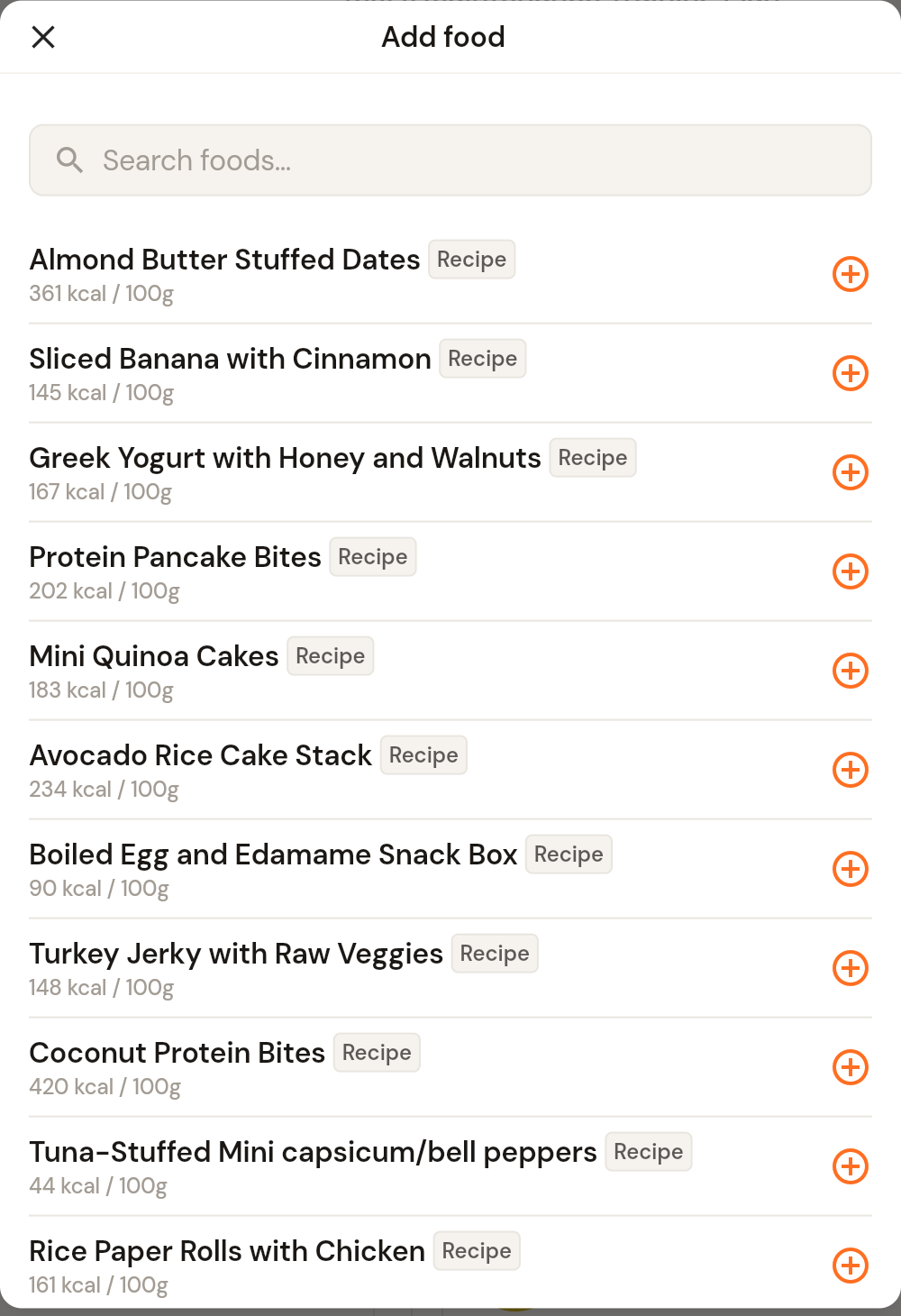
Search by name. The list includes foods from the database, foods you have created under My foods, and your Recipes (tagged Recipe). Each row shows calories per 100 g.
Click the + on a row to add it to the meal.
With the plan portion method set to Manually portion foods, set the portion amount for each food in the meal's Foods list. With Auto portion foods, CoreCoach suggests portions to hit the meal target.
Close the meal panel. The meal card now shows its planned macros against its target, and the Planned and Difference rows under Macronutrient targets update for the whole day.
Click Done to save the plan.
The three-dot menu in the meal panel lets you duplicate or delete the meal. To create foods and recipes of your own first, see How to create a custom food and How to create a custom recipe.
Was this helpful?
Still need help? Share an idea