How to create a custom recipe in CoreCoach (Manually)
How to manually add a custom recipe in CoreCoach
Written By Jacob Elliott
Last updated 6 months ago
Steps to Create a Custom Recipe
1. Go to the Nutrition Page
From the bottom navigation bar, tap Nutrition, then select Recipes.
Here, you’ll see a list of all your existing custom recipes.
If you haven’t created any yet, this page will be blank.
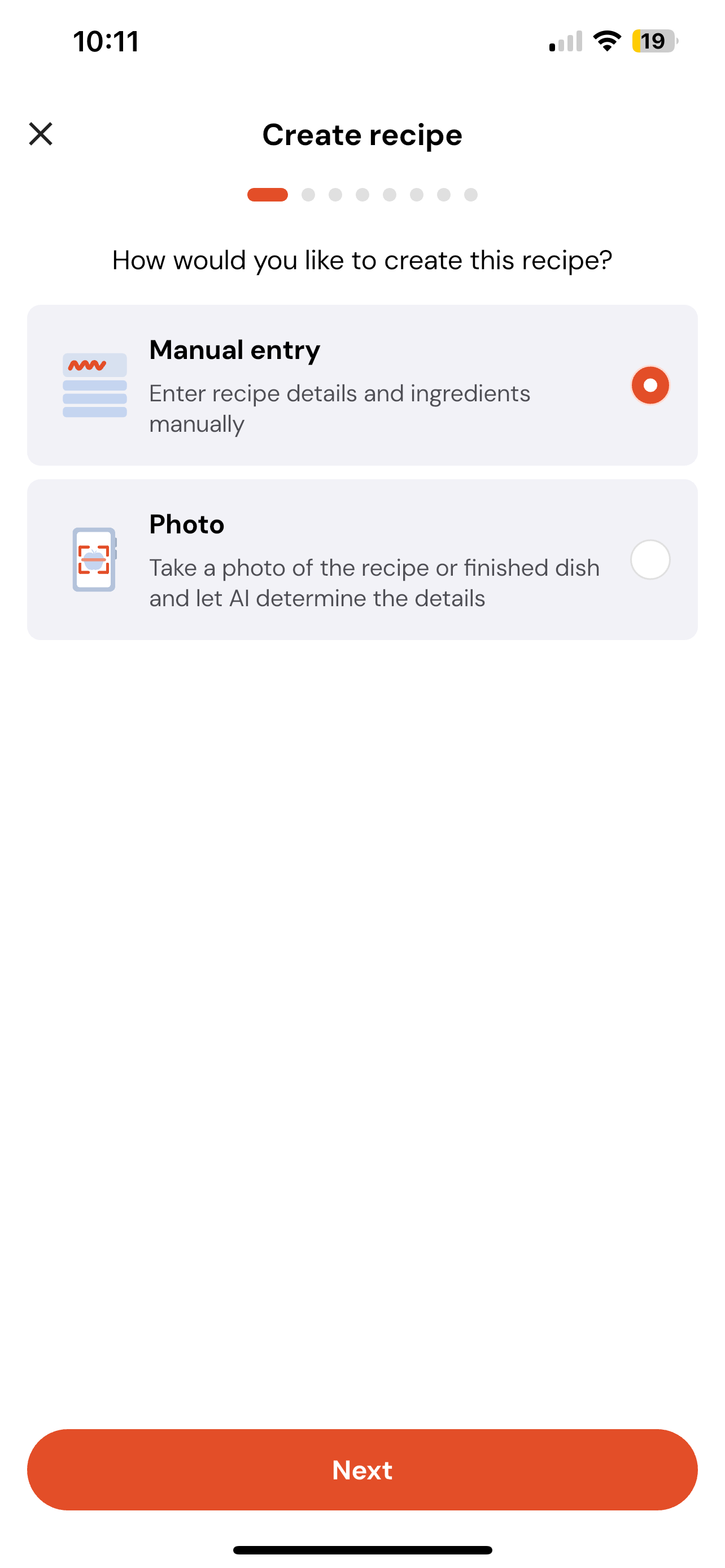
2. Start a New Recipe
Tap the + Recipe button.
Select Manual Entry — this will open the Ingredients page.
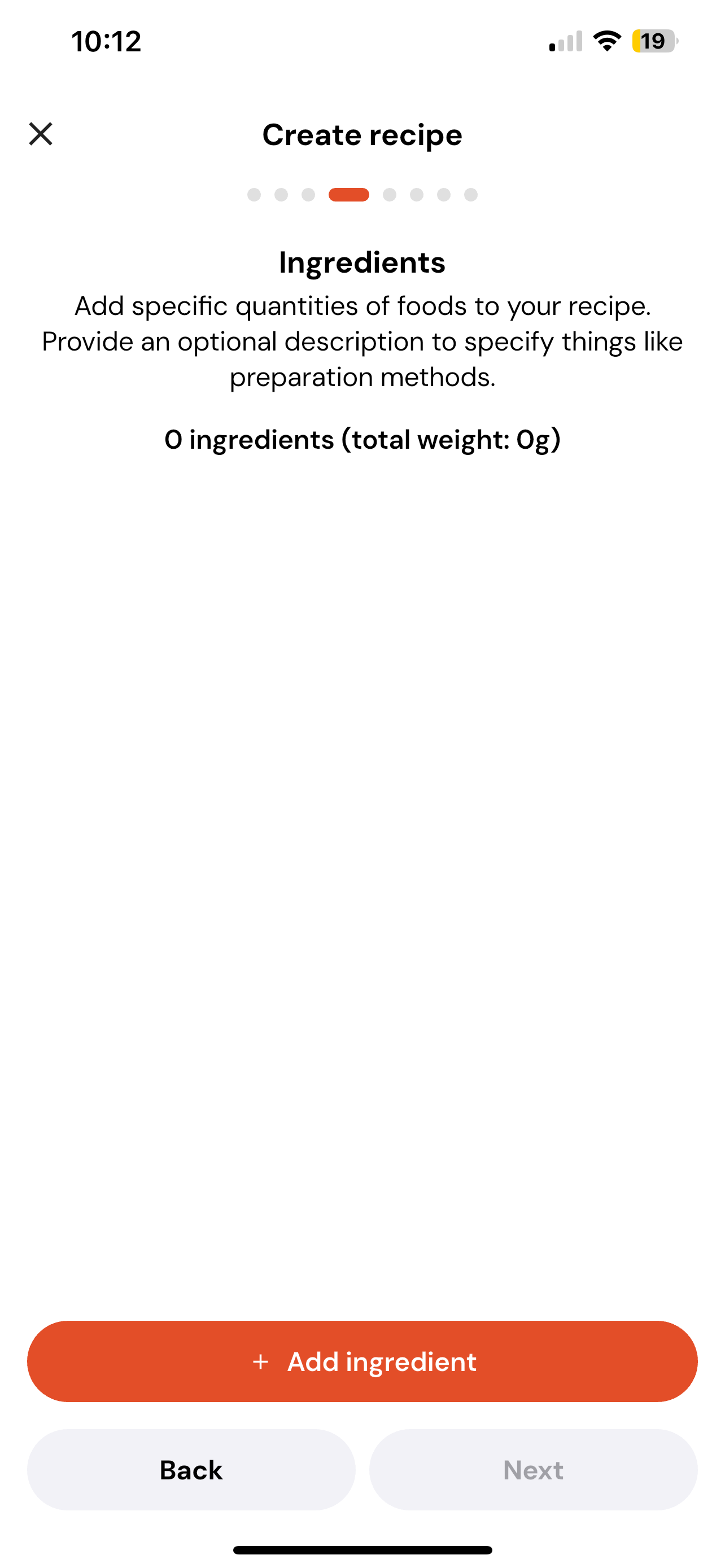
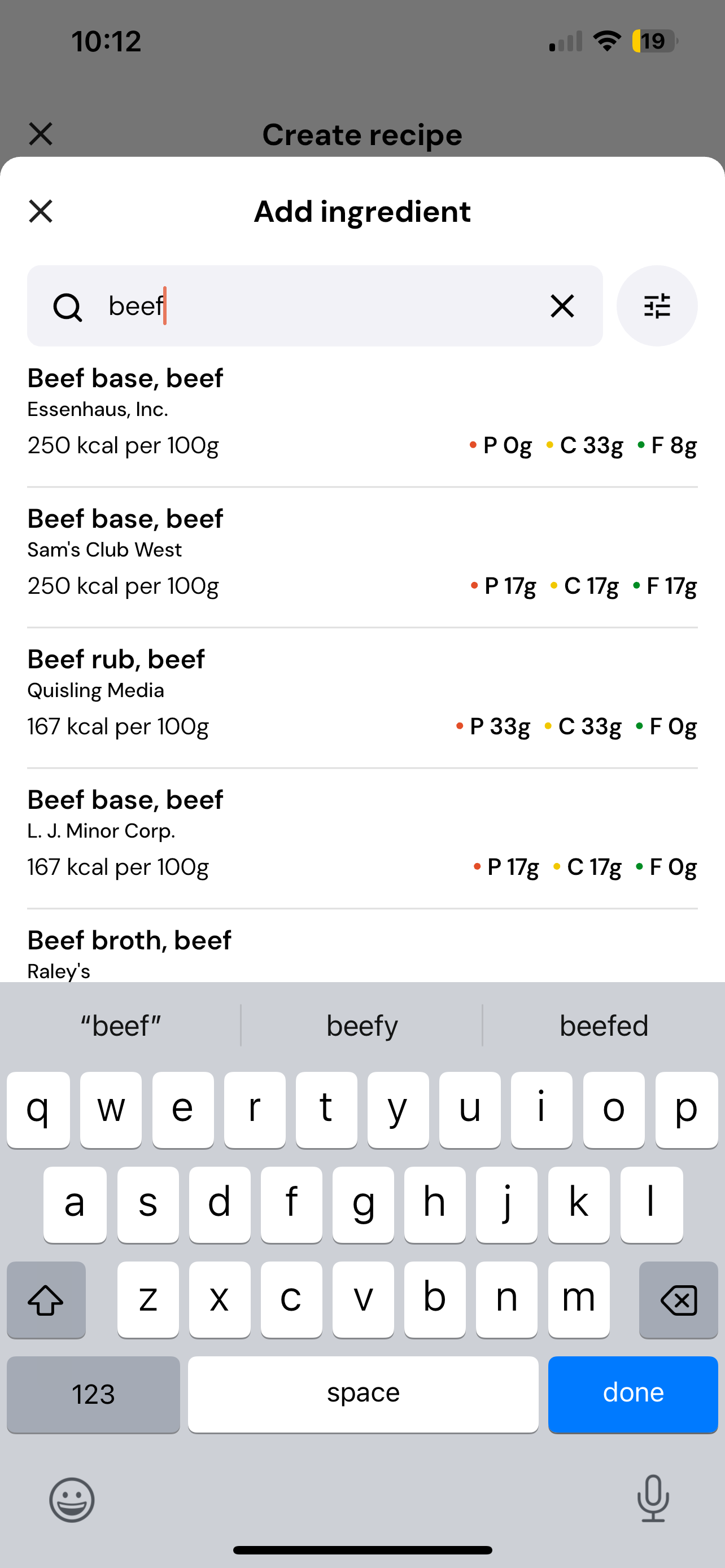
3. Add Ingredients
On the Ingredients page, you can add all the ingredients that make up your recipe.
For each ingredient, enter the name and weight (e.g., 100g chicken breast, 50g rice).
Once you’ve added all ingredients, tap Next.
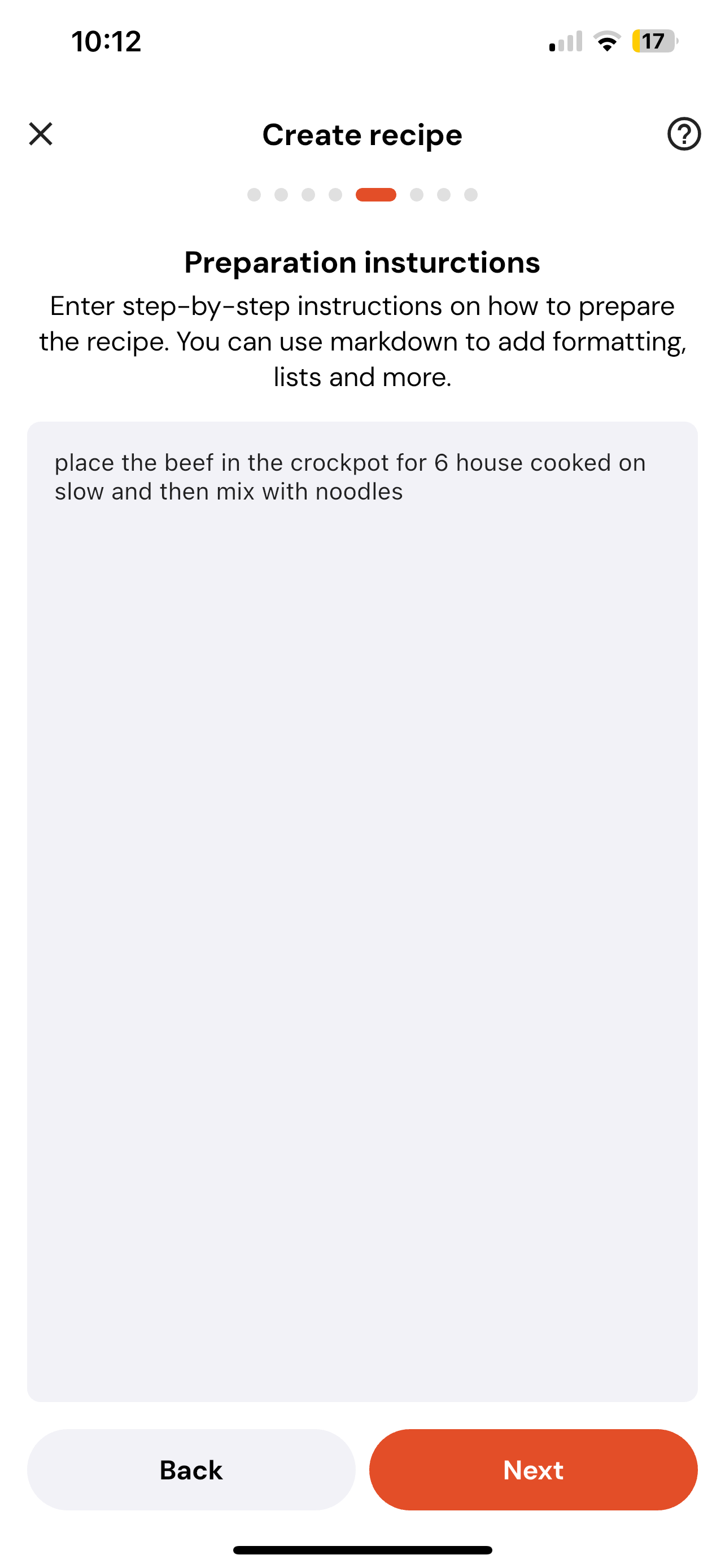
4. Add Preparation Instructions
You’ll now be taken to the Preparation Instructions page.
Write out how to prepare your recipe — include cooking methods, times, or special notes.
When finished, tap Next.
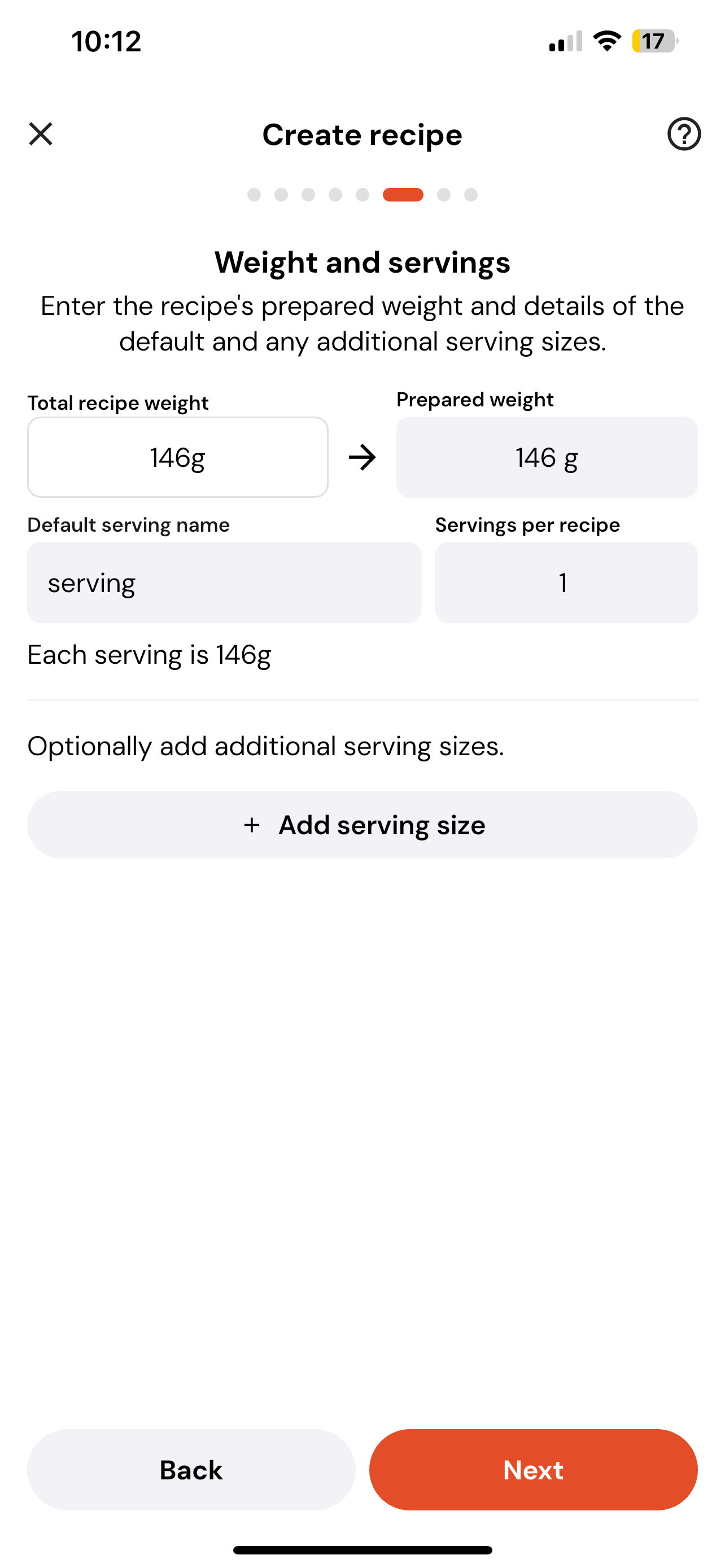
5. Set Weight and Servings
On the Weight and Servings page, enter:
The total recipe weight
The prepared weight
The serving size(s)
You can add multiple serving options if needed.
When done, tap Next.
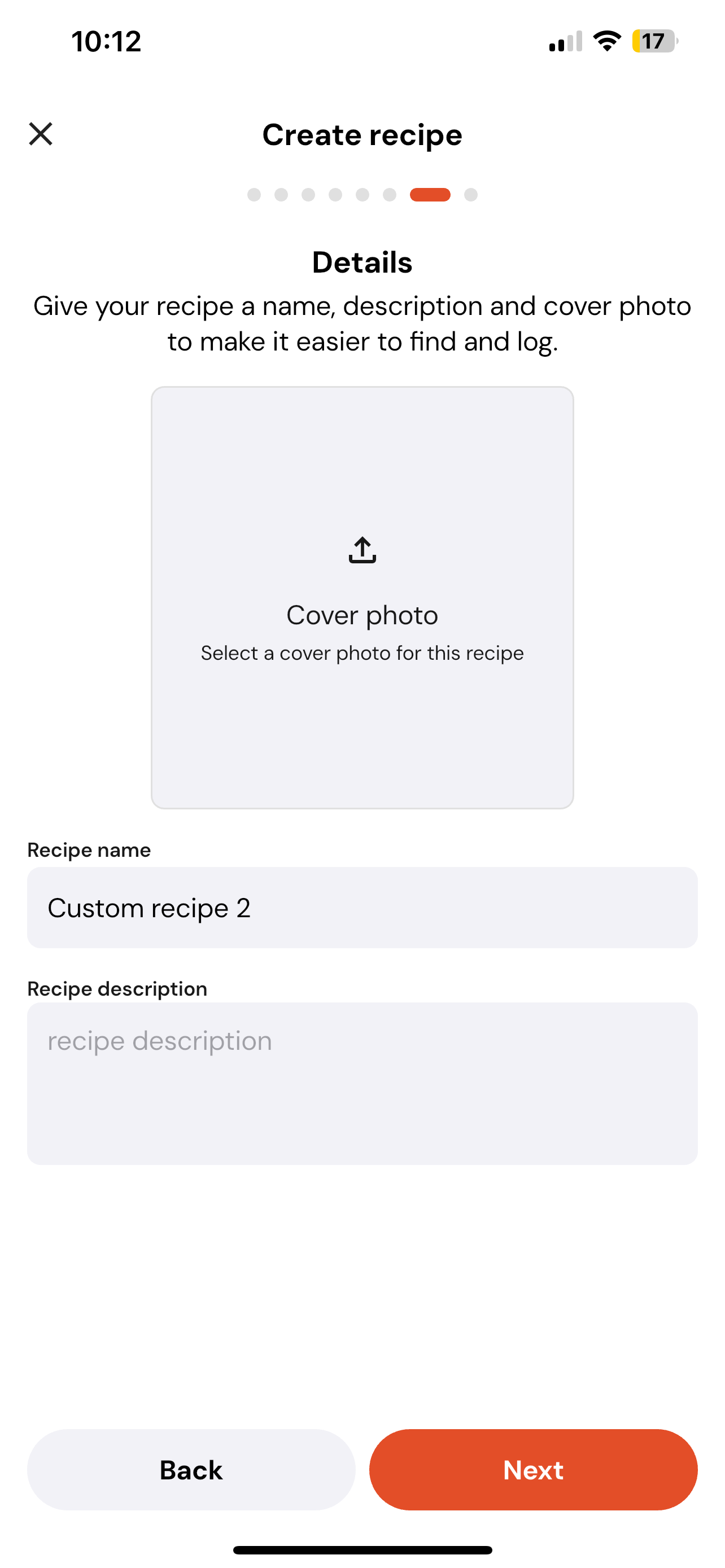
6. Add Recipe Details
On the Details page, you can:
Upload a cover photo
Enter a recipe name
Add a description
Once completed, tap Next.
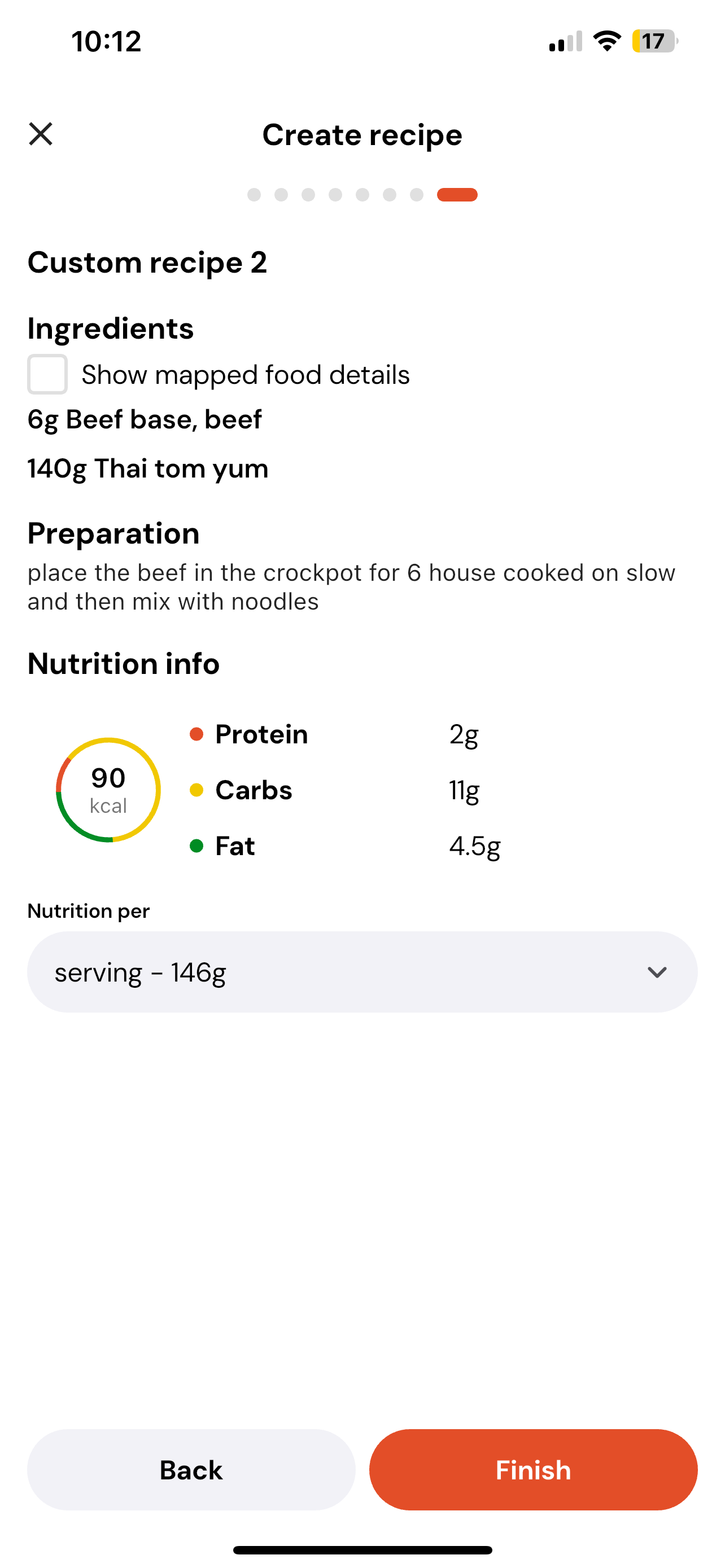
7. Review and Save
You’ll now see a final review of your recipe.
Double-check all details, ingredients, and servings to make sure everything is correct.
If you’re happy, tap Finish to save your recipe.
Your custom recipe will now appear in your Custom Recipe List under the Nutrition tab.