How to create a custom food (automatically)
How to automatically a custom food in CoreCoach
Written By Jacob Elliott
Last updated 6 months ago
1. Navigate to the Nutrition Tab
From the bottom navigation bar, go to the Nutrition tab, then tap My Foods.
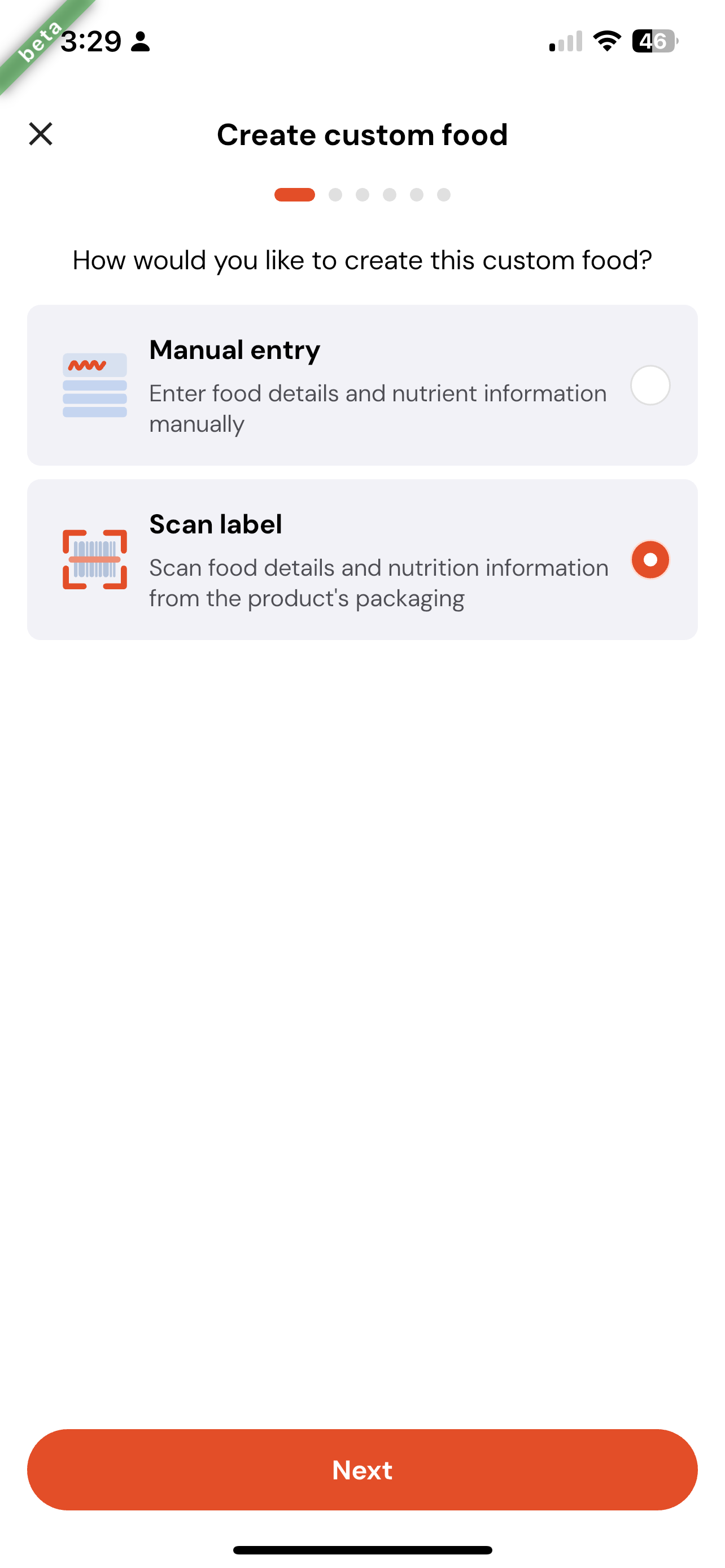
2. Choose How to Create the Food
When prompted, select Automatic Entry to create your food using the scan feature.
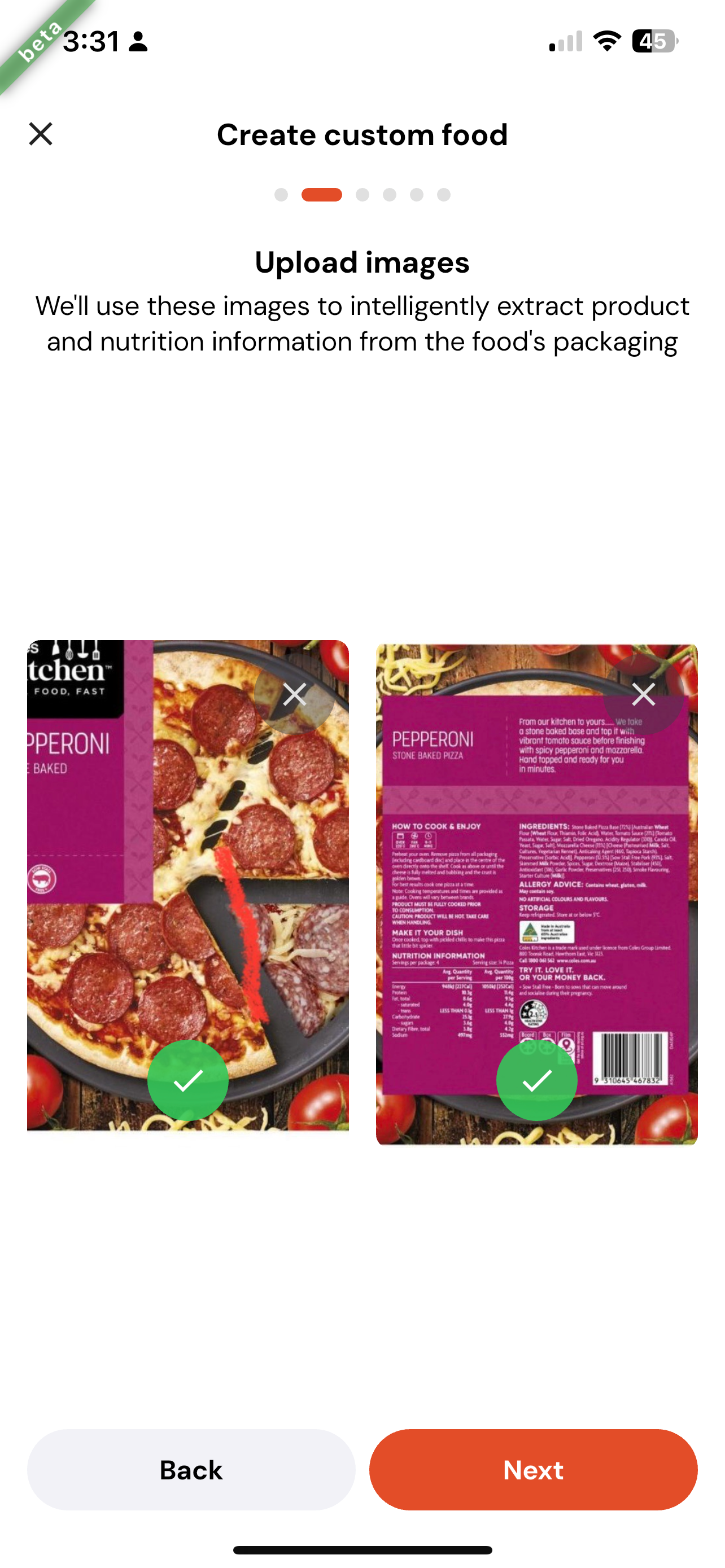
Next, you’ll be taken to a page where you can upload the front and back of the food packaging.
Upload the photos in the provided sections, then tap Next once done.
3. Food Details & Servings
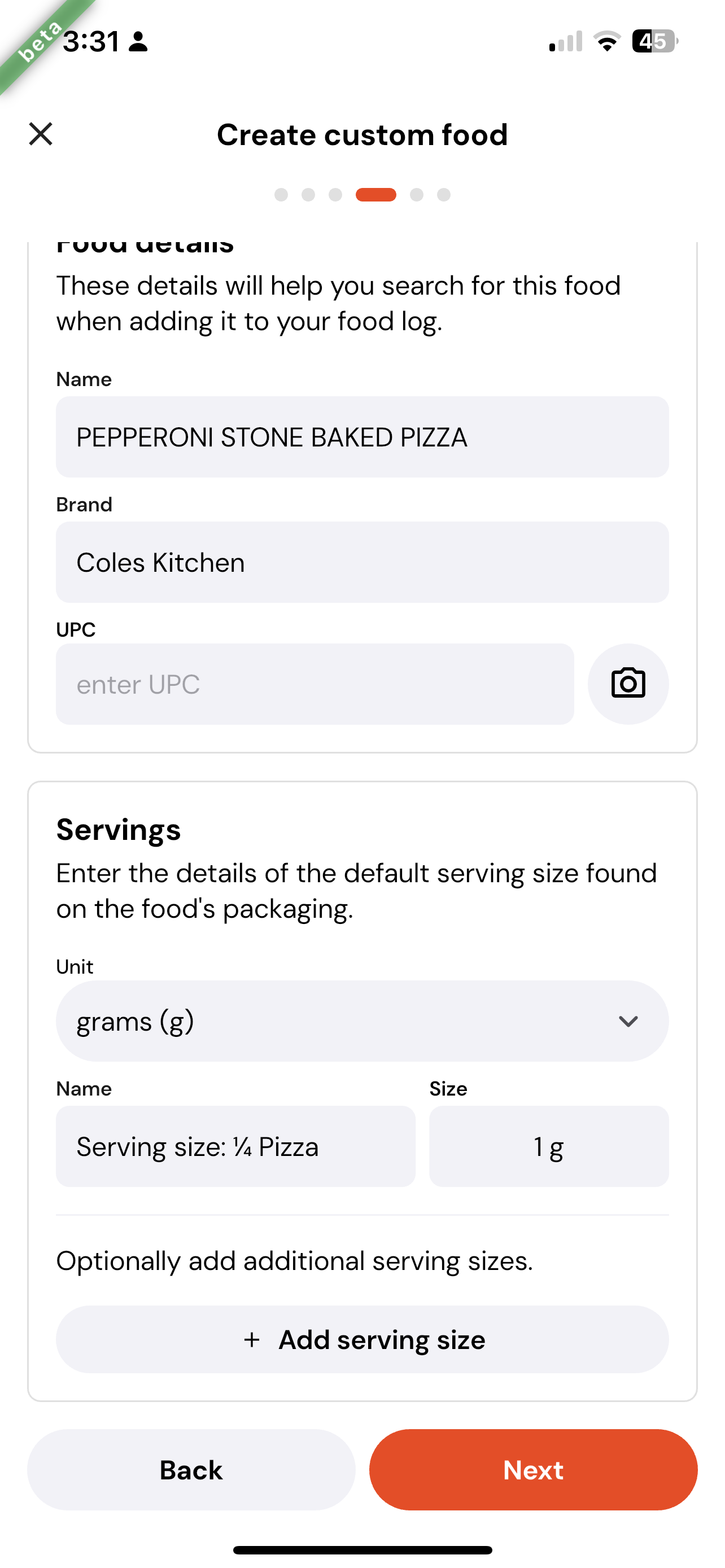
After scanning your label or entering details manually, you’ll reach the Food Details & Servings page.
This screen helps you confirm or edit the key information about your food and how serving sizes are logged.
Food Details
Here, you’ll see the general information about the food:
Name – The name used to find the food in your log.
Brand – The company or manufacturer.
UPC – (Optional) The barcode number from the packaging. You can type it in or use the camera icon to scan.
Adding these details ensures your food is easy to search and track later.
Servings
This section defines how serving sizes are displayed and calculated in your log.
You can adjust:
Unit – The measurement unit (grams, millilitres, etc.).
Name – The serving name (¼ Pizza, Cup, Slice, etc.).
Size – The weight or volume for one serving (1 g, 100 g, etc.).
You can also tap + Add serving size to include more serving options.
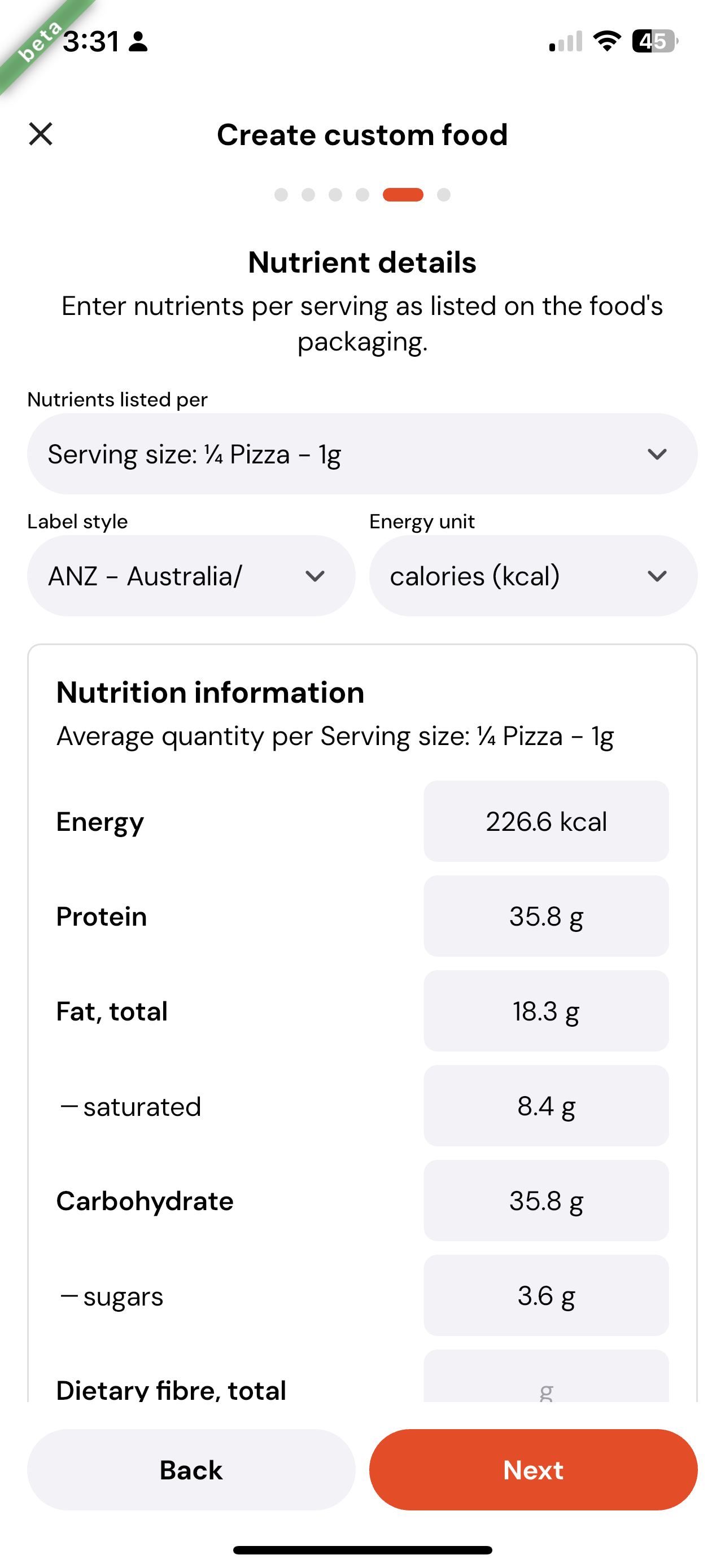
4. Nutrient Details
Next, you’ll be taken to the Nutrient Details page.
Here, you can review or enter the nutrient information from the food label.
You can adjust:
Nutrients listed per – Choose whether values are based on per serving or per 100 g/ml.
Label style – Select your region’s label format.
Energy unit – Choose between Calories (kcal) or Kilojoules (kJ).
Then, fill in the nutrition values shown on the packaging, including energy, protein, fat, carbohydrates, fibre, and sodium.
You can also add any additional nutrients listed on the label.
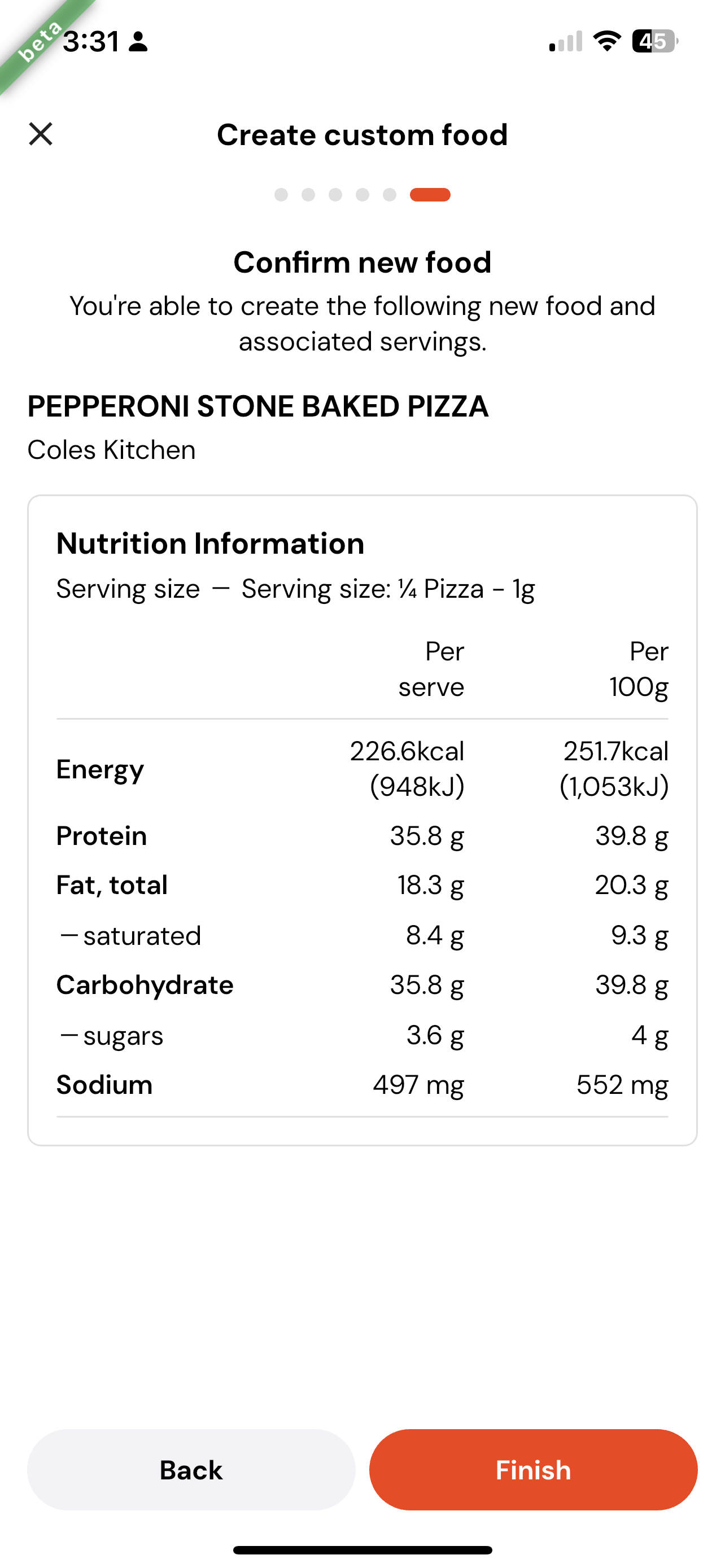
5. Confirm New Food
The Confirm New Food page is the final step before saving your custom food.
This screen shows a summary of all your details, including the name, brand, serving size, and full nutrition table.
Take a moment to review everything carefully. If you need to make changes, tap Back to edit.
Once you’ve confirmed all the details are correct, tap Finish to save your new custom food.
After saving, your food will appear in your Custom Foods list and can be added to your daily nutrition tracking.